Windows Update has restarted someone’s PC during a presentation in every office on Earth. The urge to stop it entirely is understandable, and the internet is full of registry hacks promising exactly that. So let’s be straight about what this guide is: the legitimate ways to pause, schedule and control Windows Update — and an honest explanation of why “off forever” is the one setting Microsoft doesn’t offer, and why the hacks that fake it tend to hurt the people who use them.
First, work out which problem you are actually solving
Almost nobody who searches how to stop Windows Update wants to stop updating. They want to stop one specific thing that Windows Update does to them, and the right fix is completely different depending on which one it is. Choosing the wrong method is how people end up with an unpatched machine to solve a problem that a single setting would have fixed.
Read the four below and find yours before touching anything.
Problem one: it restarts while you are working
You step away, come back, and the machine has rebooted. Open documents were saved by the applications that bother to save, and lost by the ones that do not. This is the most common complaint by a wide margin, and it is also the easiest to fix properly.
You do not need to stop updates for this. You need to control when the restart happens, which is what active hours and the restart scheduling options exist for. Turning updates off to prevent a badly timed reboot is like disconnecting a smoke alarm because it beeped at a bad moment.
Problem two: it eats the internet connection
Downloads slow to nothing, video calls stutter, and it is the update service pulling gigabytes in the background. On a fast unmetered connection this is invisible. On a slow line, a mobile hotspot, or a household where several people share limited bandwidth, it is a genuine problem.
The fix here is bandwidth control and metered connections, not disabling updates. Windows has settings specifically for this and most people have never opened them.
Problem three: a feature update changed something you depend on
This is the serious one. A twice-yearly feature update is effectively a new version of Windows, and it can change driver behaviour, break an old application, or alter something your work depends on. Businesses running specialised software have real reasons to hold these back until they have been tested.
The fix is deferral, not disabling — you delay feature updates while continuing to receive security patches. That distinction is the single most important idea on this page.
Problem four: it installed a driver that broke something
Windows Update delivers drivers as well as patches, and occasionally the driver it chooses is worse than the one you had — a graphics driver that stutters, a printer that stops working, an audio device that vanishes.
The fix is targeted: block that specific driver update, or stop Windows from delivering drivers at all, while leaving security updates alone.
Matching the problem to the method
| Your problem | Right method | Keeps security patches | Needs Windows Pro |
|---|---|---|---|
| Restarts at bad times | Active hours and restart scheduling | Yes | No |
| Need a short break, days not months | Pause updates | Yes | No |
| Limited or slow internet | Metered connection and bandwidth limits | Yes | No |
| Feature update might break software | Group Policy deferral | Yes | Yes |
| A specific driver caused a fault | Block that update, or turn off driver delivery | Yes | No |
| Want updates gone entirely | Disabling the service | No | No |
Notice that only the last row costs you security patches, and it is the only row where the method is disabling something. Every other problem on that list has a supported fix that leaves your machine protected. That is the whole argument of this article in one table.
Method 1: Pause updates — the built-in off switch
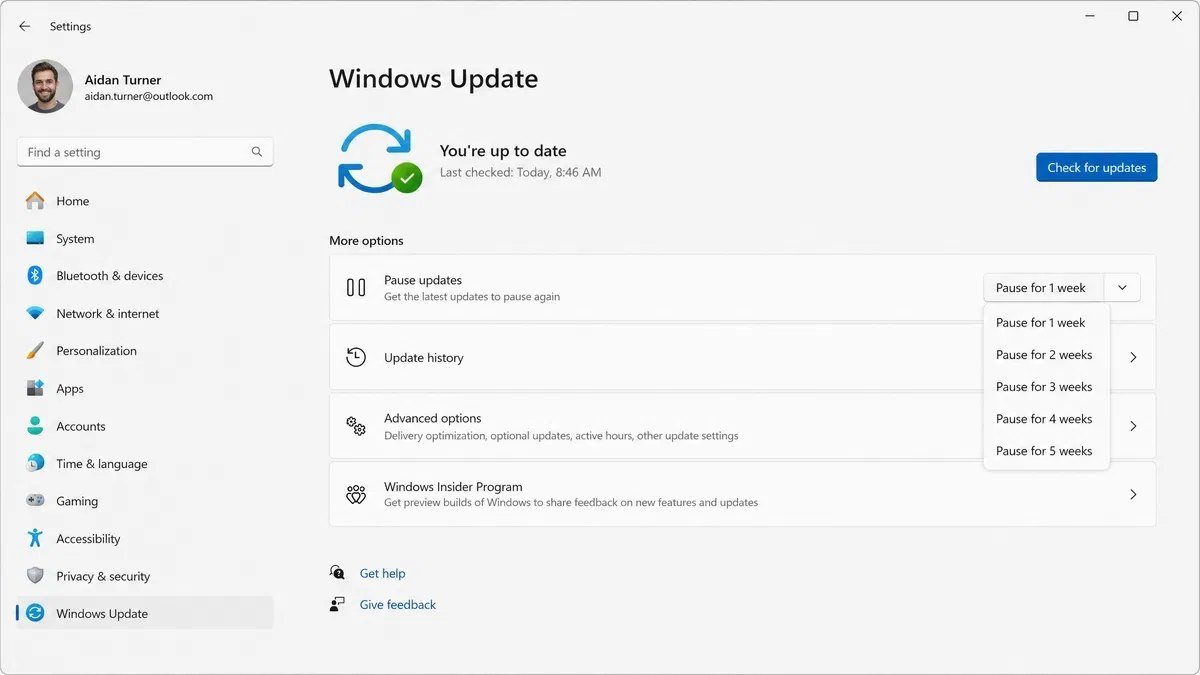
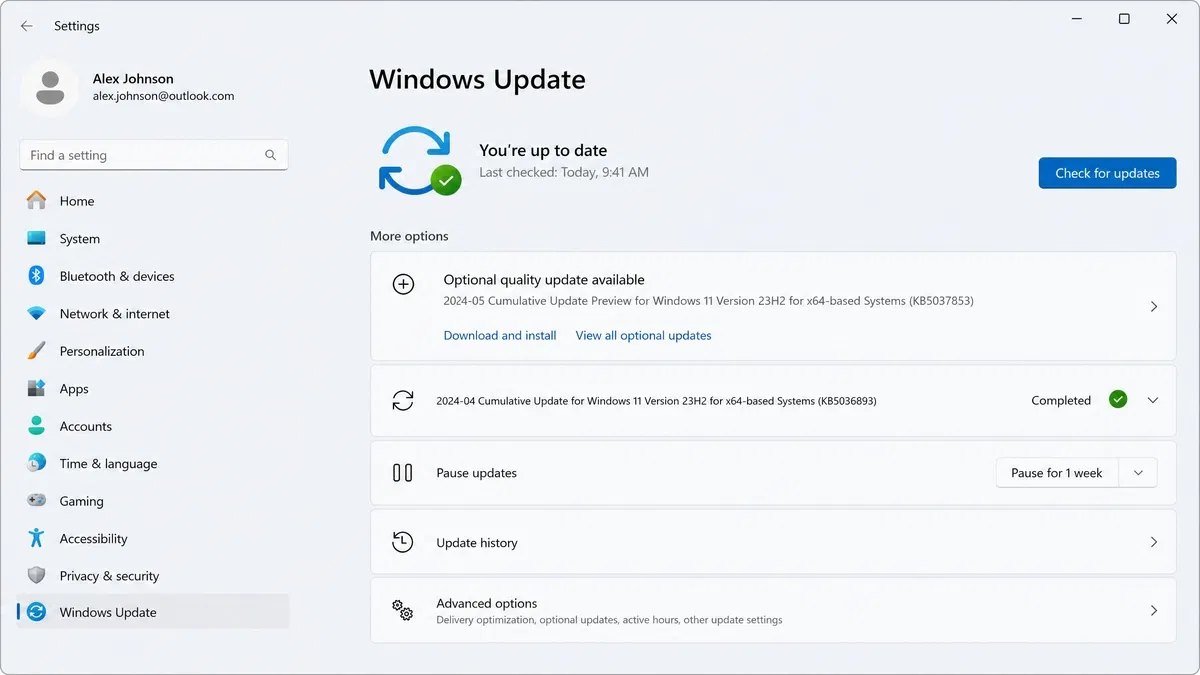
- Open Settings (Windows key + I) and go to Windows Update.
- Next to “Pause updates”, click the button or pick a duration from the dropdown.
- Updates stop for up to five weeks. No downloads, no restarts, no surprises.
This covers the real reason most people want updates stopped: a critical work period, a metered trip, a deadline week. When the pause ends, Windows catches up once and returns to normal. You can re-pause after it does.
Method 2: Active hours — stop the restarts, keep the patches
If your actual complaint is restarts rather than updates, this is the better tool and people skip it. In Windows Update, open Advanced options, then Active hours: tell Windows when you use the PC (or let it learn automatically), and it will not restart inside that window. Updates install; reboots wait for the middle of the night. For most annoyed users this single setting is the entire fix.
What Windows Update actually installs, and why that matters
Most of the advice you’ll find on how to stop Windows Update treats it as one single thing. It isn’t. Windows Update is a delivery pipe carrying at least four different kinds of package, and they carry very different risk if you block them.
Once you know which one is annoying you, the fix stops being a sledgehammer and starts being a switch.
Quality updates — the monthly ones
These land on the second Tuesday of each month, which the industry still calls Patch Tuesday. They’re cumulative, meaning the newest one contains everything before it, so skipping three months and then installing the fourth still gets you fully patched.
Quality updates are where the security fixes live. They’re small, they install in a few minutes, and they’re the ones you should be most reluctant to block permanently. A quality update is also what usually triggers the restart prompt people find so irritating.
Between Patch Tuesdays, Microsoft sometimes ships optional preview updates late in the month. Those are the ones labelled optional in the update list. You can ignore preview updates safely — they roll into next month’s cumulative anyway.
Feature updates — the once-a-year ones
These are the big version jumps: 22H2 to 23H2, 23H2 to 24H2. They rewrite parts of the operating system, take twenty minutes to an hour, and are the single most common cause of “my PC worked yesterday” complaints.
Feature updates are the ones worth deferring deliberately. Waiting two or three months after release costs you nothing and lets other people find the bugs. That’s not cynicism, it’s how most IT departments have always run.
Driver updates — the sneaky ones
Windows Update also ships drivers for graphics cards, network adapters, printers, audio chips and more. This is the category that causes the most silent damage, because a driver swap can break something without any obvious link to an update.
If your audio stopped working, your second monitor started flickering, or your printer vanished after a reboot you didn’t ask for, a driver update is the first suspect. There’s a specific way to stop just this category, covered further down.
Definition updates — the ones nobody should block
Microsoft Defender pulls its threat definitions through the same pipe, often several times a day. These are tiny, they never require a restart, and blocking them leaves your antivirus reading from last month’s list of threats.
Any method that stops Windows Update completely stops these too. That’s the hidden cost of the nuclear options people recommend online, and it’s the main reason we don’t.
The four categories side by side
| Update type | How often | Needs a restart | Safe to delay a while | Safe to block forever |
|---|---|---|---|---|
| Quality (security) updates | Monthly | Yes | Yes | No |
| Feature updates | Roughly yearly | Yes | Yes | No |
| Driver updates | Irregular | Sometimes | Yes | Yes |
| Defender definitions | Daily | No | No | No |
Read that table once and the whole strategy falls out of it. Delay the big stuff, control the drivers, never touch definitions. Every method below is just a different way of expressing that.
How long your version is supported at all
There’s a deadline hiding behind all of this. Each Windows version has a support end date, and once it passes, no amount of clicking Check for updates will bring anything down — the pipe is simply switched off for you.
Windows 10 reached that point in October 2025, which we walk through in detail in our guide to what Windows 10 end of support actually means. If you’re trying to stop Windows Update on a version that’s already out of support, you’re solving a problem that solved itself, and you now have a bigger one.
Individual Windows 11 feature versions age out too, usually two years after release for Home and Pro editions. Deferring a feature update for a few months is sensible. Deferring it for two years means you eventually stop getting security updates without ever choosing to.
Method 3: Metered connection — the bandwidth brake
On a hotspot or capped plan? Settings, Network & internet, click your Wi-Fi network, switch on “Metered connection”. Windows treats bandwidth as precious: big update downloads wait until you’re back on real internet. Useful trick, honest limitation — some security patches are marked priority and download anyway, which is the correct behavior even when it’s inconvenient.
Delivery Optimization: the bandwidth setting almost nobody touches
If your reason for wanting to stop Windows Update is bandwidth rather than restarts, there’s a control panel most people never open, and it solves the problem more precisely than a metered connection ever will.
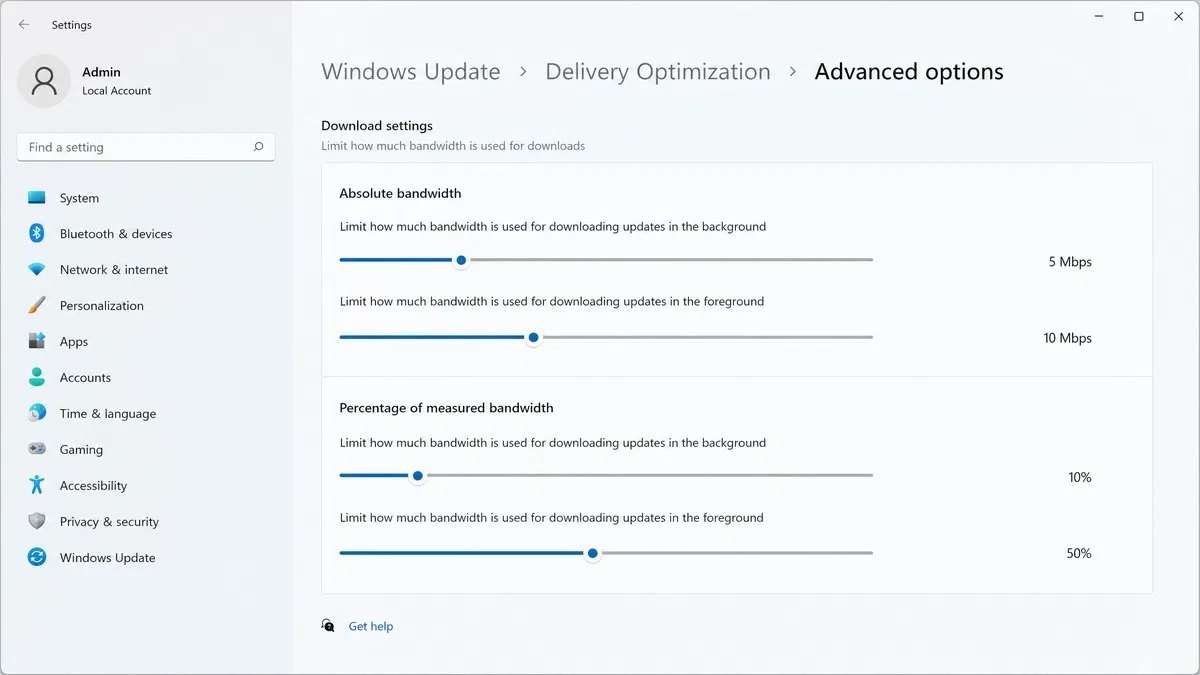
Go to Settings, Windows Update, Advanced options, Delivery Optimization, then Advanced options again. You’ll find sliders for absolute bandwidth limits and percentage limits, split between foreground downloads (the ones you asked for) and background downloads (the ones Windows started on its own).
What to set, in practice
Set background download to a percentage of measured bandwidth — somewhere around ten to twenty percent works for most home connections. That way updates trickle in while you work instead of swallowing the line during a video call.
Leave foreground downloads higher. Foreground means you clicked Check for updates and you’re waiting for it, so throttling it just makes you sit there longer.
There’s also a monthly upload limit, because Delivery Optimization lets your PC serve update files to other machines. On a home connection with a data cap, turn “Allow downloads from other PCs” off entirely. On an office network, leave it on for local devices only — it genuinely cuts total traffic when you have ten machines pulling the same update.
Why this beats a metered connection for most people
A metered connection is a blunt instrument. It tells Windows that every byte is expensive, which also affects Store apps, OneDrive sync, and some background services you probably do want running.
Delivery Optimization limits only update traffic, keeps security patches flowing, and doesn’t need to be undone later. If bandwidth is your whole complaint, start here and you may never need the metered switch at all.
How to stop Windows Update from installing drivers, without touching anything else
This is the most useful single trick in this entire guide, and the one least likely to bite you later. You can leave security updates running normally and stop Windows from swapping your hardware drivers.
The device installation setting
Press the Windows key, type “View advanced system settings” and open it. Go to the Hardware tab and click Device Installation Settings. Choose No, and Windows stops automatically downloading manufacturer apps and custom icons alongside drivers.
That setting alone covers a lot of the noise. It’s reversible in five seconds and it doesn’t affect a single security patch.
Blocking one specific driver that keeps coming back
Sometimes Windows reinstalls the same broken driver every time you remove it. The tool for that is Microsoft’s Show or hide updates troubleshooter, a small downloadable utility that lets you hide an individual update by name so Windows stops offering it.
Uninstall the bad driver in Device Manager first, restart, then run the troubleshooter and hide it. The next time Windows checks for updates, that one package is skipped and everything else installs normally.
Keep a note of what you hid. Six months later, when the manufacturer has fixed the driver, you’ll want to unhide it rather than run outdated hardware support forever.
Rolling a driver back instead
If the update already happened, Device Manager has a Roll Back Driver button on the Driver tab of each device. It only works while the previous driver package is still cached, which is usually a few weeks, so use it early.
Roll back first, then hide the update. Doing it the other way round leaves you sitting on the broken version.
Driver control options compared
| Approach | Keeps security updates | Blocks one driver only | Needs Windows Pro | Easy to reverse |
|---|---|---|---|---|
| Device Installation Settings set to No | Yes | No | No | Yes |
| Show or hide updates troubleshooter | Yes | Yes | No | Yes |
| Roll Back Driver in Device Manager | Yes | Yes | No | Yes |
| Group Policy driver exclusion | Yes | No | Yes | Yes |
| Disabling the Windows Update service | No | No | No | Yes |
Notice that only the last row loses your security updates. Everything else on that list gives you driver control at no security cost, which is why we keep steering people away from the service-disabling advice you’ll find on forums.
If your edition is holding you back
Two of the better controls — Group Policy deferrals and driver exclusions — need Windows Pro. Home doesn’t include the Group Policy Editor at all, which is a deliberate line Microsoft draws between the editions.
We compare the two editions feature by feature in Windows 11 Home vs Pro, and the same split exists on the older release in Windows 10 Home vs Pro. If update control is the reason you’re reading this, that comparison is worth ten minutes.
Moving from Home to Pro is an in-place upgrade — you enter a Pro key in Settings, Windows reactivates, your files and apps stay exactly where they are. We stock Windows licenses for both editions, and if you want to understand the activation step before you start, our walkthrough on how to activate a Microsoft product key covers it end to end.
Method 4: Group Policy deferrals — real control, Pro only
This is where actual policy control lives, and it’s the honest dividing line between Windows editions:
- Press Windows key + R, type gpedit.msc, press Enter. (If that errors, you’re on Home — see below.)
- Navigate: Computer Configuration, Administrative Templates, Windows Components, Windows Update, Manage updates offered from Windows Update.
- Here you can defer feature updates for up to 365 days and quality updates for up to 30 — updates arrive on your calendar, tested by the rest of the world first.
Home edition doesn’t include the Group Policy editor — it’s a Pro feature, same family as BitLocker and Remote Desktop. If this level of control is why you’re reading, the Home to Pro upgrade key unlocks it in place, ten minutes, files untouched — and the Home vs Pro guide shows everything else that comes with it.
How to stop Windows Update restarts on Windows 11 specifically
Windows 11 moved several of these settings and added a couple that didn’t exist before, so if you’re following a guide written for Windows 10 you’ll be hunting for menus that aren’t there any more.
The three switches worth knowing on Windows 11
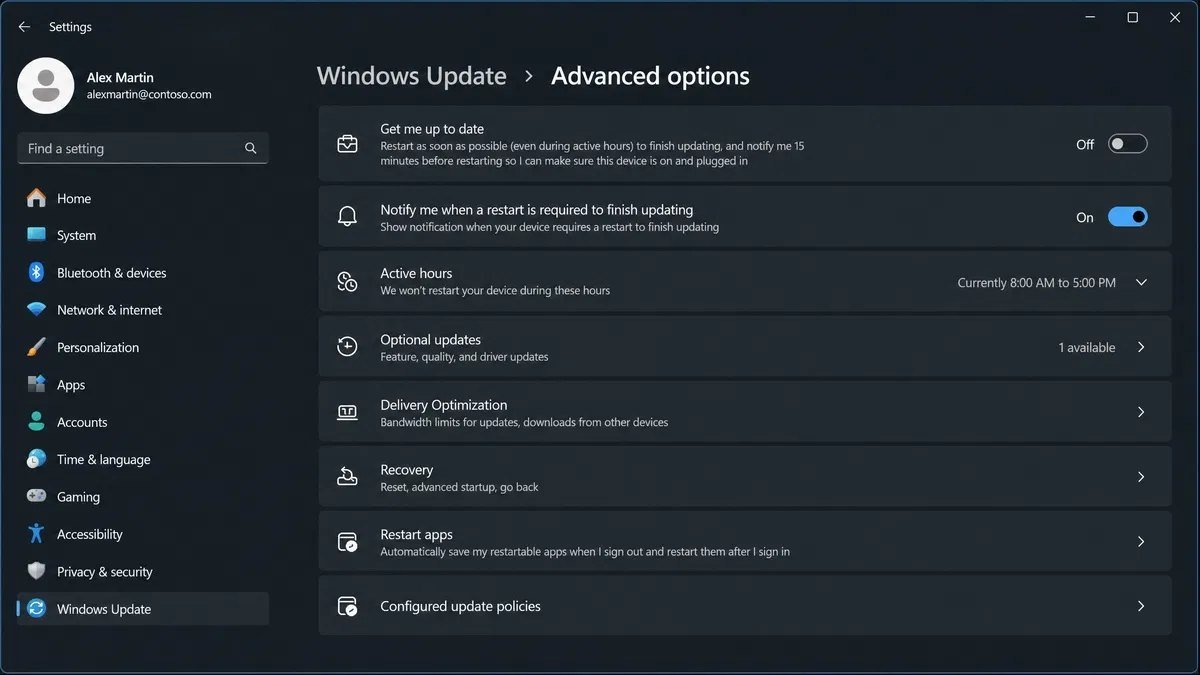
Open Settings and go to Windows Update. Right at the top you’ll find pause controls, and underneath, Advanced options holds the rest.
The first switch is “Get me up to date”. Turn it off. When it’s on, Windows will restart as soon as possible after an update lands, ignoring your active hours in some cases. It’s on by default and it’s the reason a lot of people think active hours are broken.
The second is “Notify me when a restart is required to finish updating”. Turn this on. It sounds like more nagging, but it converts a surprise restart into a prompt you control, which is usually what people actually wanted when they set out to stop Windows Update.
The third is “Get the latest updates as soon as they’re available”. Turn it off. That toggle opts you into early feature rollouts, which is the opposite of what anyone reading this guide wants.
Scheduling the restart instead of fighting it
When an update is downloaded and waiting, Windows 11 offers a Schedule the restart link on the update page. Pick a time, and the machine will hold the pending update until then even across days.
This is the calmest answer to the restart problem. You keep every patch, and the reboot happens at seven in the morning while you’re making coffee instead of halfway through a presentation.
Windows 11 and the driver question
Windows 11 leans harder on Windows Update for drivers than Windows 10 did, particularly on newer laptops where the manufacturer ships nothing of their own. That makes the driver controls in the previous section more relevant, not less.
If you’re on a machine that shipped with Windows 11 and you’re unsure which build you’re running, our guide on how to check which version of Windows you have takes about thirty seconds and tells you exactly which menu layout applies to you.
What to do when an update has already broken something
Half the people searching for how to stop Windows Update aren’t planning ahead. They’re standing in the wreckage of an update that already installed, and what they actually need is a way back.
The other direction of the same problem is an update that will not install at all rather than one that installed and caused damage. If Windows keeps retrying a feature update and failing, the codes it reports are servicing errors rather than anything to do with your settings, and our guide to the Windows 11 version 25H2 install error walks through the repair sequence in order.
Uninstalling a quality update
Go to Settings, Windows Update, Update history, then Uninstall updates. You’ll see the recent cumulative updates listed with their KB numbers and install dates.
Remove the one that matches the day things went wrong. Restart. Then pause updates for a couple of weeks so it doesn’t immediately reinstall while you work out whether it really was the culprit.
Not every update can be removed this way — some servicing stack updates are permanent by design. If the one you need isn’t listed, the rollback option below is your next stop.
Going back after a feature update
After a feature update, Windows keeps the previous version on disk for ten days. In Settings, System, Recovery, there’s a Go back button that returns you to the older build with your files intact.
Ten days is the default window and it passes quickly. If a feature update has just landed and something feels wrong, test your critical software the same week rather than discovering the problem in week three when the button has greyed out.
When activation looks broken after an update
Occasionally a large update, a rollback, or a hardware change leaves Windows complaining that it isn’t activated even though nothing about your license changed. This is common enough that Microsoft built a troubleshooter for it.
Run Settings, System, Activation, Troubleshoot, and choose the option saying you recently changed hardware on this device. Most cases clear up there. If yours doesn’t, our guide on what to do when a Windows key stops working walks through the remaining causes in order.
A sane update routine you can actually keep
Stopping updates permanently isn’t a plan, it’s a postponement. Here’s the routine we recommend to customers who ask, and it takes about ten minutes a month.
The monthly rhythm
Set your active hours to match your real working day. Turn off the “get me up to date” toggle. Leave quality updates enabled and let them install whenever they like outside those hours.
Once a month, ideally the weekend after Patch Tuesday, open Windows Update yourself, install what’s waiting, restart on purpose, and get on with your life. Deciding when the reboot happens is the entire point — you were never really trying to avoid the patch.
The yearly decision
When a feature update appears as an optional download, don’t take it the first week. Wait until it starts arriving automatically, which usually means Microsoft has widened the rollout because the early telemetry looks clean.
Before you take it, check that the software you depend on supports the new version. Two minutes on a vendor support page saves a weekend.
The backup that makes all of this low-stakes
Every method in this guide is less frightening if you have a recent backup. A file-level backup to an external drive or cloud folder covers the common case, and a full disk image covers the rare one.
Take the image before a feature update, not after. That single habit turns a broken update from a lost weekend into a forty-minute restore.
If you manage more than one machine
Everything above assumes a single PC. If you’re running several, or a small office, the deferral policies scale better than clicking pause on each device, and the server editions add proper update rings and maintenance windows.
We cover the differences between the recent server releases in our comparison of Windows Server 2019, 2022 and 2025, and stock Windows Server licenses for the editions most small businesses actually use.
The method we won’t recommend (and what it actually does)
Disabling the Windows Update service through services.msc, or the registry equivalents that scripts online automate: yes, it “works” — briefly. Windows has repair mechanisms that re-enable servicing, updates eventually arrive anyway as a bigger, longer, more restart-heavy install, and in the meantime the machine sits unpatched on the open internet. Vulnerabilities in Windows get weaponized within days of disclosure; an unpatched, connected PC is not a neutral choice. We sell Windows licenses — we’d honestly rather you run them patched.
The one machine where permanent-off is legitimate: a PC that never touches a network. Air-gapped workshop and instrument machines can freeze happily forever — the risk lives in the connection, not the calendar. That’s also the world Microsoft’s LTSC editions are built for, patched but stable for a decade; our Windows 10 end of support guide covers when LTSC is the right answer.
The advice you’ll find online that doesn’t work any more
Search for how to stop Windows Update and you’ll hit a wall of tutorials recycled from 2016. Some of them were fine then. Most of them either fail silently on current builds or cause a problem worse than the one you started with.
Disabling the Windows Update service
The classic advice is to open services, find Windows Update, set it to Disabled and walk away. On current builds a maintenance task re-enables it, usually within days, and you’re back where you started without ever being told.
Worse, while it is disabled you also lose Defender definition updates and the Microsoft Store stops working properly. You traded your antivirus freshness for a delay that didn’t hold.
Registry edits copied from a forum
There are genuine registry values behind the deferral policies, and Group Policy writes them for you. Typing them by hand from a comment thread is how people end up with an update system that reports errors it can’t recover from.
If you have Pro, use the policy editor and let it write the keys correctly. If you have Home, use the pause and active hours controls rather than hand-editing a hive.
Third-party update blocker tools
A whole category of small utilities promises a permanent off switch. Some are honest. Plenty are bundled with things you didn’t ask for, and almost all of them work by flipping the same services and registry keys Windows will quietly restore anyway.
You’re installing an unknown binary with system-level access to avoid a reboot. That trade rarely looks good written down.
Renaming the SoftwareDistribution folder
This one is real, but it’s a repair step, not a blocking step. Renaming that folder clears a corrupted download cache when updates keep failing. Windows rebuilds it on the next check and carries on updating.
It fixes stuck updates. It does not stop them, and dozens of articles present it as though it does.
What blocking updates actually costs you
Most of the vulnerabilities exploited in a given year already had a patch available when the attack happened. The gap between a patch shipping and a machine installing it is the window attackers work in, and every method that stops updates indefinitely widens it deliberately.
That’s not a lecture, it’s the reason this guide keeps pushing you toward scheduling and deferral instead of blocking. You can have full control of when your PC restarts without ever being unpatched.
Office updates are a separate pipe
People often arrive here because Office restarted on them, not Windows. Microsoft 365 and the recent perpetual Office releases update through Click-to-Run, which is a different mechanism with its own controls.
Where the Office switch lives
Open any Office app, go to File, Account, and you’ll find Update Options. Disable Updates stops the automatic channel, and Update Now runs it on demand when you’re ready.
Turning Office updates off doesn’t affect Windows Update, and pausing Windows Update doesn’t stop Office. They’re genuinely independent, which surprises a lot of people troubleshooting one while the other keeps updating.
The version question behind it
A perpetual Office license stays on the version you bought and only receives security fixes, so its updates are small and rarely disruptive. A subscription keeps receiving feature changes, which is where most of the “my menus moved” complaints come from.
If update churn is what’s bothering you, that difference matters more than any toggle. We lay it out in Office one-time purchase vs Microsoft 365, and stock Microsoft Office licenses for the one-time versions if a stable, unchanging Office is what you’re after.
A note on licenses, updates and where you bought yours
There’s a myth that a cheap license somehow receives different updates, or that Microsoft withholds patches from keys bought outside a retail box. It doesn’t work that way. Windows Update checks activation status, not where the key came from.
A properly activated copy of Windows gets every security update, feature update and driver package a boxed copy does. What matters is that the key is genuine and correctly issued, not the shop that sold it.
Where it does go wrong is with keys that were never legitimate to begin with — recycled volume keys or grey-market activations that eventually deactivate. When that happens you get activation warnings, not update problems, but people conflate the two constantly. We wrote about the difference in how to tell a legitimate cheap Windows key from a scam and in more depth in whether it is safe to buy cheap Microsoft license keys.
Everything we sell at KYMakers is a genuine, correctly issued license that activates through Microsoft’s normal channels and updates exactly like any other copy. If you ever hit an activation message you don’t understand, our team will look at it with you — the contact page is the fastest route.
Three situations that need a different answer
The advice above suits a normal desktop or laptop used most days. A few setups don’t fit that shape, and following the general guidance on them creates new problems.
The gaming PC mid-session
Windows won’t restart while a full-screen game is running, but it will happily download in the background and ruin your ping. Cap background downloads through Delivery Optimization rather than pausing, and set active hours to cover your evenings, not just office hours. Active hours are about when you use the machine, not when you work.
The laptop you open once a month
A machine that sits closed for weeks wakes up to a queue of updates and spends its first hour installing them, usually at the worst moment. Don’t pause this one at all. Instead, open it a day before you need it, run Windows Update by hand, restart, and let it settle.
Pausing a rarely-used device is the one case where the pause almost guarantees the pile-up you were trying to avoid.
The machine running one piece of critical software
Point-of-sale terminals, lab equipment controllers, machines running an old accounting package — these are the genuine cases for deferral policies, and the reason those policies exist. Defer feature updates by the maximum, keep quality updates on a short delay, and test before each version jump.
If that describes your setup, Pro or a server edition is the right foundation, not a Home machine you keep fighting. The tools were built for exactly this and they cost far less than the downtime does.
A fresh install as the reset button
Sometimes an update system is genuinely broken — errors that repeat, downloads stuck at the same percentage, repair commands that finish and change nothing. At that point a clean install is faster than another evening of troubleshooting.
You’ll need installation media, and our step-by-step on creating a bootable Windows USB drive covers making one properly. Your digital license reactivates automatically on the same hardware, so a clean install is far less frightening than it sounds.
How to stop Windows Update — FAQ
Can I permanently turn off Windows Update?
Not through supported settings — pause (five weeks) and deferral (up to a year on Pro) are the built-in limits, by design. The unsupported hacks trade a minor annoyance for a real security exposure, which is a bad trade on any machine that goes online.
Will pausing updates stop the annoying restarts?
Yes, while paused — but set Active hours too. The combination of deferred installs and restart-free working hours removes essentially every interruption without leaving you unpatched.
Why does Windows Update keep turning itself back on?
Because service-level tampering is treated as damage and repaired. That arms race isn’t winnable long-term — Group Policy deferral on a Pro license gets you the control you’re after with Microsoft’s blessing instead of against it.
Do paused updates pile up?
They accumulate server-side, and the catch-up after a long pause is one bigger session rather than several small ones. Pausing around a busy fortnight costs nothing; pausing perpetually just concentrates the disruption you were avoiding into one worse evening. And if an update ever breaks your activation instead of your patience, KYMakers support untangles key issues around the clock.
How do I stop Windows Update from restarting my PC without stopping the updates themselves?
Set your active hours to cover your real working day, then turn off the “get me up to date” toggle in advanced options. Patches keep installing, but the restart waits for a window you chose. Use the Schedule the restart link when one is already pending and you need a specific time.
Can I stop Windows Update permanently on Windows 11 Home?
Not properly, and that’s deliberate. Home gives you pause in weekly increments, active hours, metered connections and Delivery Optimization limits, but not the deferral policies. If you need genuine long-term control, Pro is the edition that has it, and the upgrade is an in-place key change rather than a reinstall.
How long can I pause Windows Update?
Up to five weeks, chosen a week at a time. When the pause runs out Windows installs everything it held back before it will let you pause again. That reset is intentional, so plan for a catch-up day rather than assuming you can extend indefinitely.
Does stopping Windows Update affect my license or activation?
No. Activation and updating are separate systems. A paused or deferred machine stays activated, and an activated machine that has been offline for months activates again the moment it reconnects. Activation problems come from the key itself, not from the update schedule.
Will blocking driver updates break anything?
Rarely, and it’s the safest category to block. Drivers from Windows Update are usually generic versions of what the manufacturer already gave you. The exception is brand-new hardware with no vendor driver available, where Windows Update is the only source — so re-enable it temporarily after adding new components.
Why does Windows keep updating after I disabled the update service?
Because a scheduled maintenance task re-enables it. Microsoft closed that loophole several builds ago. If you disabled the service and updates came back, nothing is broken and nothing is wrong with your PC — the method simply doesn’t hold any more. Use pause, active hours or deferral policies instead.
Is it safe to skip a feature update for a year?
For a few months, yes, and most IT departments do exactly that. For a full year you start approaching the end of servicing for your build, after which security updates stop arriving whether you wanted them or not. Defer deliberately, then take the update before support runs out.
The short version
You almost certainly don’t want to stop Windows Update. You want it to stop interrupting you, and those are different problems with different fixes.
Set active hours honestly, turn off the toggle that overrides them, cap background bandwidth through Delivery Optimization, block driver packages if hardware is your sore spot, and use deferral policies if you have Pro. Keep the security patches. Take the reboot on a Saturday morning at a time you picked.
And if the reason you’re here is that an update left you staring at an activation warning, that’s a licensing question rather than an update one. Browse genuine Windows licenses or ask us directly — a real key activates cleanly and then updates like every other copy of Windows, quietly and without drama.