
Upgrading Windows 11 Home to Pro is an edition change made from inside Settings, not a reinstall: Windows switches on the Pro feature set, restarts once or twice, and comes back with your files, apps and accounts in place. If you bought the Kymakers Home-to-Pro upgrade, your order email contains two codes that are used in a fixed order: first the edition-switch key, which turns Home into Pro but activates nothing, then your personal Windows 11 Pro key, which activates it. If you bought a full Windows 11 Pro key instead, Microsoft’s documented route is to enter that key directly. This guide covers both, what to check before you start, how to confirm the result, and what each error message means.
Key takeaways
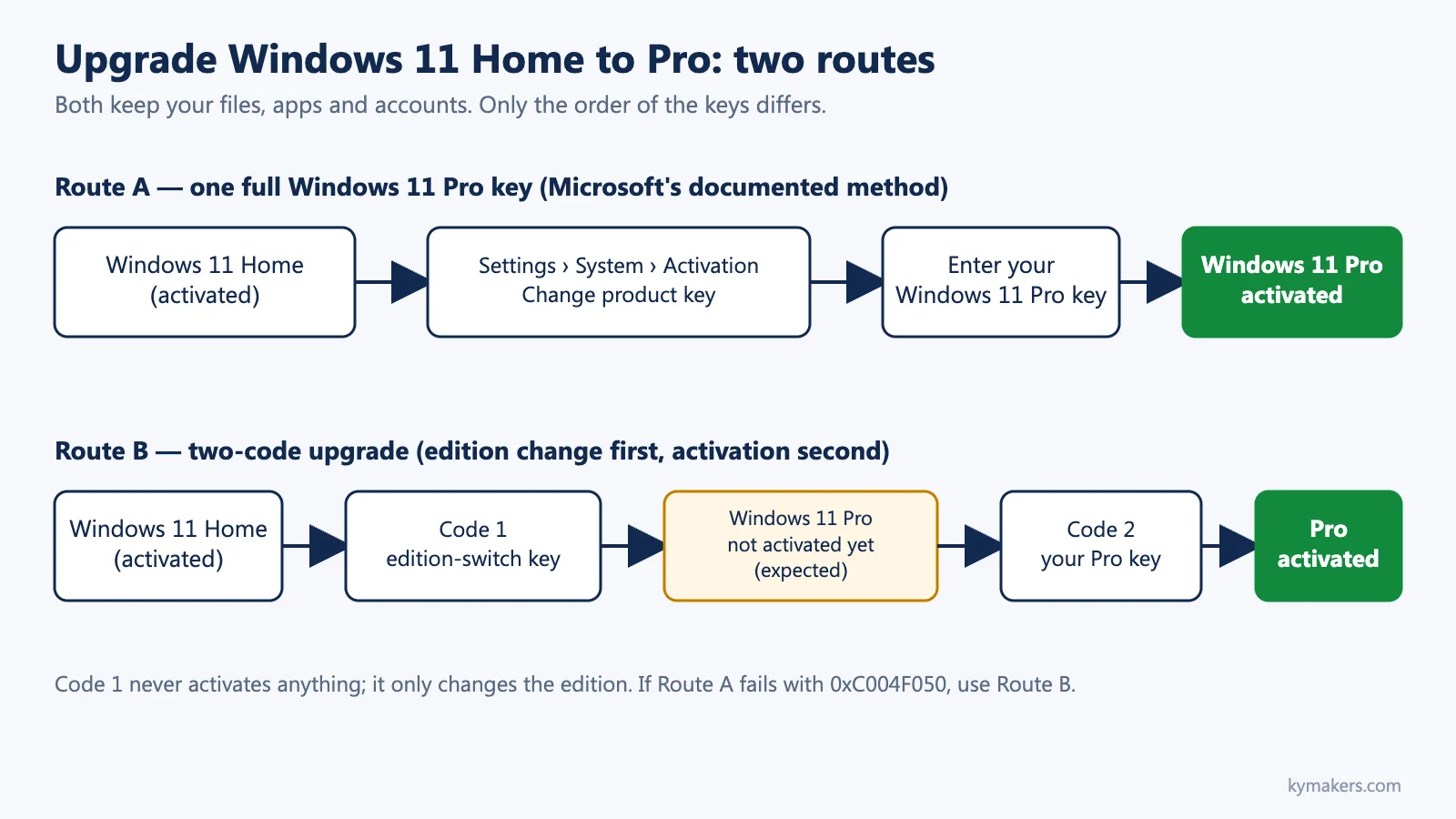
- Microsoft’s route: Settings › System › Activation › Change product key, enter a Windows 11 Pro key, Next. The device must already be running an activated copy of Windows 11 Home.
- Kymakers’ two-code route: enter the edition-switch key first and let Windows restart as Pro, then enter your Pro key to activate. Entering the Pro key first on some PCs fails with 0xC004F050.
- Home in S mode must be switched out of S mode first (free, one way); Home N needs a Pro N key, not a Pro key.
- Your files and programs stay, but back up anyway before any edition change.
- Afterwards, Settings › System › About should read Windows 11 Pro and Activation should read “Windows is activated.”
Contents
- Before you start
- Route A: upgrade with a Windows 11 Pro product key (Microsoft’s documented method)
- Route B: the Kymakers two-code upgrade
- Command-line alternative
- Verify the edition and activation
- Troubleshooting by symptom
- What you get in Pro
- Frequently asked questions
- Need an upgrade key?
- Sources
Before you start
Work through this list once; it prevents almost every failed upgrade.
| Check | How | Why it matters |
|---|---|---|
| You are on Windows 11 Home, and it is activated | Settings › System › Activation. The edition is shown at the top; the activation state is shown next to Activation state | Microsoft’s upgrade steps apply only to a device running an activated copy of Windows 11 Home. If Home is not activated, fix that first. |
| Not Home in S mode | Settings › System › About shows “Windows 11 Home in S mode” if so | S mode must be switched off first. Settings › System › Activation › Switch to Windows 11 Home › Go to the Store › Get. It is free and one way. |
| Not Home N | Settings › System › About | N editions need Pro N keys. A standard Pro key will not change Home N to Pro. |
| Administrator account | Settings › Accounts › Your info shows Administrator | Changing the product key needs admin rights. |
| Windows Update finished, PC restarted | Settings › Windows Update | A pending restart can stall the edition change. |
| Internet connection | Any browser | Activation is completed online. |
| Laptop plugged in | — | The PC restarts once or twice during the change. |
| Backup of anything you cannot lose | File History, OneDrive or a copy to an external drive | The edition change keeps files and apps, but no system change is risk-free. |
If you are not sure which edition or version you have, see what Windows do I have. If you are still deciding whether Pro is worth it, read Windows 11 Home vs Pro first; many home users do not need Pro.
Route A: upgrade with a Windows 11 Pro product key (Microsoft’s documented method)
Use this route if you have a full Windows 11 Pro product key, for example a retail key or the key from a Kymakers Windows 11 Pro purchase.
- Select Start › Settings › System › Activation.
- Next to Change product key, select Change. Approve the administrator prompt if asked.
- Enter the 25-character Windows 11 Pro product key.
- Select Next to start the upgrade. Windows shows “Upgrade your edition of Windows”, prepares the change and restarts, usually within a few minutes.
- After the restart, go back to Settings › System › Activation. It should read Windows 11 Pro at the top and “Windows is activated” next to Activation state.
Microsoft also offers a no-key route on the same screen: expand Upgrade your edition of Windows and select Open Store to buy Pro from the Microsoft Store while signed in with your Microsoft account. That purchase becomes a digital license linked to the account.
Route B: the Kymakers two-code upgrade
The Kymakers Windows 11 Home to Pro upgrade key is delivered as two codes, and the order matters.
Code 1: the edition-switch key. This is the generic Windows 11 Pro installation key, the same key Windows Setup uses when it installs Pro without a license. It changes the installed edition from Home to Pro. It does not activate anything, and it never will; that is by design. See what the generic key is and is not.
Code 2: your Windows 11 Pro product key. This is your personal key. Once Pro is running, it activates it.
Why two steps instead of one? Microsoft’s documented route is Route A. On some PCs, often ones that shipped with a Home license embedded in firmware, entering a Pro key directly is widely reported to fail with error 0xC004F050 (“The product key is not valid”) even though the key is fine; Microsoft Q&A threads document the same workaround. Separating the edition change from activation avoids that failure. If Route A worked for you, you do not need Route B.
Step 1: switch the edition
- Settings › System › Activation › Change product key › Change.
- Enter Code 1 (the edition-switch key) and select Next.
- Select Start when Windows offers to upgrade your edition. Keep the PC on and plugged in; it restarts once or twice.
- When it comes back, Settings › System › Activation shows Windows 11 Pro at the top. The activation state will read “Windows is not activated.” That is expected at this point; the generic key cannot activate.
Step 2: activate with your Pro key
- On the same Activation page, select Change product key › Change again.
- Enter Code 2 (your Windows 11 Pro product key) and select Next, then Activate.
- Within a minute the page should read “Windows is activated.” If you are signed in with a Microsoft account, it may read “Windows is activated with a digital license linked to your Microsoft account.”
If Step 2 reports an error, do not re-enter Code 1; go to the troubleshooting table below.
Command-line alternative
Open Terminal or Command Prompt as administrator (right-click Start › Terminal (Admin)).
Change the edition (Route B, Step 1, or Route A with a full Pro key):
changepk.exe /ProductKey XXXXX-XXXXX-XXXXX-XXXXX-XXXXXInstall and activate a key (Route B, Step 2):
slmgr /ipk XXXXX-XXXXX-XXXXX-XXXXX-XXXXX
slmgr /ato
Check the result:
slmgr /xpr
Dism /Online /Get-CurrentEdition
slmgr /xpr should say the machine is permanently activated; Get-CurrentEdition should return Professional. The command line gives more specific error codes than the Settings dialog, which helps with the table below.
Verify the edition and activation
- Settings › System › About › Windows specifications: Edition should read Windows 11 Pro.
- Settings › System › Activation: Activation state should read “Windows is activated” or “Windows is activated with a digital license linked to your Microsoft account.”
- Pro features are present: search Start for “Group Policy” (gpedit.msc) or “BitLocker”; both exist only on Pro and above.
Microsoft recommends linking your Microsoft account to the digital license (Settings › System › Activation › Add an account). That link lets you use the Activation troubleshooter after a significant hardware change such as a motherboard replacement. It does not change what the license permits; see OEM vs retail for the rules that apply to each license type.
Troubleshooting by symptom
| Symptom | What it usually means | What to do |
|---|---|---|
| 0xC004F050, “The product key is not valid”, when entering a Pro key on Home (Route A) | Edition change blocked, often on PCs with a firmware Home license; sometimes a typo | Check the key character by character (B/8, G/6, D/0, S/5). Then use Route B: edition-switch key first, Pro key second. |
| 0xC004F050 or 0xC004F210 when entering the Pro key after the switch (Route B, Step 2) | Key does not match the installed edition, or it is not a Pro key | Confirm About shows Windows 11 Pro (not Pro N or Home). Microsoft’s text for 0xC004F210: you entered a key for a different edition than the one installed. |
| 0xC004F034 | Invalid key, or key for a different version of Windows | Re-enter; make sure it is a Windows 11 Pro (or Windows 10 Pro) key, not Office or Server. |
| 0xC004C003 | Microsoft’s servers blocked the key | Contact the seller with your order number. Do not try activators. |
| 0xC004C008 | Key already used on another device | Microsoft’s guidance: one key per device. Contact the seller if you have not used it. |
| 0xC004F213 | No product key found on the device | Normal right after Step 1 on Route B; enter Code 2. If it persists after entering the key, re-run slmgr /ipk. |
| 0x803F7001 | No valid license found for the installed edition | Enter the Pro key (Code 2) or run the Activation troubleshooter if you expected a digital license. |
| “Unable to upgrade your edition” | Pending update or restart; S mode; wrong edition family | Finish Windows Update and restart; check About for S mode or N; retry. |
| Stuck on “Working on it” for more than 15 minutes | Slow preparation, or Windows waiting for a restart | Wait; do not power off. If nothing happens after 20 minutes, restart manually and check About; often the edition has already changed. |
| About still says Home after “already activated” | The activation state belongs to the Home license; the edition change did not apply | Re-enter the edition-switch key (Route B, Step 1) and select Start. |
| Watermark “Activate Windows” after the switch | Expected after Route B Step 1 until Step 2 is done | Complete Step 2. For the watermark itself, see activate Windows watermark. |
| Online activation fails repeatedly with a key the seller confirms is good | Network, proxy or time settings; or a case for offline activation | Check date, time and time zone are automatic. Offline activation is available for Pro: search SLUI 04 from Start to display the Installation ID, then exchange it for a Confirmation ID. Microsoft moved this from a phone call to its online Product Activation Portal in December 2025; our confirmation ID page does the exchange for Kymakers keys. (Not available for Pro Education or Pro for Workstations.) |
If none of these fit, the general troubleshooting guide Windows product key not working walks through edition, entitlement, error code and hardware change in order, and error 0xC004F074 covers the KMS-related code.
What you get in Pro
BitLocker drive encryption, Remote Desktop host (connect into this PC), Hyper-V and Windows Sandbox, Group Policy Editor, Active Directory and Microsoft Entra ID join, Windows Update for Business controls, Assigned Access (kiosk mode), and higher hardware limits (2 CPU sockets, 2 TB RAM versus 1 socket and 128 GB on Home). If you do not plan to use any of those, Home is enough; see the Home vs Pro comparison.
Frequently asked questions
Will I lose files or programs? The edition change keeps files, apps, drivers and accounts. Back up anyway; it takes a few minutes and protects you against the rare failed restart.
Why did I receive two keys? One switches the edition (and cannot activate), the other activates Pro. Use them in that order. If you only received one 25-character key, you bought the full Windows 11 Pro product and should use Route A.
Windows says “not activated” after the first key. Is something wrong? No. The edition-switch key never activates. Enter your Pro key as Step 2.
Can I upgrade Home to Pro for free? No. The generic key gives you an unactivated Pro with a watermark and locked personalization. Activation needs a Pro license: a Pro key or a Microsoft Store purchase.
Does the upgrade key work on Windows 10 Home? This product is for Windows 11 Home. Windows 10 Home has its own upgrade key; see the Windows 10 Home to Pro guide.
Can I go back to Home later? Not with a setting. Returning to Home means reinstalling Windows 11 Home.
Can I move the upgrade to another PC later? The license is for one PC. Replacing the motherboard counts as a new PC for activation purposes. What a license permits depends on its type; read OEM vs retail and, if you are planning a move, transferring a Windows license to new hardware.
Will Office and my other apps still work? Yes. Office licensing is separate from the Windows edition.
Do I need a Microsoft account? Not for Route A or B. Microsoft’s Store route requires one, and linking an account afterwards is recommended for hardware-change reactivation.
Need an upgrade key?
Kymakers, operated by Makers Unity LLC, a Microsoft partner, sells the Windows 11 Home to Pro upgrade key (two codes, delivered by email) and the full Windows 11 Pro product key for clean installs and new PCs. The pricing guide compares both with Microsoft’s Store price.
Sources
- Microsoft Support, “Upgrade Windows Home to Windows Pro”: support.microsoft.com
- Microsoft Support, “Activate Windows”: support.microsoft.com/help/12440
- Microsoft Support, “Reactivating Windows after a hardware change”: support.microsoft.com
- Microsoft Support, “Get help with Windows activation errors”: support.microsoft.com
- Microsoft Learn, “Windows Setup Edition Configuration and Product ID Files” (installation keys do not activate Windows): learn.microsoft.com