Moving a Windows licence to a different computer sounds like it should be a solved problem, and for one kind of licence it is. For another kind it is not possible at all, and the difference between the two is not written anywhere obvious. People find out the hard way, usually halfway through a rebuild, when the new machine refuses to activate and the error code means nothing to them.
There are really two versions of this question, and they get asked in the same breath. The first is moving a licence you own from an old computer to a new one. The second is getting Windows to reactivate on the same computer after you replaced enough of it that the activation servers no longer recognise the hardware. They have different starting points and they end up in the same place, which is why this guide covers both.
What follows is the whole picture. How to work out which licence you actually hold, how to remove it cleanly from the old machine, how to activate it on the new one, how the reactivation troubleshooter works after a motherboard swap, what each of the common error codes is telling you, when phone activation is still the answer, and what your realistic options are when it turns out the licence was never transferable in the first place.
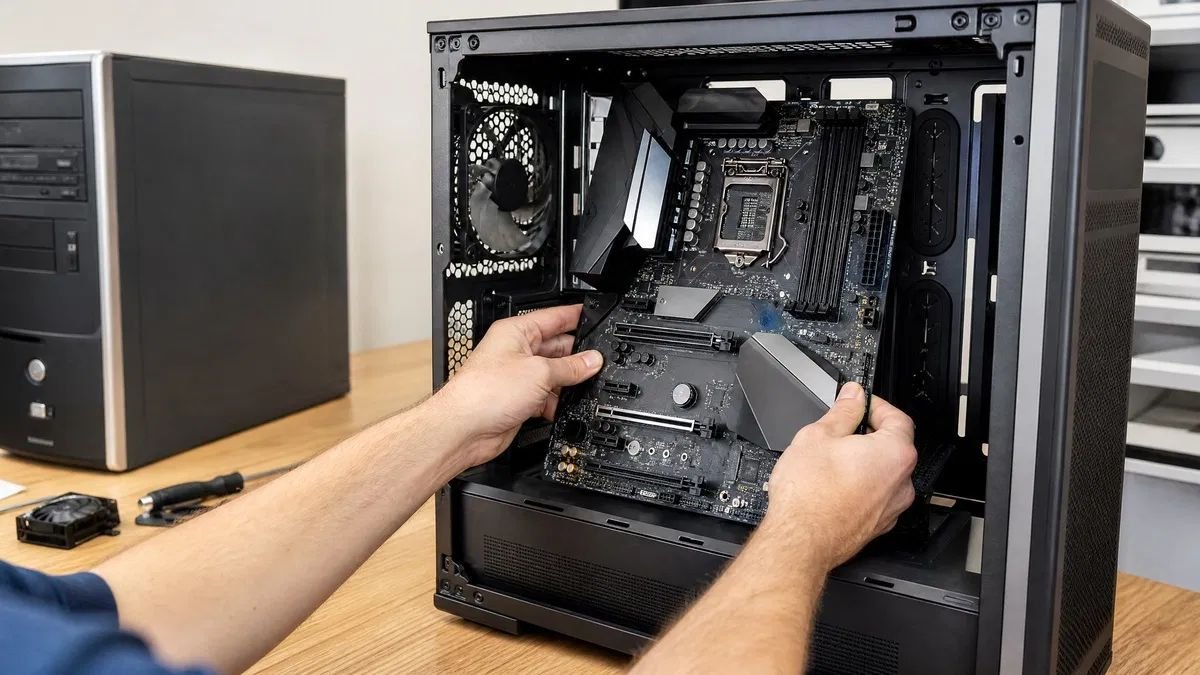
The short answer on how to transfer a Windows license to a new PC
If your licence is retail, you can move it. Deactivate it on the old machine with a single command, install Windows on the new machine, enter the key, and it activates. The whole process takes about ten minutes of actual work.
If your licence is OEM, meaning it came preinstalled on a computer you bought, you cannot move it. It is tied to that machine’s motherboard, both technically and in terms of what the licence permits, and there is no procedure that changes this.
If you are not moving to a different computer but have replaced the motherboard in the one you have, that is the changed hardware case. Your licence is intact, the activation servers simply no longer recognise the machine, and the activation troubleshooter with a Microsoft account will usually fix it in two minutes. The rest of this guide is about knowing which of these three you are in and what to do at each step.
A shorter checklist version of this guide covers the three steps for a new computer.
What can and cannot be transferred
Everything downstream depends on this, so it is worth being precise rather than hopeful. There are three licence channels and they behave completely differently.
Retail licences
A retail licence is one you bought separately from the computer, whether in a box, as a download, or as a product key card. The defining characteristic is that it was sold to you rather than to a manufacturer, and it is licensed to you rather than to a specific machine.
Retail licences can be moved between computers. The restriction is that only one machine may use the licence at a time, so the old installation has to stop using it before the new one starts. There is no limit on how many times you may do this over the life of the licence, though moving it repeatedly in a short period can trigger a check that requires phone activation rather than the automatic route.
This is the licence you want if you build your own machines or expect to upgrade regularly. It costs more than OEM for exactly that reason, and the extra buys you the right to keep it when the hardware changes.
OEM licences
An OEM licence arrived preinstalled on a computer you bought from a manufacturer, or was sold with a component as a system builder licence. It is licensed to the machine, not to you, and the terms describe it as being tied to the first device it activates on.
The tie is enforced at the motherboard. Replace the board and the licence does not follow, because as far as the activation system is concerned the board is the machine. This is not a bug that a workaround defeats. It is the entire commercial logic of why an OEM licence is cheaper than a retail one, and Microsoft has no reason to be lax about it.
The practical consequence is that an OEM licence stays with the computer when you sell it, and the buyer inherits it. If you are replacing a computer, the OEM licence on the old one is not an asset you can carry across. Our comparison of OEM and retail Windows licences goes through the differences in detail and is worth reading before you make plans that depend on a transfer being possible.
Volume licences
A volume licence belongs to an organisation rather than to a person, and it activates against either a key management service on the network or a multiple activation key held centrally. If you are on a work machine, this is probably what you have.
Volume licences are managed by whoever administers them, and moving one is an administrative action rather than something you do at the keyboard. If a work computer is being replaced, the answer is the IT function, not a command prompt. Trying to extract and reuse a volume key on a personal machine is both technically unreliable and a licensing problem for the organisation.
How to tell which one you have
Open Command Prompt as administrator and run slmgr /dli. A small dialog appears with a description line, and that line contains the channel: OEM, RETAIL or VOLUME. Run slmgr /dlv for the longer version, which adds the activation ID and the number of remaining activations where the licence type has a limit.
Do this before anything else. It takes twenty seconds and it determines whether the rest of the process is a ten minute job or an impossible one. People routinely skip it, spend an afternoon on a transfer that was never going to work, and only then discover the licence was OEM all along.
One caveat worth knowing: a machine that shipped with an OEM licence and later had a retail key entered on top of it will report retail, because the current licence is what the command describes. That is correct and it means the retail licence is the one you can move, not the original OEM one.
Before you start: three things to check
Ten minutes of preparation here removes almost every way this goes wrong. All three are quick and all three are commonly skipped.
Confirm the channel
Covered above, but it bears repeating as a step rather than as background. Run slmgr /dli on the old machine and read the description line. Write down what it says. Everything else in this guide branches on that word.
If it says OEM, stop and read the section on what to do when a transfer is not possible, because the rest of the procedure will not help you. If it says RETAIL, carry on. If it says VOLUME, this is not your licence to move.
Find and record the key
You will need the twenty five character key to activate the new machine, and the time to find it is while the old one still works. The command that reads the key out of firmware, the registry location where an entered key is stored, and the account and email routes are all covered in our guide to finding your Windows product key.
Two warnings that matter specifically here. First, the firmware key on a machine that came with Windows preinstalled is the OEM key, which is not the retail key you may have bought later, so make sure the key you record is the one belonging to the licence you intend to move. Second, check whatever key you find against the generic key test, because a machine running a digital licence often has a public placeholder key sitting in the registry that looks completely convincing and activates nothing.
Store the key somewhere that is not the computer it came from. A password manager entry with the edition, the channel and the purchase date alongside it will save you a second round of this exercise in two years.
Link the licence to a Microsoft account
This is the step that turns the changed hardware case from a support conversation into a two minute fix, and it only works if you do it before the hardware changes.
On the old machine, open Settings, go to System and then Activation on Windows 11 or Update and Security and then Activation on Windows 10, and sign in with a Microsoft account if the panel says the licence is not linked to one. Once linked, the activation servers hold a record connecting your account to that licence and that hardware, and the troubleshooter can offer the machine to you by name after a hardware change.
Doing it afterwards is not possible in the way people hope. The troubleshooter can only offer devices that were linked while they were activated. A machine that changed hardware without ever being linked has no record to fall back on, and you are into keys and phone activation instead.
Removing the licence from the old PC
This is the step people most often skip, and skipping it is why a transfer that should be routine ends up at a phone activation menu.
Why you should bother
A retail licence permits one machine at a time. If the old installation is still activated when the new one tries to use the same key, the activation servers see a key in use on hardware that does not match and refuse. The refusal is not permanent and it is recoverable, but recovering from it takes longer than avoiding it would have.
Removing the key from the old machine tells the licensing system that the installation is no longer claiming it. The old machine drops to an unactivated state, with the watermark and the locked personalisation settings that our guide to the activate Windows watermark describes, and the key is free.
There is a second reason that has nothing to do with activation. If you are selling or giving away the old computer, leaving your retail key installed on it hands your licence to somebody else. They may never use it, or they may activate it somewhere and leave you arguing with an activation server about a key you paid for.
The uninstall command
Open Command Prompt as administrator on the old machine. Run slmgr /upk, which uninstalls the product key from the installation. A dialog confirms that the key was uninstalled successfully.
Follow it with slmgr /cpky, which clears the key out of the registry as well. The first command stops the installation using the key; the second removes the stored copy so it cannot be read back off the machine later. On a computer you are handing to somebody else, run both.
If you also want the machine to stop reporting any activation state at all, slmgr /rearm resets the licensing status to its initial condition. That is more than most people need and it is worth knowing it exists rather than running it by default.
What actually happens
Nothing dramatic. Windows keeps running, files stay where they are, and the only visible changes are the watermark in the corner of the desktop and the personalisation options greying out. The machine is not crippled and it does not stop working after a countdown.
What has changed is on Microsoft’s side. The key is no longer associated with an active installation, so when you present it on the new machine there is nothing to conflict with. That is the entire point of the exercise.
If the machine had a digital licence linked to a Microsoft account as well as an entered key, removing the key does not remove the digital licence. Those are separate records. On a machine you are selling, that is worth knowing, though a digital licence tied to hardware you no longer own is not something a buyer can misuse.
If the old PC is already gone
Sold, recycled, dead, or simply not accessible any more. This happens constantly and it is not fatal.
Install Windows on the new machine and enter the key anyway. In a good number of cases it activates without complaint, because the old installation had not phoned home recently and nothing was actively claiming the key. When it does not, you get an error saying the key is in use on another device, and the route from there is phone activation, which is covered further down and which exists precisely for this situation.
The one case with no route out is a key that genuinely is still in active use somewhere, on a machine you sold without removing it. Phone activation will not resolve a conflict that is real. If that is where you are, the honest answer is that the licence went with the computer and you need a new one.
Activating the licence on the new PC
With the key free and in your hand, this part is short. There are three places to enter it and they all do the same thing.
During a clean install
Windows setup asks for a product key early in the process. Enter it there and the installation proceeds with the matching edition selected automatically, activating once the machine reaches the desktop and connects to the internet.
Two things to be careful about. The key determines the edition, so a Home key installs Home and there is no opportunity to change your mind later without a second key or an in-place edition upgrade. And if you enter the key at setup on a machine that will not have internet until later, the installation proceeds unactivated and activates itself once it gets a connection, which is normal rather than a failure.
If you would rather install first and activate afterwards, choose the option to skip the key prompt. Setup then asks which edition to install, and picking the wrong one at that point is a reinstall rather than a fix, so match it to the key you hold.
After installation from Settings
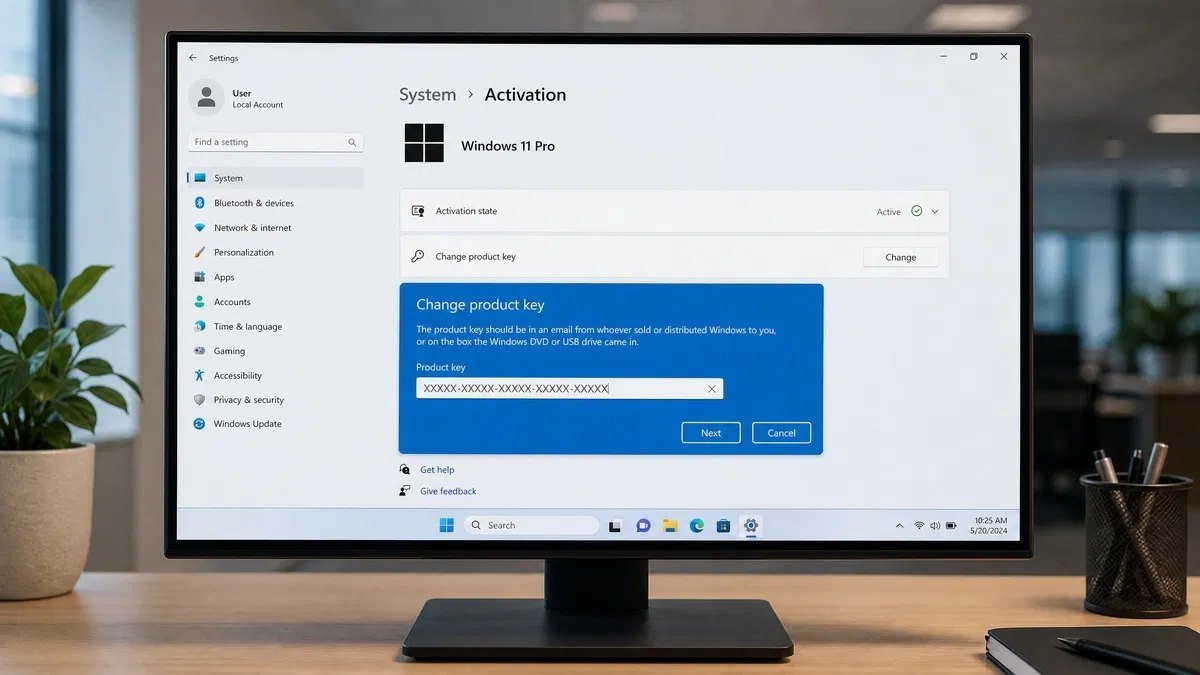
The more forgiving route. Open Settings, go to System and then Activation on Windows 11, and find the option to change the product key. Enter the twenty five characters, confirm, and the machine contacts the activation servers.
Success is immediate and the panel updates to say Windows is activated. If it fails, the panel gives an error code rather than an explanation, and the section on error codes below translates the ones you are likely to see.
Once it activates, sign in with a Microsoft account from that same panel so the new machine is linked. You are creating the record that saves you the next time this hardware changes, and it takes thirty seconds while everything is working.
Using the command line
Some people prefer it and it is occasionally the only route that works when the Settings panel is misbehaving. In an administrator Command Prompt, run slmgr /ipk followed by a space and the key with its hyphens. That installs the key. Then run slmgr /ato to attempt activation against Microsoft’s servers.
The advantage of this route is that slmgr reports the actual error code in the dialog rather than the friendlier and less useful message the Settings panel shows. If you are troubleshooting rather than just activating, do it this way and you get better information.
Changed hardware Windows 11 activation: the reactivation route
This is the other half of the question, and it is a genuinely different situation. You are not moving a licence to a different computer. You still have the same computer, you replaced something inside it, and Windows has decided it no longer recognises the machine.
What triggers it
Activation is matched against a hardware fingerprint, and the motherboard dominates that fingerprint by a wide margin. Replace the board, or replace it as part of a processor upgrade that required a new one, and the fingerprint no longer matches the record on Microsoft’s servers. Windows goes unactivated, the watermark appears, and the activation panel reports that the hardware changed.
It can also trigger on a firmware update that changes how the board identifies itself, on a laptop mainboard replacement under warranty, and occasionally on a virtual machine whose host configuration changed. The common thread is always the board or something that behaves like the board.
None of this means the licence is gone. The entitlement is intact. What is broken is the association between the entitlement and the hardware, and repairing that association is what the troubleshooter does.
Running the activation troubleshooter
Open Settings, go to System and then Activation. Where the panel reports that Windows is not activated because the hardware changed, there is a troubleshoot option. Open it and let it run its checks.
When it finishes, it offers a link saying that you changed hardware on this device recently. Choose it. You are asked to sign in with the Microsoft account the licence was linked to, and after signing in you get a list of devices associated with that account.
This is where the preparation pays off. If the machine was linked to the account before the hardware changed, it appears in that list under whatever name it had. Select it, tick the box confirming that this is the device you are using now, and choose activate. It completes in a few seconds and the watermark disappears.
Selecting the right device
The list shows device names and editions, and on an account with several machines it is not always obvious which entry is the one you want. Match on the edition first, since a Pro licence will not activate a Home installation or the reverse, and then on the name the machine had before the rebuild.
If you pick the wrong one, the troubleshooter tells you the edition does not match rather than silently doing something wrong. You can go back and choose again. There is no penalty for getting it wrong once.
Devices you no longer own will still be listed. That is normal, because the list is a record of what was linked rather than a live inventory, and it does not mean those licences are still available to reuse.
When the device is not listed
Three usual reasons. The licence was never linked to a Microsoft account, in which case there is no record to offer. You signed in with a different account than the one the licence was linked to, which is easy to do if you have both a personal and a work account. Or the licence is OEM and the board it was tied to no longer exists, in which case there is nothing to recover.
Check the account first, because it is the cheapest thing to rule out. Sign out, sign in with the other account you use, and run the troubleshooter again. People find their machine on the second account often enough that it is always worth the two minutes.
If the licence is retail and was simply never linked, you still have the key route. Enter the key from the Settings panel and it should activate on the new hardware, since a retail licence permits exactly this. Our guide to Windows 11 activation covers what the panel reports in each state and how to read it.
Which hardware changes actually break activation
People replace things and then worry. Most of the worry is unnecessary, and the table sorts it out.
| Component replaced | Breaks activation | Fixed by troubleshooter | Needs the key |
|---|---|---|---|
| Motherboard | Yes | Yes | Sometimes |
| Processor only, same board | No | No | No |
| Hard drive or SSD | No | No | No |
| Memory | No | No | No |
| Graphics card | No | No | No |
| Power supply or case | No | No | No |
| Network adapter | No | No | No |
| Entire PC, retail licence | Yes | No | Yes |
| Entire PC, OEM licence | Yes | No | Not transferable |
Read the middle column as the reassuring one. Almost nothing you can swap inside a machine affects activation, which is why the fear of touching hardware is mostly misplaced. Only the board matters, and only when it is genuinely replaced rather than reflashed.
The one entry worth a second look is the processor. A processor upgrade within the same socket on the same board changes nothing. A processor upgrade that required a new board is a board replacement wearing a different name, and it behaves accordingly.
The motherboard problem
Since the board is the whole story, it deserves its own section rather than a line in a table.
The activation record ties an entitlement to a hardware identifier derived largely from the board. When the board changes, the identifier changes, and the servers have no way to know whether this is the same computer with a new part or a completely different computer trying to reuse a licence. They default to treating it as the second, which is the correct default from Microsoft’s point of view and an irritating one from yours.
For a retail licence, this is a formality. The troubleshooter or the key resolves it and you carry on. For an OEM licence, it is the end of the line. The licence was issued against that board and the board is gone, and no procedure, phone call or registry edit changes what the licence permits. People spend a lot of time looking for the workaround here, and the reason they never find one is that it does not exist.
There is a partial exception that comes up often enough to mention. If the board was replaced under warranty because it failed, rather than because you upgraded, Microsoft’s own guidance has historically treated that as a repair rather than a new machine, and phone activation is the route to make that case. It is not guaranteed and it depends on the operator, but it is a legitimate call to make and worth trying before writing the licence off.
Activation error codes you will meet
The activation panel is not generous with explanations. Each of these codes means something specific, and knowing which one you have narrows the problem from anything at all to one of about three things.
0xC004C003
The activation server determined that the key is blocked, or is already in use on a different machine. On a transfer, this almost always means the old installation is still claiming the key.
The fix is the one you skipped: go back to the old machine, run slmgr /upk to release the key, wait a few minutes and try again. If the old machine no longer exists, phone activation is the route, because an operator can release a key that a server thinks is in use when the installation holding it is gone.
0xC004F034
The licensing service reported that the key is invalid, or the specified key could not be found. Two very different causes hide behind one code.
The first is a typing error, and it is more common than people expect because the character set includes several pairs that look alike in the fonts used on stickers and invoices. Retype the key rather than correcting what is already in the box. The second is a key that does not match the installed edition, such as a Home key on a Pro installation. Check what you are running with winver or with our guide to checking which Windows version you have, and match the key to it.
0xC004F050
The key is not valid for the edition or version you are trying to activate. This is the edition mismatch made explicit, and it is a very common outcome when somebody reinstalls using media that defaulted to a different edition than the one their licence covers.
You do not necessarily need to reinstall. An in-place edition change is possible in some directions, notably Home to Pro, from the activation panel by entering the Pro key. Going the other way generally does require a clean install.
0xC004F213
No product key was found on the device. This is what a digital licence machine reports when the hardware changed and there is no stored key to fall back on.
If the licence was linked to a Microsoft account, run the troubleshooter and select the device. If it was not, and the licence is retail, enter the key. If it was not and the licence is OEM, this code is telling you the entitlement was tied to hardware that is no longer present.
0x803FA067
Specifically a hardware change code. Windows is reporting that it could not be activated on this device because the hardware no longer matches the licence record.
This is the textbook case for the troubleshooter and the account route. It is also the code that most often resolves in under two minutes, provided the machine was linked before the change.
0xC004C060 and 0xC004C020
The first says the key has been blocked by the activation server. The second says a multiple activation key has exceeded its permitted number of activations.
A blocked key usually means the key was sold in a way Microsoft objected to, which is the outcome that makes the difference between a legitimate discounted licence and a cheap one worth avoiding. Our piece on whether cheap Microsoft keys are safe covers what separates the two, and our guide to telling legitimate cheap Windows keys from scams lists the checks that catch it before you pay. An exhausted multiple activation key belongs to an organisation and is a conversation with whoever administers it.
If the key you are holding will not activate for any of these reasons, our guide to what to do when a Windows key will not work goes through the diagnostics in more depth than there is room for here.
Phone activation, which still exists
It feels like a relic and it is still the answer to a specific set of problems, particularly transfers where the old machine is gone and the server thinks the key is in use.
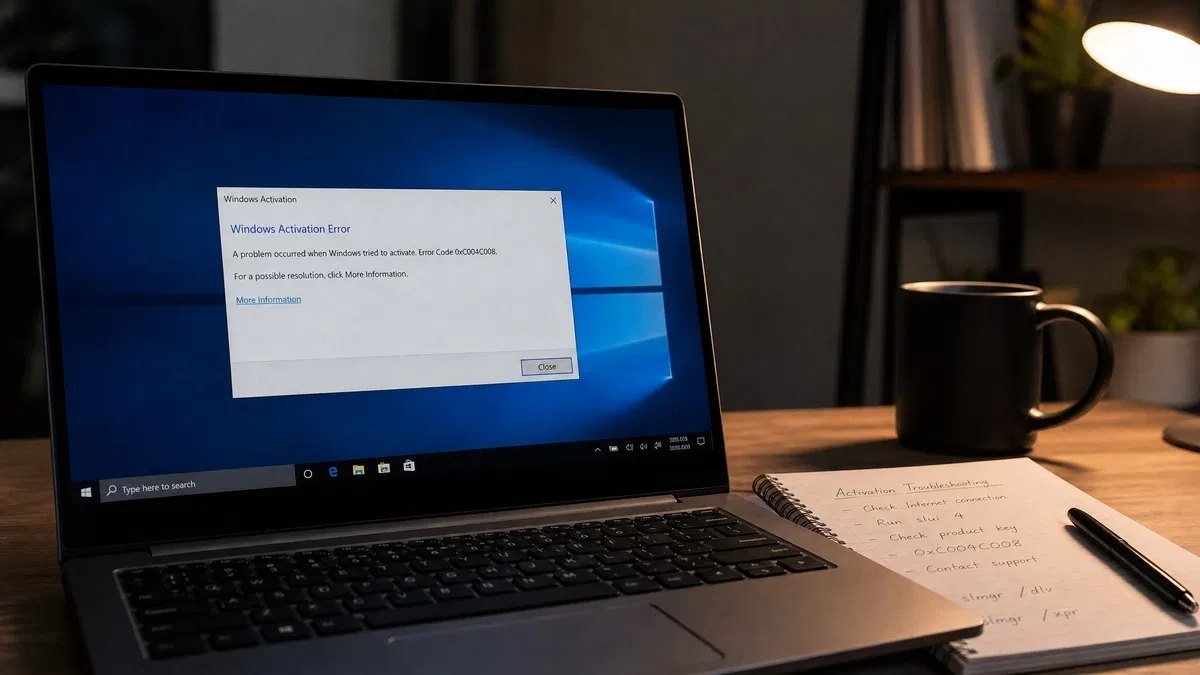
Run slui 4 from the Run box or an administrator Command Prompt. A wizard opens, asks you to select your country, and gives you a phone number and a long installation ID broken into groups. You call, work through an automated system that reads your installation ID and reads back a confirmation ID, and you type that confirmation ID into the wizard.
The automated system handles most cases without a human. When it does not, it transfers you to an operator, and this is where explaining the situation matters. A retail licence being moved to a new machine after the old one was decommissioned is a normal, permitted thing, and saying so plainly usually resolves it. A motherboard replaced under warranty is the other case operators are equipped to handle.
Two practical notes. Have the installation ID visible on screen before you call, because reading it back is most of the call. And do not use phone activation to try to force an OEM licence onto different hardware; the operator is not the person who decides what the licence permits, and the answer will be no.
Transferring an OEM licence: what people try and why it fails
This section exists because the search results for this question are full of confident advice that does not work, and it is worth knowing why before you spend an evening on it.
Editing the registry to change the stored key does not help. The key is not what the servers check; the hardware fingerprint is. A machine with an OEM key correctly installed and a fingerprint that does not match the record still fails, and the registry edit changes nothing about the record.
Reinstalling Windows from scratch does not help either. A clean installation asks the same servers the same question and gets the same answer, because the question is about the hardware rather than about the state of the installation.
Phone activation does not help, for the reason given above. The operator is following the same licensing terms and has no discretion to override them for an upgrade.
Activation cracks and key management service emulators produce a machine that reports itself activated without any entitlement behind it. They work by modifying system files or installing a fake activation service, they break on updates, and the download sources for them are among the least trustworthy places on the internet. A machine you use for banking is not a machine to experiment on, and the saving is smaller than the cost of the eventual cleanup.
What does work is accepting that the OEM licence stays with the old machine, which incidentally makes the old machine worth more if you are selling it, and buying a licence for the new one. If you buy retail this time, the next transfer is a ten minute job rather than an impossibility.
Transferring Office at the same time
People rebuilding a machine usually have Office on it too, and the rules are different enough to catch them out.
A Microsoft 365 subscription is tied to your account rather than to hardware. Sign in on the new machine, install from the account portal, and it works. There is nothing to transfer and nothing to deactivate, though the subscription does limit how many devices can be signed in at once, so removing the old machine from the account is tidy rather than necessary.
A perpetual Office licence, meaning a one-off purchase of a specific version, behaves more like retail Windows. It is tied to the account it was redeemed against and can generally be installed on a replacement machine, with the old installation deactivated from the account portal first. The key, if you need it, lives in the account under services and subscriptions or in the original purchase email, and our guide to finding your Office product key covers where to look.
An OEM Office licence that came preinstalled on a computer follows the same rule as OEM Windows and stays with the machine. This is the one people are surprised by, because Office feels like something you own separately even when it was bundled.
What to do when the transfer is not possible
Sometimes the answer really is that the licence stays where it is. That is a normal outcome rather than a failure, and there are sensible next steps.
First, check whether you need to do anything at all. If the new machine came with Windows preinstalled, it already has its own OEM licence and the question of moving the old one is moot. A surprising number of people go looking for a transfer procedure for a machine that was already activated when they took it out of the box.
Second, if the new machine genuinely has no licence, decide which channel you want this time. Retail costs more and moves with you. OEM costs less and stays with the machine. If you build or upgrade regularly, the retail premium pays for itself the first time you replace a board. If the machine is a fixed appliance that will be replaced whole, OEM is the rational choice.
Third, if you buy, the things worth checking are the same regardless of price. A stated channel, so you know what you are getting. An invoice, so there is a record. A working support route, so a failed key is somebody’s problem other than yours. And a seller who replaces a key that stops working rather than treating the sale as final. Our Windows licences are sold with all four, and our page on how ordering works at Kymakers explains what arrives and when.
Fourth, running unactivated is a real option for a while. Windows does not stop working, it does not delete anything, and the practical cost is a watermark and locked personalisation settings. It is a reasonable state to sit in for a week while you decide, and an unreasonable one to sit in for a year.
The honest trade-offs
Three of these come up repeatedly and none has a clean answer.
The first is whether to deactivate the old machine before you are certain the new one works. Deactivating first is the clean procedure and avoids the key-in-use error. Deactivating first also leaves you, briefly, with two unactivated computers if something goes wrong with the new build. The pragmatic middle is to get the new machine to the desktop and confirm it is stable before touching the old one, then deactivate and activate in quick succession.
The second is retail against OEM at purchase time. The transfer right is worth real money to somebody who upgrades and worth nothing to somebody who does not, and most people cannot honestly predict which they are. If you are unsure, ask how many computers you have replaced in the last five years. That number is a better guide than your intentions.
The third is whether to chase a licence that is probably not transferable. There is a point where the hours spent are worth more than the licence, and people blow past it routinely because it feels like giving up. Two hours of searching for a workaround to an OEM tie is two hours spent confirming something this page told you in the second paragraph.
Mistakes people keep making
Assuming a preinstalled licence is transferable because they paid for the computer. They paid for the computer, and the licence is part of the computer. It is a reasonable assumption and it is wrong.
Not checking the channel before starting. Twenty seconds with slmgr /dli decides whether the next hour is productive, and it is the single most skipped step in the entire process.
Selling the old computer without removing the key. The buyer inherits an activated machine using your retail licence, and the licence you thought you kept is now in use somewhere you cannot reach.
Linking the licence to a Microsoft account after the hardware changed rather than before. The troubleshooter can only offer devices that were linked while they were activated, so doing it afterwards accomplishes nothing.
Entering a key that was read off the firmware of a machine that was later upgraded. The firmware key describes the edition the machine shipped with, not the edition it is entitled to now, and using it installs the wrong one.
Treating an error code as a wall rather than a message. Each code narrows the problem substantially, and reading it costs nothing compared to guessing.
Reinstalling Windows as a first response to an activation failure. It almost never helps, because the failure is between the hardware and the servers rather than inside the installation, and it costs an afternoon to learn that.
Buying a replacement licence before establishing whether the existing one can be recovered. The troubleshooter route is free and takes two minutes, and it resolves the changed hardware case more often than not.
Using an activation crack because the machine is only temporary. Temporary machines have a way of becoming permanent, and the modification does not remove itself when the plan changes.
Forgetting that the edition has to match. A Pro key on a Home installation and a Home key on a Pro installation both fail, and both produce an error code that says nothing about editions unless you know to read it that way.
A practical order to work through
Run slmgr /dli on the old machine and read the channel. If it says OEM, skip to the section on what to do when the transfer is not possible, because the rest will not help.
If it says RETAIL, find and record the key, then confirm the licence is linked to a Microsoft account while the machine still works.
Build or set up the new machine and get it to a stable desktop before touching the old one. Then run slmgr /upk and slmgr /cpky on the old machine to release the key.
Enter the key on the new machine from the activation panel, or with slmgr /ipk followed by slmgr /ato if you want the real error codes. Sign in with a Microsoft account once it activates so the new machine is linked.
If it fails, read the code. A key-in-use error goes to phone activation with slui 4. An edition mismatch goes to matching the key to the installed edition. A hardware change code goes to the troubleshooter and the device list.
If you replaced a motherboard rather than the whole computer, start at the troubleshooter instead. Settings, Activation, troubleshoot, the link about changing hardware, sign in, select the device. Two minutes when it works, and it usually works.
Frequently asked questions about transferring a Windows license
Can I transfer my Windows license to a new PC
Only if it is a retail licence. Retail licences are licensed to you and may be moved between machines, one at a time. OEM licences came with a computer, are tied to its motherboard, and cannot be moved. Run slmgr /dli to see which one you have before making plans.
How do I remove a Windows license from my old computer
Open Command Prompt as administrator and run slmgr /upk to uninstall the key, then slmgr /cpky to clear it from the registry. The machine drops to an unactivated state, which is expected, and the key is then free to use elsewhere.
Do I need to deactivate the old PC first
It is strongly advisable and not always strictly required. Skipping it often produces a key-in-use error on the new machine, which is recoverable through phone activation but takes longer than the thirty seconds deactivating would have taken.
Will changing my motherboard deactivate Windows
Yes. The motherboard is the dominant part of the hardware fingerprint that activation is matched against, so replacing it makes the machine unrecognisable to the activation servers. Drives, memory, graphics cards and power supplies can all be replaced without any effect.
How do I reactivate Windows 11 after changing hardware
Settings, System, Activation, then the troubleshoot option. Choose the link saying you changed hardware recently, sign in with the Microsoft account the licence was linked to, select the machine from the device list, and activate. This only works if the licence was linked to that account before the hardware changed.
My device is not in the list. What now
Usually one of three things: you signed in with a different account, the licence was never linked to any account, or the licence is OEM and its board is gone. Try the other account first, since that is the cheapest to rule out and it is the answer more often than people expect.
Can I use my OEM key on a new motherboard
No. The licence is tied to the board it first activated on. No registry edit, reinstallation or phone call changes that, because it is what the licence permits rather than a technical obstacle. The one grey area is a board replaced under warranty after a failure, which phone activation can sometimes accommodate.
What is the difference between a digital licence and a product key
A product key is a string you enter. A digital licence is a record on Microsoft’s servers linking your entitlement to your hardware, with no key involved. Modern machines often have the second and no meaningful version of the first, which is why the commands that read out a key sometimes return nothing.
Why does my key say it is already in use
Because an installation somewhere is still claiming it, usually the old machine you did not deactivate. Release it there with slmgr /upk, or use phone activation if that machine is no longer accessible.
How many times can I transfer a retail licence
There is no published limit on the number of transfers over the life of the licence. Moving it several times in a short period can trigger a check that pushes you to phone activation rather than automatic activation, which is a delay rather than a refusal.
Does replacing my SSD affect activation
No. Storage is not a meaningful part of the hardware fingerprint. You can move to a new drive, clone the installation or do a clean install on new storage without touching activation at all.
Can I transfer Windows 10 to a new PC and then upgrade to 11
Yes, if the licence is retail. Move it, activate the new machine on Windows 10, and upgrade from there, or install Windows 11 directly and enter the Windows 10 key, which activates it. Our guide to upgrading from Windows 10 to 11 covers what happens to the licence during that process.
What happens to the old PC after I remove the licence
It keeps working and drops to an unactivated state, with a watermark in the corner and personalisation settings greyed out. Nothing is deleted and nothing stops functioning. If you are selling it, the buyer will need to supply their own licence.
Is phone activation still available
Yes. Run slui 4, pick your country, and you get a number and an installation ID. The automated system handles most cases, and an operator takes the ones it cannot, including legitimate transfers where the old machine no longer exists.
If reactivation fails outright and the licence was tied to hardware you no longer have, a new key is the only clean fix. A Windows 11 Pro product key covers the Pro edition, and a Windows 11 Home product key covers Home.
The bottom line on transferring a Windows license
Almost everything about this comes down to one word in the output of one command. Retail means the licence moves and the procedure is short. OEM means it does not and no amount of effort changes that. Volume means it was never yours to move. Running slmgr /dli before anything else is the difference between a productive hour and a wasted one.
For the changed hardware case, the deciding factor is whether you linked the licence to a Microsoft account while the machine was still activated. Linked, and the troubleshooter fixes it in two minutes. Not linked, and you are into keys, error codes and possibly a phone call. That link takes thirty seconds to create and it is worth doing on every machine you own, right now, rather than after the board fails.
So check the channel, record the key somewhere that is not the computer it came from, link the licence to an account, and deactivate the old machine before activating the new one. Do those four things in that order and the transfer is unremarkable. Skip them and you will meet every error code on this page in turn.