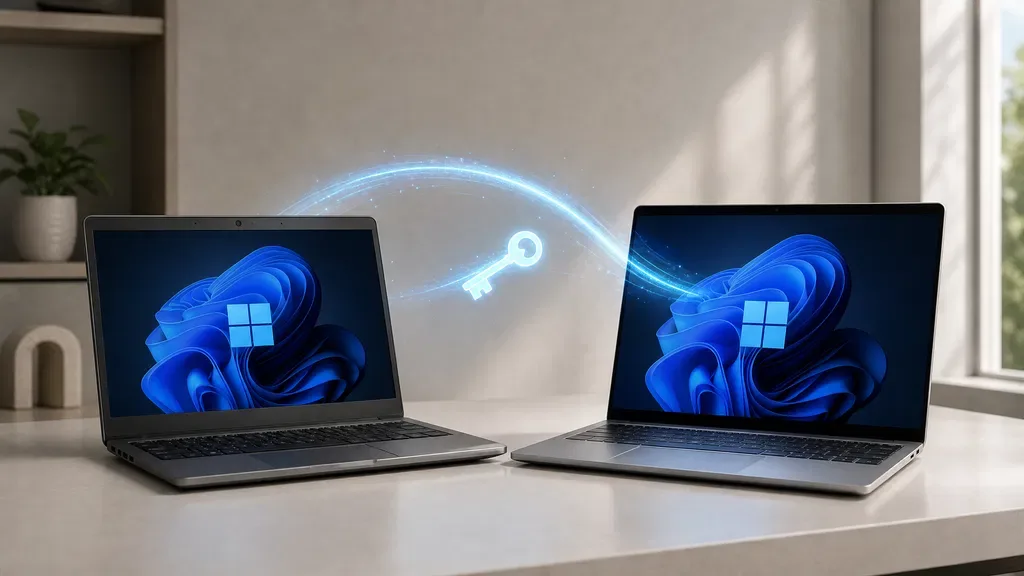
Buying a new PC does not always mean buying a new copy of Windows. If the licence on your old machine is a retail one, you can transfer your Windows 11 license to a new computer legally and carry on using the copy you already paid for. The catch is that not every licence qualifies, and Microsoft does not make the distinction obvious anywhere in the interface.
This guide covers how to identify which licence type you actually own, how to release it from the old machine cleanly, and how to activate it on the new one — including what to do when activation refuses to go through.
Can You Transfer a Windows 11 License to a New Computer?
It depends entirely on the licence channel. Windows 11 reaches customers through three of them, and only one is freely transferable:
- Retail — purchased as a standalone product key or boxed copy. Transferable. You may move it between computers as often as you like, provided it is active on only one machine at a time.
- OEM — pre-installed by the manufacturer on a laptop or prebuilt desktop. Not transferable. Microsoft binds this licence permanently to the original motherboard. When that PC is retired, the licence retires with it.
- Volume / MAK — issued to organisations under a licensing agreement. Transfers are governed by that agreement and handled by an IT administrator rather than the end user.
So the first job is not deactivating anything. It is finding out which of those three you are holding.
Step 1: Check Your Windows 11 License Type
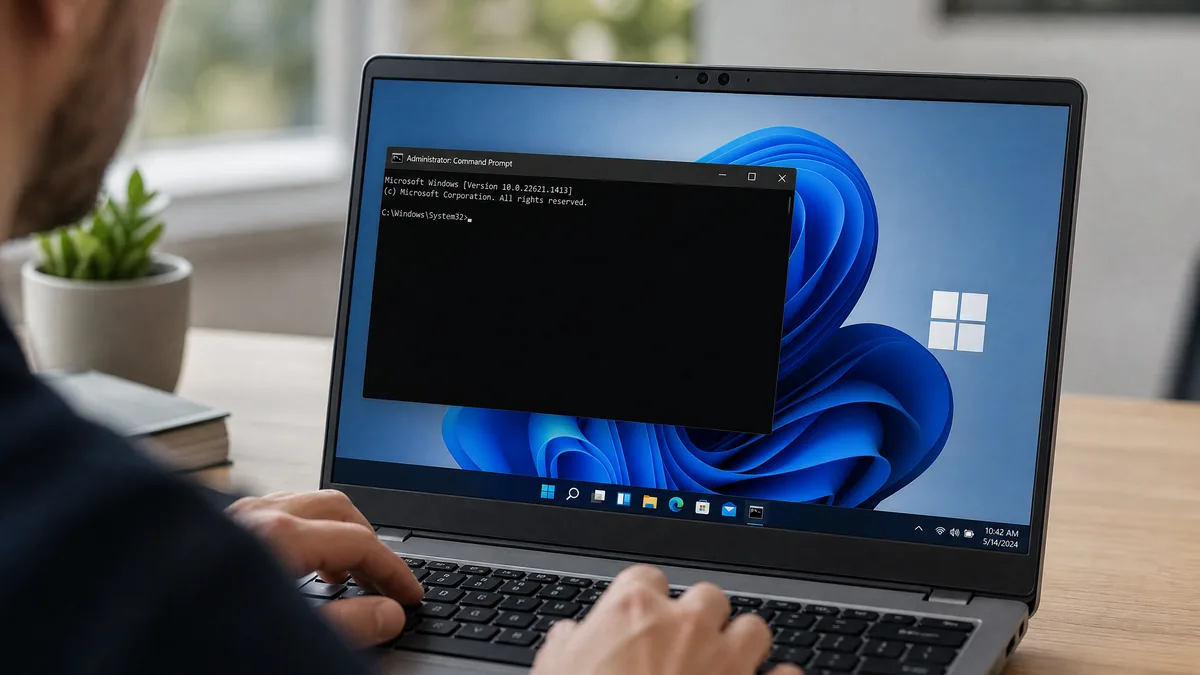
On the old computer, open Command Prompt as an administrator — press Start, type cmd, right-click Command Prompt and choose Run as administrator. Then run:
slmgr /dli
A small window appears after a second or two. Look at the Description line. It will contain the word RETAIL, OEM_DM, or VOLUME_MAK. That single word decides whether the rest of this guide applies to you.
If you want the full picture instead, run slmgr /dlv for the detailed version, which also shows the activation ID and the remaining rearm count.
Seeing OEM_DM? Stop here. That licence cannot legally move to another computer no matter what steps you follow, and any workaround you find online will leave you unactivated sooner or later. You will need a fresh key for the new machine.
Step 2: Remove the License From the Old PC
Microsoft allows a retail licence on one active machine at a time. Leaving it installed on the old computer while activating the new one is what produces the dreaded “key already in use” error later, so clear it first.
In the same administrator Command Prompt, run these two commands in order:
slmgr /upk
slmgr /cpky
The first uninstalls the product key from the running copy of Windows. The second clears it out of the registry so it cannot be scraped by anyone who later gets hold of the machine. The old PC drops to an unactivated state immediately — that is expected and correct.
Write your key down before you do this. Once /upk runs, Windows will no longer show it to you.
Step 3: Activate Windows 11 on the New Computer
There are three routes, and it is worth trying them in this order.
Method A — Enter the product key directly
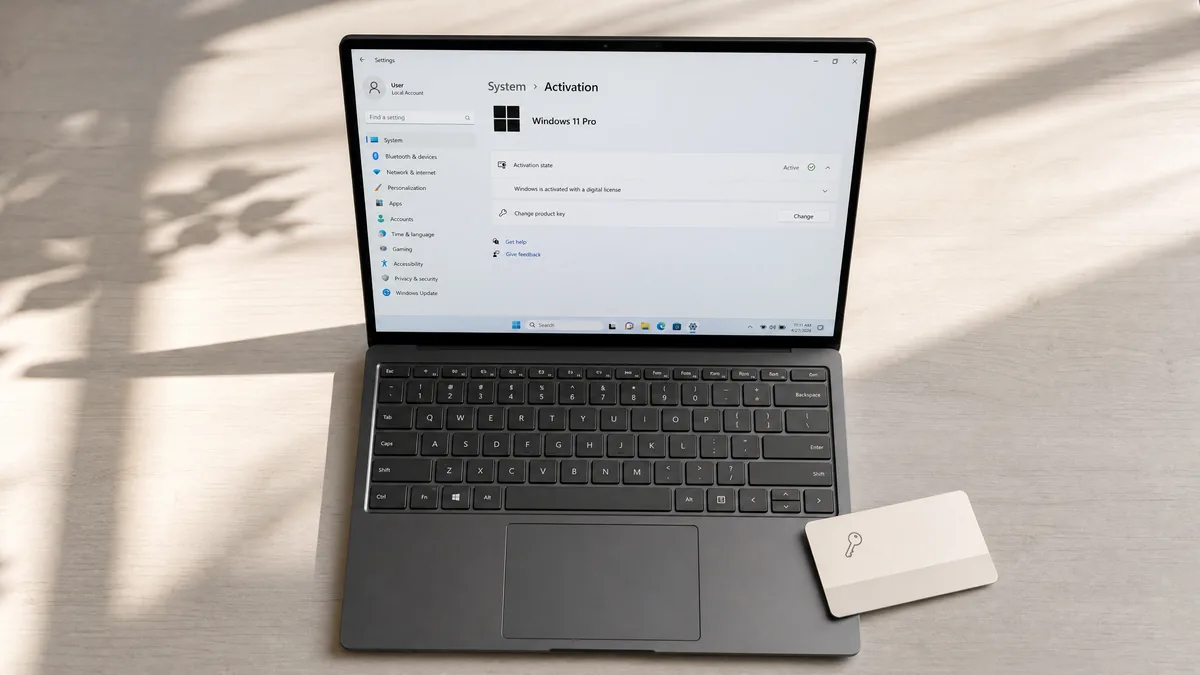
On the new PC, go to Settings > System > Activation. Expand Change product key, click Change, type the 25-character key, and click Next. If the key is valid and no longer registered to the old machine, activation completes in a few seconds.
Method B — Use your Microsoft account digital license
If your licence was linked to a Microsoft account rather than typed in as a key, this is the route that works. Sign in to the new PC with the same Microsoft account, then open Settings > System > Activation and run the Troubleshoot option.
When the troubleshooter finishes, look for the line I changed hardware on this device recently. Click it, sign in again if prompted, and you will get a list of devices tied to your account. Select the old computer, tick This is the device I am using right now, and click Activate.
Two things to know about this route: the Troubleshoot option only appears when Windows is currently unactivated, and the device list only shows machines that were signed in with that same account. Microsoft documents this process itself under reactivating Windows after a hardware change.
Method C — Phone activation
When both of the above fail — usually because Microsoft servers flag the transfer as suspicious — phone activation still works and is entirely legitimate. Open Run with Windows key + R, type slui 4, and press Enter. Choose your country, and you will be given an installation ID and a phone number. The automated system reads back a confirmation ID that you type into the same window.
It takes about five minutes and resolves most transfer refusals on the first attempt.
Transferring a Windows 10 License to a Windows 11 Computer
This comes up constantly, and the answer is better than most people expect. A retail Windows 10 key activates Windows 11 directly. There is no conversion step and no upgrade fee — the two versions share an activation entitlement, so you can move a Windows 10 retail licence onto a Windows 11 machine using exactly the steps above.
The same restriction applies, though: if that Windows 10 licence came pre-installed on a Dell, HP, or Lenovo machine, it is OEM and stays with the original hardware. For the full upgrade picture, see our guide on upgrading from Windows 10 to Windows 11.
Common Transfer Errors and How to Fix Them
0xC004C008 — the activation server says the key cannot be used. This almost always means the key is still registered to the old computer. Go back and run slmgr /upk there, then retry. If the old machine is dead or already wiped, use phone activation (Method C) and explain that you moved the licence to new hardware.
Microsoft maintains a full reference for Windows activation errors if you hit a code not listed here.
0xC004F034 — invalid key or no activation server available. Retype the key carefully; this error is frequently just a mistyped character. If you are on a work machine, the key may be a volume licence expecting a KMS host that your new PC cannot reach.
0x803FA067 — the licence could not be updated. Usually a digital-licence mismatch. Confirm you are signed in with the same Microsoft account that held the original licence, then rerun the troubleshooter.
0xC004F074 — the KMS server could not be contacted. This one is specific to volume-licensed machines. We cover the fix in detail in our guide to error 0xC004F074.
If activation succeeds but a watermark lingers in the corner of your screen, that is a separate cosmetic issue — our post on removing the activate Windows watermark covers it.
When You Need a New License Instead
Buying fresh is the only route in three situations: your old licence is OEM, the original PC is gone and phone activation has already been exhausted, or you are moving up an edition — for example from Home on the old machine to Pro on the new one.
If it is the edition change that is driving this, you do not need a full licence. A Windows 11 Home to Pro upgrade key converts an already-activated Home installation in place, keeping your files and applications untouched.
For a clean start on new hardware, a Windows 11 Pro product key covers a single PC with a lifetime licence and no subscription. Home users who do not need BitLocker, Remote Desktop, or domain join can save money with a Windows 11 Home product key instead. Unsure which edition you actually need? Our Windows 11 Enterprise vs Pro comparison breaks down where the lines fall.
Questions & Answers
How many times can I transfer a Windows 11 license to a new computer?
A retail licence has no documented transfer limit. What matters is that it is active on only one machine at a time. Frequent transfers in a short window can trigger an automated flag, in which case phone activation clears it.
Do I have to remove the license from the old PC first?
Not strictly, but you should. Skipping it is the single most common cause of error 0xC004C008 on the new machine, and clearing the key afterwards is more work than doing it upfront.
How do I transfer a Windows 11 Pro license to a new computer if the old one will not boot?
You cannot run slmgr /upk on a dead machine, so go straight to phone activation with slui 4 on the new PC. Explain that the previous hardware failed — this is a routine scenario the automated system handles.
Does replacing my motherboard count as a new computer?
As far as Windows activation is concerned, yes. A motherboard swap reads as new hardware and will deactivate the installation. Retail licences reactivate through the troubleshooter; OEM licences generally will not.
Can I transfer a Windows 11 digital license without a product key?
Yes — that is exactly what Method B is for. The licence lives in your Microsoft account rather than as a 25-character string, so sign in on the new PC and use the “I changed hardware on this device recently” option.
Why Buy From Kymakers
- Genuine Microsoft licences that activate on Microsoft servers
- Instant delivery — key and download link by email within minutes
- Lifetime licence, one payment, no subscription
- Installation and activation support if anything goes wrong
- Money-back guarantee