Windows 11 25H2 is the version almost every Windows 11 PC is either running or about to run, and if you are still on 24H2 you have until 13 October 2026 before the security updates stop. That is the short version. The longer version is more interesting, because 25H2 is not a normal Windows release. It installs in about the time it takes to make coffee, it adds fewer visible features than any Windows update in years, and it quietly removed two things that some businesses still depend on.
We sell Windows licences for a living, so we get asked about every new version the week it lands. The questions are always the same three: do I have to install it, will it break my activation, and do I need to buy anything. This guide answers all three properly, with the dates and the mechanics, and it is honest about the parts where the answer is “no, you do not need to spend money on this.”
What is happening with Windows 11 25H2 right now
Here is the state of play as of the moment this was written, in August 2026.
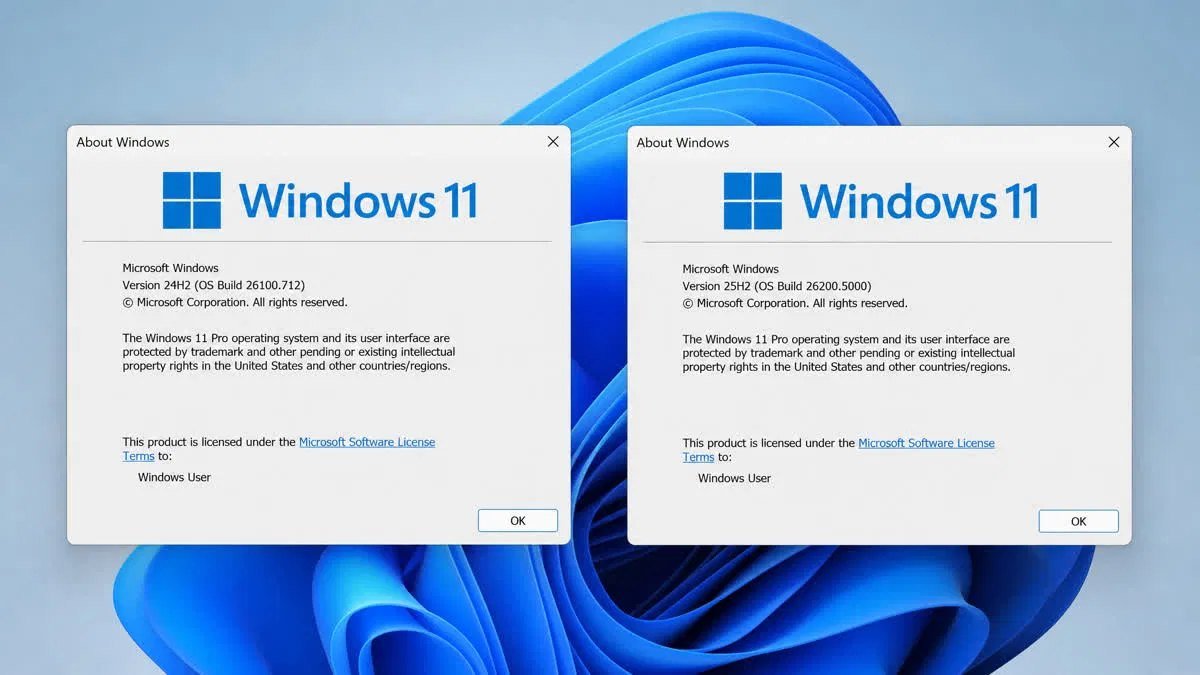
Windows 11 25H2, officially the Windows 11 2025 Update, became generally available on 30 September 2025. It reached the business channels, Windows Server Update Services and Configuration Manager, on 14 October 2025. It carries build number 26200, which is a small step up from 24H2’s 26100, and that near-identical build number is your first clue about what kind of release this is.
Since June 2026, Microsoft has been pushing 25H2 out automatically to unmanaged consumer PCs, meaning Home and Pro machines that are not under IT control. The rollout uses a machine-learning model that decides which hardware configurations are safe to update first, so two identical-looking laptops in the same house can get the offer weeks apart. If you have not been offered it yet, that is normal and it is not a fault with your PC.
The deadline that actually matters is 13 October 2026. On that date, Windows 11 24H2 Home and Pro stop receiving monthly security updates. Enterprise and Education editions of 24H2 get an extra year, to 12 October 2027. If you are on Home or Pro and reading this in late 2026, you have weeks, not months.
There is also a successor already circling. Windows 11 26H2 is expected in autumn 2026, and everything published about it so far says it is built on the same platform as 25H2 with essentially no new features on top. We will come back to whether that means you should skip 25H2 and wait, because the answer is not what most people assume.
How Windows 11 25H2 is delivered: the enablement package, explained properly
This is the single most misunderstood thing about this release, and understanding it saves you a lot of unnecessary worry.
A traditional Windows feature update is a full operating system swap. Windows downloads several gigabytes, stages a complete second copy of the OS, migrates your settings and applications into it, restarts several times, and can take anywhere from twenty minutes to two hours. That is what upgrading from Windows 10 to Windows 11 looks like, and it is why people schedule it for a Friday evening.
Windows 11 25H2 is not that. If your PC is already running 24H2, the 25H2 code is already on your disk. It arrived quietly, piece by piece, inside the ordinary monthly cumulative updates you have been installing all along. The features were shipped in a disabled state, sitting dormant in the system files, waiting.
The enablement package, catalogued as KB5054156, is the switch. It is a tiny download, in the region of a few hundred kilobytes, and all it does is flip the version number and turn on the dormant code. One restart and you are on 25H2. Most people report the whole thing taking under five minutes, and a good share of that is the restart itself.
Microsoft calls the mechanism that keeps those features dormant Temporary Enterprise Feature Control. The idea is that businesses get a predictable annual change window rather than new features appearing mid-year without warning. Consumers see some of those features earlier; managed enterprise devices hold them back until the annual update lands. It is a sensible system and it is the reason the annual update now feels so small.
There is a prerequisite. To take the enablement package, your PC must be on Windows 11 24H2 with the August 2025 update KB5064081, build 26100.5074, or anything newer. In practice, if you have installed Windows updates at any point in the last year, you already qualify. If you have been deferring updates for a long time, Windows will install the missing cumulative update first and then offer the enablement package afterwards, which means two restarts instead of one.
If you are not on 24H2, none of this applies to you. Coming from Windows 11 23H2, or from Windows 10, you get the full feature update, with the full download and the full install time. Same destination, very different journey.
Two things worth keeping separate here. 25H2 is an update to Windows 11; getting onto Windows 11 in the first place is a different job with its own compatibility check and its own rollback window, and our guide to upgrading from Windows 10 to 11 covers that side of it.
What is actually new in Windows 11 25H2
Set your expectations low and you will be pleasantly surprised. This is a maintenance-and-consolidation release, and the honest summary is that most people will restart, look around, and struggle to name a single difference. That said, there are real changes, and a few of them are genuinely good.
Click to Do and the Copilot+ features
Click to Do is an overlay that reads what is on your screen and offers actions on it. Hold the Windows key and click, or use the shortcut, and Windows highlights text and images on screen and offers to summarise, rewrite, search, blur a background, or erase an object. It works on whatever is in front of you, including screenshots and photographs, without you having to copy anything into another app first.
The catch is hardware. The good version of Click to Do, along with improved semantic Windows Search and the on-device Agent in Settings, needs a Copilot+ PC. That means a neural processing unit rated at forty trillion operations per second or better. If your laptop was bought before roughly mid-2024, it almost certainly does not have one, and no update will add it. This is not a licensing limitation, so buying a different edition of Windows will not unlock it.
Recall, the feature that periodically snapshots your screen so you can search your own history, is still labelled preview and is Copilot+ only. On managed business devices it is disabled or removed by default. If you have privacy concerns about it, the practical answer is that on most consumer hardware it is not present at all.
File Explorer, at last
File Explorer got the sort of small fixes that people have been asking for since 2021. You can right-click in the left navigation pane and create a new folder directly, which sounds trivial until you count how many times a week you needed it. Windows can now restore your previous File Explorer windows and tabs when you log back in, so a restart no longer scatters your working set.
Extracting archives is measurably faster, context menus got dividers so they are readable again, and for Microsoft Entra ID users there are people icons in the Activity column showing who touched a file. There are also AI actions built into the right-click menu on image files: blur background, erase objects, remove background. Those work on ordinary images without opening a separate editor.
Task Manager gets accurate again
Task Manager now reports DDR memory speed in MT/s rather than MHz, which is the technically correct unit and ends a long-running argument in hardware forums. Process handles are released faster, so the list stops showing ghosts of closed applications. Sorting is quicker, window resizing behaves, and there is a proper set of accessibility improvements covering keyboard focus, tab navigation, text scaling and screen reader support.
There is also a new optional column called CPU Utility, which restores the older style of CPU usage calculation. If you noticed that Task Manager’s CPU numbers stopped matching what other tools reported, this column is the fix.
Quick Machine Recovery
This one deserves more attention than it gets. Quick Machine Recovery lets a PC that cannot boot connect to Microsoft’s cloud, identify the failure, and pull down a targeted fix automatically, without a technician standing over it with a USB stick.
It was built in direct response to the kind of fleet-wide boot failure that used to mean thousands of individual manual repairs. For a home user it is a safety net you will hopefully never see. For anyone managing more than a handful of machines it is the most valuable thing in the release. If you have ever spent an afternoon making recovery media, our guide on how to create a bootable USB for Windows is still worth keeping bookmarked, but Quick Machine Recovery should reduce how often you need it.
Settings, privacy and Windows Hello
The Settings app has a new homepage with cards for recommended settings, Bluetooth devices, device information and accessibility, plus indicator cards showing which work, school or Microsoft account the device is attached to. It is a cosmetic change, but it makes the account situation on a shared or second-hand machine much easier to read at a glance.
Under Privacy and security there is a new Text and Image Generation page listing which applications have used on-device generative AI. Permission dialogs for camera, microphone and location were redesigned and now dim the background behind them, which makes them harder to click through by accident. Windows Hello got an interface refresh and the passkey experience was improved.
Taskbar behaviour changed in two useful ways. Pinning an application no longer requires restarting explorer.exe, and pins now apply within about eight hours on managed devices rather than at next logon. Separately, taskbar icons can shrink automatically when the bar runs out of space, and that behaviour is configurable if you hate it.
The business-only additions
Three changes only show up on Enterprise and Education editions, and they are the strongest argument in the whole release for those editions existing.
Policy-based removal of preinstalled Microsoft Store apps finally lets administrators strip inbox applications such as Clipchamp, Media Player and Teams through policy, on the image, without scripts that break at the next update. Anyone who has maintained a debloat script for the last five years will understand why this matters.
Wi-Fi 7 enterprise support arrived, requiring 25H2 or 24H2 with the September 2025 update, Wi-Fi 7 capable hardware, certified drivers and enterprise-grade access points. And Windows Backup for Organizations handles backup and restore of user settings and Store apps across a fleet, covering both Windows 10 22H2 and Windows 11, which makes it useful precisely during a migration.
Energy saver settings can now be managed through Group Policy and Intune, which is small but has real cost implications across a few hundred desks.
If you are weighing which edition your business actually needs, our comparison of Windows 11 Home vs Pro covers the tier below this, and the licensing logic there applies just as much after 25H2 as before it.
What Microsoft removed in Windows 11 25H2
Two removals, and both of them will catch somebody out.
PowerShell 2.0 is gone. Not deprecated, not hidden behind an optional feature, removed. It had been marked as deprecated since 2017, so nobody can claim they were not warned, but a surprising amount of old installer scripting still calls it explicitly. The migration path is the current version of PowerShell, and in most cases a script written for 2.0 runs unmodified on a modern version. The failures tend to be in vendor installers you do not control, which is exactly the sort of thing you find out about on a Monday morning.
WMIC, the Windows Management Instrumentation command-line tool, is uninstalled by the 25H2 feature update. This one has a reprieve: you can reinstall it through optional features or DISM. Microsoft does not recommend that, and has said plainly that WMIC will be fully removed in a future update, so treat any reinstall as borrowed time. If you have monitoring, inventory or licensing scripts that call wmic, rewrite them against PowerShell’s CIM cmdlets now rather than after the tool disappears for good.
Here is the practical test. Search your scripts folder for the strings “powershell -version 2” and “wmic”. If neither appears anywhere, you can stop worrying about this section entirely.
Windows 11 25H2 support dates and how the lifecycle works now
Windows 11 support runs on a simple rule that trips people up because the two halves are different lengths. Consumer editions get twenty-four months from release. Business editions get thirty-six. Both clocks start at the version’s release date, not at the date you installed it, which is the part people get wrong.
| Version | Released | Home and Pro support ends | Enterprise and Education support ends |
|---|---|---|---|
| Windows 11 23H2 | 31 October 2023 | 11 November 2025 (passed) | 10 November 2026 |
| Windows 11 24H2 | 1 October 2024 | 13 October 2026 | 12 October 2027 |
| Windows 11 25H2 | 30 September 2025 | 12 October 2027 | 10 October 2028 |
| Windows 11 26H1 | 10 February 2026 | 13 March 2029 | Not applicable, ARM hardware release |
Two things stand out from that table. First, installing 25H2 today buys you until October 2027 on Home or Pro, which is roughly fourteen months of headroom from now, and until October 2028 on Enterprise or Education. Second, 26H1 is an odd entry. It was released in February 2026 and it is not a general update at all; it is a targeted release built to support new ARM processors, specifically the Qualcomm Snapdragon X2 generation. If you do not own an ARM PC, 26H1 is not for you and Windows Update will never offer it.
What happens after the support date passes is worth being precise about, because the internet exaggerates it in both directions. Your PC does not stop working. Windows does not deactivate. Applications keep running. What stops is the monthly flow of security patches, which means every vulnerability discovered from that date onward stays open on your machine permanently. In a world where most malware arrives through a browser or a document, running an unpatched OS is a slow-burn risk rather than an instant catastrophe, but it compounds, and it will eventually fail a compliance audit or a cyber-insurance questionnaire.
This is the same mechanic that made Windows 10’s end of support such a big deal, and if you are managing a mixed estate, our breakdown of Windows 10 end of support explains how the two timelines interact.
Windows 11 25H2 system requirements
Good news, and it is genuinely good news: Windows 11 25H2 introduced no new hardware requirements. If your PC runs 24H2, it runs 25H2. There is no repeat of the 24H2 situation, where Microsoft quietly began requiring an x86-64-v2 processor with SSE4.2 and POPCNT support and stranded a set of older machines that had been running 23H2 perfectly well.
The baseline is unchanged from Windows 11 itself: a compatible 64-bit processor from Microsoft’s supported list, 4GB of RAM as an absolute floor, 64GB of storage, UEFI firmware with Secure Boot capability, and TPM 2.0. In practice you also want free disk space for the update. The enablement package needs almost nothing, but a full feature update from 23H2 or Windows 10 wants something in the region of twenty gigabytes free to work comfortably.
The Copilot+ features sit on top of that baseline and need the forty-TOPS neural processing unit mentioned earlier. Everything else in 25H2 runs on ordinary hardware.
If you are not sure whether a given machine qualifies for Windows 11 at all, our guide to Windows 11 requirements walks through checking each item, including how to tell whether TPM is present but switched off in firmware, which is the single most common reason a perfectly capable PC gets told it is unsupported.
| Requirement | Changed in 25H2? | Needed for basic 25H2? | Needed for Copilot+ features? |
|---|---|---|---|
| TPM 2.0 | No | Yes | Yes |
| Secure Boot capable UEFI | No | Yes | Yes |
| x86-64-v2 CPU with SSE4.2 and POPCNT | No, carried over from 24H2 | Yes | Yes |
| 4GB RAM minimum | No | Yes | Yes, and realistically more |
| 64GB storage | No | Yes | Yes |
| NPU rated 40 TOPS or higher | No | No | Yes |
How to get Windows 11 25H2
There are three routes, and which one you should take depends entirely on what you are running now. Before you start, confirm your current version by pressing Windows and R, typing winver, and pressing Enter. The box that opens tells you the version and build. If you want the longer method with more detail, we wrote up how to check what Windows you have, including how to read the edition and build number properly.
Route one: you are on 24H2 already
Open Settings, go to Windows Update, and select Check for updates. If 25H2 is available for your device you will see it listed as an optional feature update with a Download and install button underneath. Click it, let the tiny package download, restart when prompted. Done in minutes.
If it does not appear, the usual cause is that you are missing the August 2025 cumulative update or later. Install whatever pending updates you have, restart, and check again. The second most common cause is that the machine-learning rollout has not reached your hardware configuration yet, in which case waiting a week is a perfectly reasonable answer.
Route two: you are on 23H2 or an older Windows 11
You will get the full feature update rather than the enablement package. Windows Update will handle it if you let it, but the process is longer and there is more that can go wrong. Back up first, make sure you have twenty gigabytes free, and plug the laptop in.
If Windows Update stalls, the Windows 11 Installation Assistant performs the same in-place upgrade and tends to give clearer errors when something blocks it. An in-place upgrade keeps your files, applications and settings; it is not a clean install.
Route three: you are still on Windows 10
Windows 10 reached end of support on 14 October 2025. If you are still on it, upgrading to Windows 11 is the destination and 25H2 is simply the version you will land on. The upgrade path from Windows 10 22H2 goes straight to 25H2 in one step, assuming the hardware qualifies.
If the hardware does not qualify, do not buy a licence expecting it to solve the problem, because it will not. Hardware eligibility and licensing are separate systems. Read our guide to Windows 10 ESU first: extended security updates keep an ineligible machine patched while you plan a replacement, and there are free routes into the programme that a lot of people miss.
Windows 11 version 25H2 install error: the short version
A meaningful number of people searching for this update are not looking for a feature list. They are looking at a red error code, and the update has failed three times in a row. Here is the compressed answer.
The codes that dominate are 0x800f0991, 0x800f0983 and 0x800f0993. All three are servicing errors, which is a specific and useful thing to know: they are not about your hardware, your licence or your activation. They mean Windows tried to modify its own component store and could not, either because something in that store is corrupted, because a previous update left the servicing stack in a half-finished state, or because a leftover from an interrupted download is confusing it.
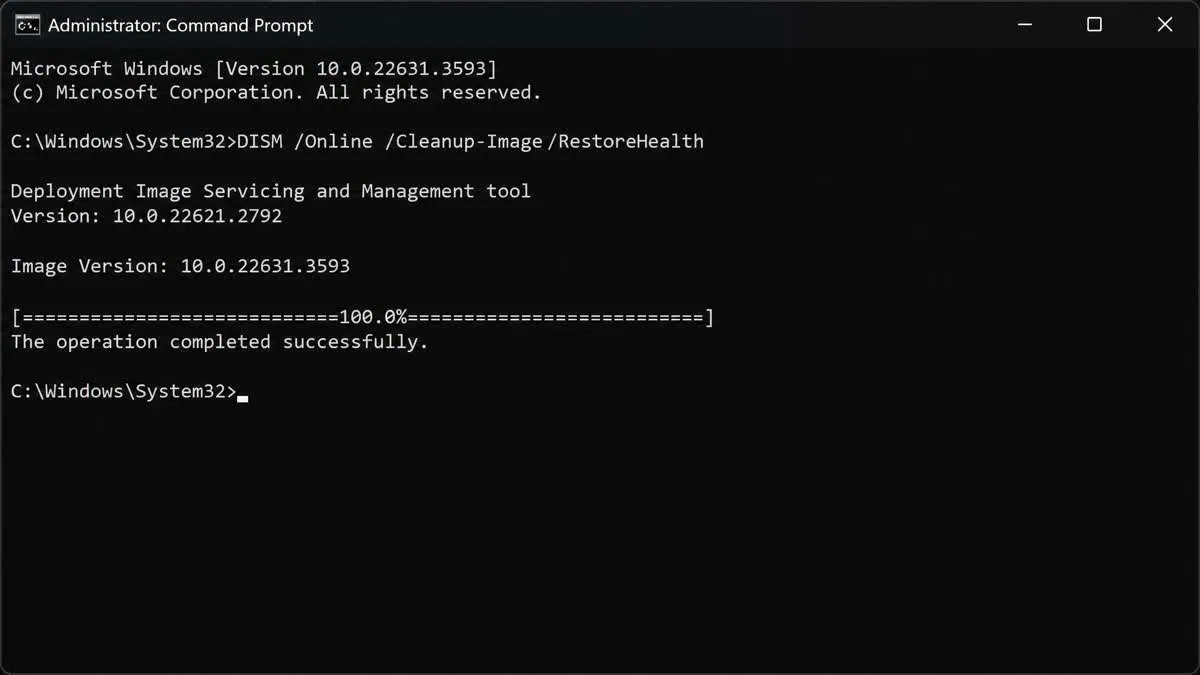
The fix sequence that resolves most of them, in order, is this. Run the Windows Update troubleshooter first, because it is free and it occasionally just works. Then repair the component store with DISM, running CheckHealth, then ScanHealth, then RestoreHealth from an administrator command prompt, letting each finish before starting the next. Follow that with sfc /scannow. If it still fails, reset the Windows Update components, which means stopping the update services, clearing the SoftwareDistribution and catroot2 folders, and starting them again.
Beyond that, the usual suspects apply: not enough free disk space, third-party antivirus or a VPN interfering with the download, or a driver that Microsoft has placed a safeguard hold on. A clean boot rules out the software conflicts. If nothing works, an in-place upgrade using the Installation Assistant or a mounted ISO rebuilds the component store from scratch and almost always succeeds, at the cost of a longer install.
One warning drawn from a real incident: do not rename or delete the SoftwareDistribution folder while an update is mid-installation. Doing so on a BitLocker-encrypted machine has produced boot failures that then demanded a recovery key. Stop the services first, always, and know where your BitLocker recovery key is before you touch anything.
That is the summary. We have a dedicated, step-by-step guide to the Windows 11 version 25H2 install error codes with the exact commands and the decision tree for each one, because the topic deserves more room than a single section. If your update is failing right now and the sequence above did not clear it, that guide is the next place to look.
If your problem is the opposite one, that Windows keeps installing updates you did not ask for at the worst possible moment, our guide on how to stop Windows Update covers pausing, deferring and scheduling without breaking your security patching entirely.
What Windows 11 25H2 means for you
Generic advice is useless here, because the right move depends entirely on which of four situations you are in.
If you are already on Windows 11 24H2
Install it, and do not overthink it. This is the lowest-risk feature update Microsoft has ever shipped. The code is already on your disk and has been running as part of your monthly updates for months; the enablement package only changes which parts are switched on. The rollback window is the standard ten days, and rolling back a 25H2 enablement package is far simpler than rolling back a full feature update.
The one thing worth doing first is checking whether anything you depend on calls PowerShell 2.0 or WMIC. For a home user, that check takes ten seconds and the answer is almost always no.
Your deadline is 13 October 2026 on Home or Pro. Waiting until September and then discovering an install error under time pressure is a worse plan than doing it on a quiet afternoon now.
If you are still on Windows 10
Your situation is not really about 25H2 at all. Windows 10 stopped receiving security updates in October 2025, and every month since has widened the gap. The decision in front of you is upgrade, enrol in extended security updates, or replace the machine.
If the PC passes the Windows 11 hardware check, upgrading is the cheapest and cleanest answer, and you will land directly on 25H2. If it fails the check, extended security updates buy you time without buying you a future, and you should be planning the replacement in parallel rather than treating ESU as a solution.
What you should not do is buy a Windows 11 licence hoping it will convince an unsupported PC to accept the upgrade. It will not. The compatibility gate runs before licensing is ever considered.
If you are about to buy a PC or a licence
A new PC bought today ships with Windows 11, and whether it arrives on 24H2 or 25H2 is a detail that resolves itself with one restart on first setup. Do not pay extra for a machine advertised as “25H2 ready” because that phrase means nothing.
If you are buying a licence rather than a machine, whether for a fresh build, a reinstall, or a PC you assembled yourself, the version number is irrelevant to what you buy. A Windows 11 licence covers every version of Windows 11 including 25H2, 26H1 and 26H2, and every feature update that follows for the life of the product. You buy Windows 11 once. You do not buy 25H2.
The choice that does matter is edition. Home covers the basics. Pro adds BitLocker drive encryption, Remote Desktop hosting, Hyper-V, Group Policy and domain join, and it is the edition that most of the business-relevant 25H2 changes assume. Buy Home when it genuinely fits and put the difference somewhere useful; buy Pro when you actually need one of those features rather than because it sounds more professional.
If you are running this for a business
Your calendar is different from everyone else’s. Enterprise and Education on 24H2 have until October 2027, so there is no emergency, but Temporary Enterprise Feature Control means your users will see a batch of new features arrive together when you deploy 25H2, and that is a communications job as much as a technical one.
Test the two removals against your estate before you deploy. Scan your management, inventory and licensing scripts for WMIC calls and PowerShell 2.0 dependencies. Vendor installers are where this usually bites, and the vendor will not have told you.
Policy-based removal of preinstalled Store apps is worth building into your image work at the same time, because it lets you retire whatever debloat script you have been maintaining. Quick Machine Recovery is worth enabling estate-wide. Both are the sort of change that pays for the deployment effort by itself.
Should you install Windows 11 25H2 now or wait for 26H2?
This is the question we get most, and the reasoning that leads people to “wait” is understandable but wrong.
The logic goes: 26H2 arrives in autumn 2026, it is only a few months away, so why install 25H2 twice over. The flaw is that 25H2 and 26H2 are not two separate upgrades in any meaningful sense. They are built on the same platform, share the same features, and differ mainly in build number, 26200 against 26300. Cumulative updates for them often carry the same KB number. Going from 25H2 to 26H2 will itself be an enablement package and one restart.
So waiting does not save you an upgrade. It just means you spend the intervening months on a version whose support expires in October 2026 instead of one whose support runs to October 2027. You take on risk and gain nothing.
There is also a control argument. Microsoft has been force-installing 25H2 on unmanaged consumer PCs since June 2026, using an automatic rollout. If you install it deliberately, on an evening you chose, with a backup taken and time to deal with any error, you are in control of the process. If you wait, it happens to you at some point you did not pick, quite possibly while you are mid-task.
| Question | Install 25H2 now | Wait for 26H2 |
|---|---|---|
| Fewer total restarts | No, same number either way | No, same number either way |
| Supported past October 2026 | Yes | No, you are exposed in the gap |
| You choose the timing | Yes | No, the automatic rollout decides |
| Access to the new features | Yes | No, not until autumn |
| Risk of hitting an unknown bug | Low, it has been shipping since 2025 | Higher, 26H2 will be brand new |
The only sound reason to wait is a specific, identified dependency that breaks on 25H2, and waiting for 26H2 will not fix that either, because 26H2 is the same platform. In that case what you actually need is to fix the dependency.
The people genuinely justified in waiting are on ARM hardware expecting 26H1, and Windows Update handles that decision for them without any input.
Does Windows 11 25H2 affect your licence or activation?
Short answer: no. Slightly longer answer worth reading, because this is where the actual money questions live.
Feature updates do not consume, invalidate or re-check your Windows licence in any way that costs you something. Your activation is tied to a digital licence held against your hardware and, if you signed in, your Microsoft account. Installing 25H2 does not change the hardware and does not change the account. Activation carries straight across. In the enablement-package case Windows is not even reinstalling itself; it is turning on code that was already there.
Two situations do produce activation trouble, and neither is caused by 25H2, though both get blamed on it because the timing lines up.
The first is hardware change. If you replaced a motherboard or did a substantial rebuild and then installed a feature update, the update is what finally forced Windows to re-check, but the hardware change is what broke the link. That is a solvable problem, usually through the activation troubleshooter and a Microsoft account, and it is not a reason to buy a second licence.
The second is a licence that was never sound to begin with. A key from a grey source, or a volume key used outside its terms, can survive for a long time and then fail at a re-check. Again the update is the trigger, not the cause. If Windows suddenly reports it is not activated after an update, our guide to Windows 11 activation works through what each message actually means and which of them you can fix without spending anything.
If it turns out you do need a licence, whether for a rebuilt PC, a fresh installation, a machine that came without one, or an upgrade from an unlicensed install, that is what we do. Every key we sell at KYMakers is a genuine Microsoft licence that activates through Microsoft’s own servers, and it covers Windows 11 in full, including 25H2 and everything after it. You can browse the current Windows 11 licence keys and pick the edition that matches what you actually need, or start from Windows 10 keys if you are licensing an older machine for the ESU route. If you are not certain how to redeem a key once you have it, our page on how to activate a Microsoft product key covers it step by step.
And if you do not need a licence, we will say so. Most people reading this already have one that works fine, and 25H2 will not change that.
Windows 11 25H2 vs 24H2, side by side
For anyone who wants the difference in one view.
| Point of comparison | Windows 11 24H2 | Windows 11 25H2 |
|---|---|---|
| Build number | 26100 | 26200 |
| Released | 1 October 2024 | 30 September 2025 |
| Home and Pro support ends | 13 October 2026 | 12 October 2027 |
| Enterprise and Education support ends | 12 October 2027 | 10 October 2028 |
| How it installs from the previous version | Full feature update | Enablement package, one restart |
| New hardware requirements | Yes, x86-64-v2 with SSE4.2 and POPCNT | No |
| PowerShell 2.0 included | Yes | No |
| WMIC included | Yes | No, removed but reinstallable for now |
| Quick Machine Recovery | No | Yes |
| Policy-based Store app removal | No | Yes, Enterprise and Education |
| Needs a different licence | No | No |
Read that table and the shape of the release is obvious. One extra year of support, a handful of quality-of-life fixes, two removals, and no cost. That is the whole trade.
Mistakes people keep making with the 25H2 update
These come up often enough in support conversations to be worth listing.
Buying a licence to fix an install failure. Servicing errors like 0x800f0991 have nothing to do with licensing, and a new key will not clear them. Repair the component store instead.
Assuming a new version needs a new licence. Windows 11 licences are perpetual across versions. There is no such thing as a 25H2 licence, and anyone selling you one is selling you a Windows 11 licence with extra words on the label.
Deferring updates for months and then hitting the deadline. The longer you defer, the more likely the eventual update is to fail, because the servicing stack falls further behind. Deferred updates do not disappear; they queue.
Deleting SoftwareDistribution while an update is running. Covered above, but it bears repeating because the failure mode is a machine that will not boot and a BitLocker prompt you cannot answer.
Buying a Copilot+ feature by buying a licence. Click to Do at full capability, semantic search and Agent in Settings all need an NPU. No edition of Windows adds hardware.
Waiting for Windows 12. There is no Windows 12, and the release strategy visible in 25H2, 26H1 and 26H2 does not look like a company preparing a new numbered version. If that is what has been holding your decision, our piece on the Windows 12 release date question sets out what is actually known versus what is speculation.
Ignoring the removals because you are a home user, then finding an old game launcher or a printer utility that shipped with a PowerShell 2.0 dependency. Rare, but not zero.
Frequently asked questions about Windows 11 25H2
Is Windows 11 25H2 free?
Yes. Feature updates for Windows 11 are free for the supported life of the product on a licensed installation. You do not pay for 25H2 and you will not pay for 26H2. The only thing you ever pay for is the Windows licence itself, and only if you do not already have a valid one.
Do I have to install Windows 11 25H2?
Practically, yes, though not immediately. You can defer it for a while, but Home and Pro editions of 24H2 lose security updates on 13 October 2026, and Microsoft is already rolling 25H2 out automatically to unmanaged consumer PCs. You can control the timing; you cannot realistically avoid the destination.
How long does the Windows 11 25H2 update take to install?
From 24H2, usually under five minutes plus one restart, because it is an enablement package rather than a full update. From 23H2 or Windows 10, expect a full feature update taking anywhere from twenty minutes to a couple of hours depending on the machine and the disk.
Will Windows 11 25H2 delete my files or apps?
No. Feature updates preserve files, applications and settings. The enablement package barely touches the system at all. That said, take a backup before any feature update, because the small chance of an interrupted install meeting a failing disk is the one scenario where advice like this earns its keep.
Can I go back to 24H2 if I do not like 25H2?
Yes, within ten days of installing, through Settings, System, Recovery, Go back. After ten days Windows removes the rollback files and you would need a clean install. Since 25H2 changes so little visibly, rollbacks are uncommon.
Does Windows 11 25H2 work on unsupported hardware?
If a PC is already running 24H2 through an unsupported-hardware workaround, the 25H2 enablement package generally applies, because no new requirements were added. That is not the same as it being a good idea. Microsoft does not guarantee updates on unsupported configurations, and a machine that fails the checks is a machine with a limited future regardless of which version it is running.
What is the difference between Windows 11 25H2 and 26H1?
26H1 is a targeted release for new ARM processors, released in February 2026 for the Snapdragon X2 generation. It is not a general upgrade and it will not be offered to x86 PCs. If you are on an Intel or AMD machine, 25H2 is your current version and 26H2 is your next one.
If you are moving a machine onto 25H2 and it is not activated yet, the edition you install decides the key you need. A Windows 11 Pro product key covers Pro, a Windows 11 Home product key covers Home, and a Windows 11 Enterprise product key covers the enterprise build.
The bottom line on Windows 11 25H2
Windows 11 25H2 is a small update wearing the clothes of a big one. It installs in minutes on the version most people are running, it adds a modest set of genuinely useful fixes, it removes two legacy tools that a few people will miss, and its real value is the extra year of security support it puts on the clock. If you are on 24H2, install it. If you are on Windows 10, your problem is bigger than a version number and the sooner you deal with it the cheaper it gets. If you are shopping for a licence, buy Windows 11 and stop thinking about version numbers entirely, because the licence covers all of them.
You can read Microsoft’s own technical documentation for what is new in Windows 11, version 25H2 if you want the deployment-level detail behind everything above.
When you do need a key, whether it is a fresh Windows 11 licence, a replacement after a rebuild, or Office to go alongside it, we keep it simple: browse the Windows 11 keys, pick your edition, and you will have it in your inbox before you have finished making the coffee you were going to drink during the install. Every licence we sell is a genuine Microsoft license key activated through Microsoft’s own servers.
Instant email delivery, lifetime license, 180-day money-back guarantee, 24/7 support.