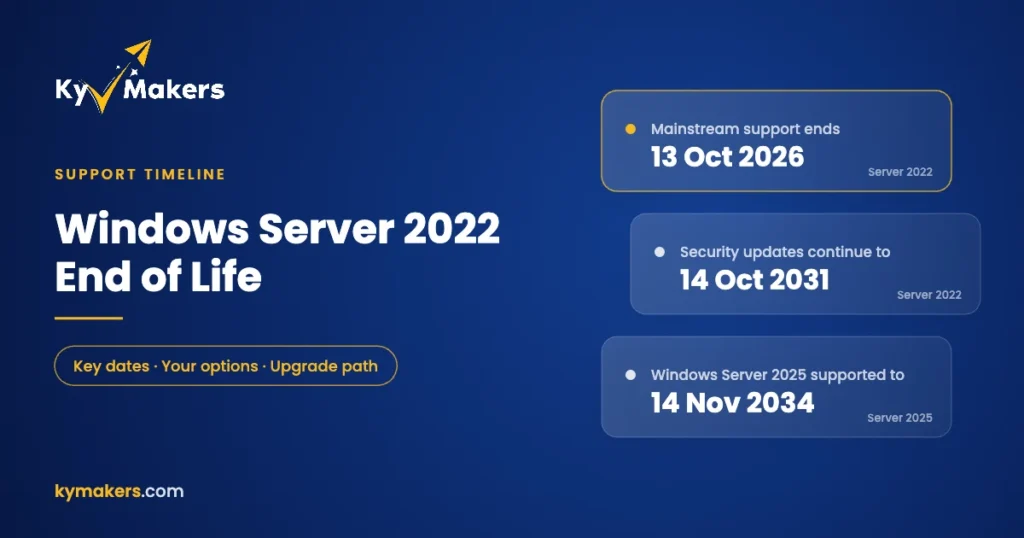
Windows Server 2022 leaves mainstream support on 13 October 2026. If you’ve seen that date in an IT newsletter and felt a small jolt of panic, you can relax a little. Your servers don’t stop working that day, and they don’t stop getting security patches. Microsoft keeps shipping those every month until 14 October 2031.
What does change is quieter, and it matters more for planning than for this week. Here’s what actually ends, what keeps going, and how to decide whether to stay on 2022 or move to Windows Server 2025.
The dates that matter
These come straight from Microsoft’s lifecycle pages for each product. Microsoft lists the cut-off at midnight UTC, so in US time zones the last day of support is the day before the UTC date.
| Version | Released | Mainstream support ends | Extended support ends |
|---|---|---|---|
| Windows Server 2019 | Nov 2018 | 9 Jan 2024 (already over) | 9 Jan 2029 |
| Windows Server 2022 | Aug 2021 | 13 Oct 2026 | 14 Oct 2031 |
| Windows Server 2025 | Nov 2024 | 13 Nov 2029 | 14 Nov 2034 |
Put simply, a server running 2022 today has five more years of security updates ahead of it. A server installed with 2025 today has eight.
What stops when mainstream support ends
Microsoft’s fixed lifecycle has two phases. During mainstream support you get everything: security fixes, non-security bug fixes, and the occasional new feature or design change. In extended support you get security updates only.
So from 14 October 2026, Windows Server 2022 effectively freezes. If you hit a non-security bug, say a role that misbehaves in a specific configuration or a driver interaction that causes a crash, Microsoft is no longer obliged to ship a public fix for it. Requests for new features are off the table too. Paid support contracts still work, but the free help that comes with a supported product ends.
For most small businesses running a domain controller, a file server or a couple of Hyper-V guests, that’s a non-event. Those workloads are mature, and the bugs that matter were found years ago. Monthly security updates are the part that keeps you safe, and those continue.
Do you need to do anything right now?
Probably not this month. But it’s a good moment to sort your servers into three piles.
Stable servers that just work
Domain controllers, file and print, a line-of-business app that has run happily for three years. Leave them on 2022 and keep patching. Plan the move when the hardware is due for replacement, or by 2030 at the latest so you’re not rushing before October 2031.
Anything you’re about to build
Don’t start a new server on 2022 unless something forces you to. A fresh install of Windows Server 2025 gives you three extra years of support for the same amount of setup work. The one good reason to stick with 2022 is a software vendor that only certifies 2022, which still happens with some accounting, ERP and medical packages. Ask the vendor before you decide.
Servers where you’re fighting bugs
If you already have an open issue with a 2022 server that isn’t a security problem, don’t wait for a fix. Test the workload on 2025 now.
What Windows Server 2025 adds
Server 2025 isn’t a radical rewrite, but there are a few changes that small and mid-size shops notice:
- Hotpatching. Many security updates install without a reboot. It’s offered for Server 2025 machines connected through Azure Arc and is billed as a monthly subscription, so it’s a nice extra rather than a reason to upgrade on its own.
- SMB over QUIC in every edition. In 2022 this secure, VPN-free file access was limited to the Azure Edition. In 2025 it’s available in Standard and Datacenter.
- Active Directory updates. A new functional level, a larger database page size option and a long list of security defaults that used to be manual hardening steps.
- Better storage and virtualization. Faster NVMe handling and GPU partitioning for Hyper-V, which matters if you’re running VDI or GPU-heavy guests.
- A familiar desktop. The interface now matches Windows 11, which makes life easier for anyone who manages both.
For a detailed side-by-side, including 2019, see our Windows Server 2019 vs 2022 vs 2025 comparison.
Upgrading from 2022 to 2025
Microsoft supports an in-place upgrade from Windows Server 2022 to 2025, and from versions as far back as 2012 R2. You run setup.exe from the 2025 installation media inside the running server, pick the option to keep files and apps, and enter your new product key. Roles, settings and data come across.
In practice, a few rules keep it from going wrong:
- Take a full backup, or a checkpoint if it’s a VM, and check that you can actually restore from it.
- Check every installed application against the vendor’s support list for 2025. Backup agents, antivirus and anything with a kernel driver are the usual troublemakers.
- Don’t upgrade a domain controller in place if you can avoid it. Build a new 2025 DC, let it replicate, move the FSMO roles, then demote the old one. It’s cleaner and it’s easy to roll back.
- Do one non-critical server first and leave it running for a week before touching the rest.
Our Windows Server 2025 install and activation guide covers downloading the media and activating the key.
Licensing: what you need to budget for
A Windows Server 2022 license doesn’t carry over to 2025. You need a 2025 license for each server you upgrade. The rules themselves haven’t changed:
- Cores, not sockets. Every physical server is licensed for a minimum of 16 cores (and at least 8 per processor), even if it has fewer.
- Standard vs Datacenter. Standard covers two Windows Server virtual machines on a fully licensed host. Datacenter covers unlimited VMs on that host. Our Standard vs Datacenter guide shows where the break-even point falls.
- CALs. Every user or device that connects needs a Client Access License at the same version as the server or newer. Upgrade the server to 2025 and your 2022 CALs no longer cover it. 2025 CALs do cover older 2022 and 2019 servers, though. See Windows Server CALs explained.
- Remote Desktop. If people log on through Remote Desktop Services, you also need RDS CALs at the matching version. Details are in our RDS CAL guide.
Which license to buy
| Your situation | License |
|---|---|
| New server, one or two VMs | Windows Server 2025 Standard 16 Core |
| Virtualization host with many VMs | Windows Server 2025 Datacenter 16 Core |
| Remote Desktop users on 2025 | Server 2025 RDS CAL, 50 users |
| Vendor requires 2022 | Server 2022 Standard 16 Core or Datacenter 16 Core |
| Bigger 2022 host (32 cores) | Standard 32 Core or Datacenter 32 Core |
| Remote Desktop users on 2022 | Server 2022 RDS CAL, 50 users |
All of these are genuine Microsoft keys, emailed with the official download link. Kymakers is run by Makers Unity LLC, a Microsoft partner, and every key is covered by our refund and replacement policy. If you’re not sure which one fits your hardware, reply to the order email or contact us before you buy and we’ll tell you straight.
What about Windows Server 2019?
Server 2019 has been in extended support since January 2024 and gets its last security update in January 2029. If you still run it, it’s a better candidate for an upgrade than 2022. You can go straight from 2019 to 2025 in place. We cover the details in Windows Server 2019 end of life.
Windows Server 2022 end of support: FAQ
Will Windows Server 2022 stop working after 13 October 2026?
No. It keeps running, keeps activating and keeps receiving monthly security updates until 14 October 2031.
Do I need Extended Security Updates for 2022?
Not for years. ESU only becomes relevant after extended support ends in October 2031, and by then you should be on 2025 or later.
Can I upgrade Server 2022 to 2025 without reinstalling?
Yes. In-place upgrade from 2022 to 2025 is supported. Back up first, check your applications, and handle domain controllers by building a new DC rather than upgrading the old one.
Do my 2022 CALs work with a 2025 server?
No. CALs have to match or exceed the server version. The reverse works, though: 2025 CALs can access 2022 servers. So if you’re buying CALs today, buy 2025.
When does Windows Server 2025 reach end of life?
Mainstream support runs to 13 November 2029 and extended support to 14 November 2034.
Is it still worth buying Windows Server 2022 in 2026?
Only if an application or an existing cluster requires it. Otherwise 2025 costs about the same, takes the same effort to install and gets three more years of updates.