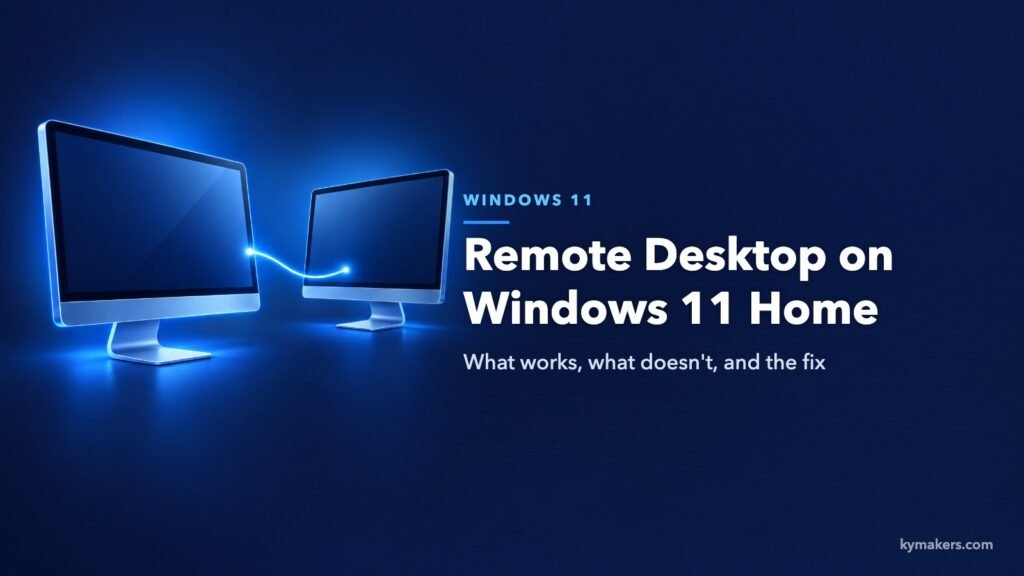
Windows 11 Home can connect to other computers with Remote Desktop, but it cannot be connected to. The part of Remote Desktop that accepts incoming connections, the host, is included only in Windows 11 Pro, Enterprise and Education. That is why Settings on a Home PC shows “Your Home edition of Windows 11 doesn’t support Remote Desktop” where the on/off switch should be. If you want to reach a Home PC from somewhere else, you have three choices: use a different remote access tool, upgrade the PC you want to reach to Pro, or try an unofficial patch that we do not recommend. This guide to Remote Desktop on Windows 11 Home walks through each one and shows how to set it up properly once you have Pro.
Key takeaways
- Home includes the Remote Desktop client only. You can connect from a Home PC to a Pro PC, not the other way round.
- Only the PC you want to control needs Pro. The device you connect from can run Home, macOS, iOS or Android.
- Quick Assist is built into Home and works well for helping someone who is sitting at the other PC.
- Chrome Remote Desktop and similar tools give unattended access on Home without changing Windows.
- RDP Wrapper and similar patches break after updates and weaken security.
- Upgrading Home to Pro takes a few minutes and keeps your files and apps.
Contents
- Client and host: what Home can and cannot do
- Check your edition
- Your options on Windows 11 Home
- Quick Assist
- Third-party remote access tools
- Why we do not recommend RDP Wrapper
- Upgrade to Pro and turn on Remote Desktop
- Connecting to the PC
- Keeping Remote Desktop safe
- Frequently asked questions
- Sources
Client and host: what Home can and cannot do
Remote Desktop has two halves. The client is the app you use to connect. The host is the service on the remote PC that lets you in and shows you its desktop.
| Windows 11 Home | Windows 11 Pro | |
|---|---|---|
| Connect to another PC (client) | Yes | Yes |
| Accept incoming connections (host) | No | Yes |
| Quick Assist | Yes | Yes |
| Simultaneous remote users | Not applicable | One at a time |
So if your office PC runs Pro and your laptop at home runs Home, you are already set. Open Remote Desktop Connection on the laptop and connect. The limitation only matters when the computer you want to reach is the Home one.
Check your edition
Open Settings › System › About and read the Edition line, or press Windows + R and run winver. Then open Settings › System › Remote Desktop. On Pro you see a switch. On Home you see the message that your edition does not support it.
Your options on Windows 11 Home
| Option | Unattended access | Cost | Good for | Drawback |
|---|---|---|---|---|
| Quick Assist | No, someone must accept at the other end | Free, built in | Helping family or a colleague | Cannot reach an empty desk |
| Third-party tool | Yes | Free for personal use in most cases | Reaching your own Home PC | Relies on an outside service and account |
| RDP Wrapper | Yes | Free | Experiments only | Unsupported, breaks with updates, security risk |
| Upgrade to Pro | Yes | One-time license | Regular or work use | Costs money once |
Quick Assist
Quick Assist is part of every edition of Windows 11. Press Ctrl + Windows + Q to open it. The helper signs in with a Microsoft account and gets a security code. The person receiving help types the code and approves the session. The helper can then see the screen and, if allowed, take control.
It is the right tool for talking a parent through a printer problem. It is the wrong tool for reaching your own PC while you are away, because nobody is there to type the code and click Allow.
Third-party remote access tools
Several tools provide unattended access on Home. Chrome Remote Desktop is the simplest: install the extension in Chrome on the Home PC, set a PIN, and the PC shows up under your Google account on any other device. Others, such as TeamViewer, AnyDesk and RustDesk, work in a similar way with their own apps.
They share a few traits you should know about:
- The connection is brokered by the vendor’s servers, so your access depends on their service and your account with them.
- They mirror the physical screen. Remote Desktop creates its own session at your device’s resolution and locks the remote monitor. Most third-party tools show the same picture as the screen at the other end, and anyone standing there can watch.
- Free tiers are meant for personal use. Several vendors detect what they consider commercial use and cut sessions short.
- Sound, multiple monitors, clipboard and printer redirection are usually less smooth than with Remote Desktop.
For occasional personal access they are fine. For daily work they tend to become the thing you fight with.
Why we do not recommend RDP Wrapper
The Remote Desktop host files are present on Home. They are switched off. RDP Wrapper is a small open-source project that loads a layer between Windows and its Terminal Services library to switch the host on. Guides that promise “enable Remote Desktop on Windows 11 Home” nearly all use it.
The problems are practical:
- It breaks with updates. The wrapper depends on memory offsets inside a system file that changes with Windows updates. After an update, connections fail until someone publishes new offsets and you install them.
- Security software flags it. Microsoft Defender and other antivirus products often detect it as a potentially unwanted tool, because the same technique is used by attackers to open a back door.
- You are exposing a service Microsoft does not maintain for your edition. If a fix for Remote Desktop assumes a configuration that Home was never meant to have, you are on your own.
- It conflicts with the license. Home is not licensed to host Remote Desktop sessions.
If you depend on getting into that PC, a setup that can stop working after any Patch Tuesday is not what you want.
Upgrade to Pro and turn on Remote Desktop
The supported way to host Remote Desktop is Windows 11 Pro. You do not reinstall. The edition changes in place and everything on the PC stays where it is.
- Open Settings › System › Activation.
- Expand Upgrade your edition of Windows and select Change product key.
- Enter a Windows 11 Pro key. A Windows 11 Home to Pro upgrade key is intended for this step.
- Let the PC restart, then confirm with
winverthat it says Windows 11 Pro.
The detailed version, with fixes for the common error codes, is in our Home to Pro upgrade guide. If you are building or reinstalling a PC anyway, a full Windows 11 Pro license does the same job from the start.
Then enable the host:
- Open Settings › System › Remote Desktop and turn the switch On. Confirm.
- Note the PC name shown on that page. You will connect to it by this name.
- Select Remote Desktop users if anyone other than an administrator needs access, and add them.
- Make sure the account you will sign in with has a password. An account that only uses a PIN or face sign-in cannot be used for Remote Desktop until a password exists.
- Open Settings › System › Power and set the PC never to sleep when plugged in. A sleeping PC does not answer.
Pro also unlocks the other things Home leaves out, including the Local Group Policy Editor. If you ran into the missing editor as well, see gpedit.msc not found. The full list of differences is in Windows 11 Home vs Pro.
Connecting to the PC
From a Windows PC, any edition: press Windows + R, type mstsc and press Enter. Enter the PC name, select Connect and sign in.
From a Mac, iPhone, iPad or Android device: install Microsoft’s Windows App from the App Store or Google Play, add a PC, and enter the same name and credentials.
Two details trip people up:
- If the remote PC uses a Microsoft account, the user name is the full email address and the password is the Microsoft account password.
- The PC name resolves only on the same network. From outside, you need a VPN into that network or another secure tunnel. Do not solve this by forwarding port 3389 on your router.
Keeping Remote Desktop safe
Remote Desktop is one of the most attacked services on the internet, almost entirely because people expose it directly. A few habits remove most of the risk:
- Never open port 3389 to the internet. Use a VPN, which many home routers now include, and connect to the PC through it.
- Leave Network Level Authentication on. It is the default and makes the client authenticate before a session is created.
- Use a strong, unique password on every account that is allowed to connect.
- Keep Windows updated. Remote Desktop fixes arrive through the normal monthly updates.
- Limit who can connect. Add only the accounts that need it under Remote Desktop users.
If several people need to work on the same machine at once, a desktop edition is the wrong tool. Windows 11 Pro allows one remote session at a time. Multi-user access is a Windows Server feature and is licensed with RDS CALs.
Frequently asked questions
Does Windows 11 Home have Remote Desktop? It has the client, so it can connect to other PCs. It does not have the host, so other devices cannot connect to it with Remote Desktop.
Can I remote into a Windows 11 Pro PC from a Home PC? Yes. Only the PC being controlled needs Pro.
Is there a free way to enable Remote Desktop on Windows 11 Home? Not a supported one. Free alternatives such as Chrome Remote Desktop give remote access without Remote Desktop itself. Patches that switch the host on are unofficial and unreliable.
Do I need to reinstall Windows to go from Home to Pro? No. Entering a Pro key under Settings › System › Activation upgrades the edition in place.
Why does Remote Desktop say it can’t connect even though I have Pro? The usual causes are a sleeping PC, an account without a password, a wrong PC name, or trying to connect from outside the network without a VPN.
Can two people use Remote Desktop on one Windows 11 Pro PC at the same time? No. Pro supports a single interactive session. A remote connection locks the local screen.
Does Remote Desktop work on Windows 10 Home? The same rule applies. Windows 10 Home has the client only.
Sources
- Microsoft Support, “How to use Remote Desktop”: support.microsoft.com
- Microsoft Support, “Upgrade Windows Home to Windows Pro”: support.microsoft.com
- Microsoft Learn, “Remote Desktop clients”: learn.microsoft.com