Most people go looking for their Windows product key at the worst possible moment. The machine has stopped activating, or a drive has died, or a computer is being handed on to somebody else and the question of what happens to the licence has suddenly become urgent. It is rarely a calm, planned piece of admin.
The good news is that the key is usually recoverable, and there are several ways to get at it that take under a minute. The complication is that modern Windows does not always work the way people assume it does. On a lot of machines there is no twenty five character key sitting anywhere to be found, because the licence is not a key any more. Understanding which situation you are in is most of the job, and it is the part every quick tutorial skips.
This guide covers all of it. The commands that read the key out of the system, the registry location, the firmware key that manufacturers embed in the motherboard, what your Microsoft account actually stores, where to look on stickers and in old emails, whether the third-party key finders are safe, and what to do when every method comes back empty or hands you something that is obviously not your key. It also covers reading a key off a machine that will not boot, which is the scenario people ask about most and find least documented.
The short answer on how to find your Windows product key
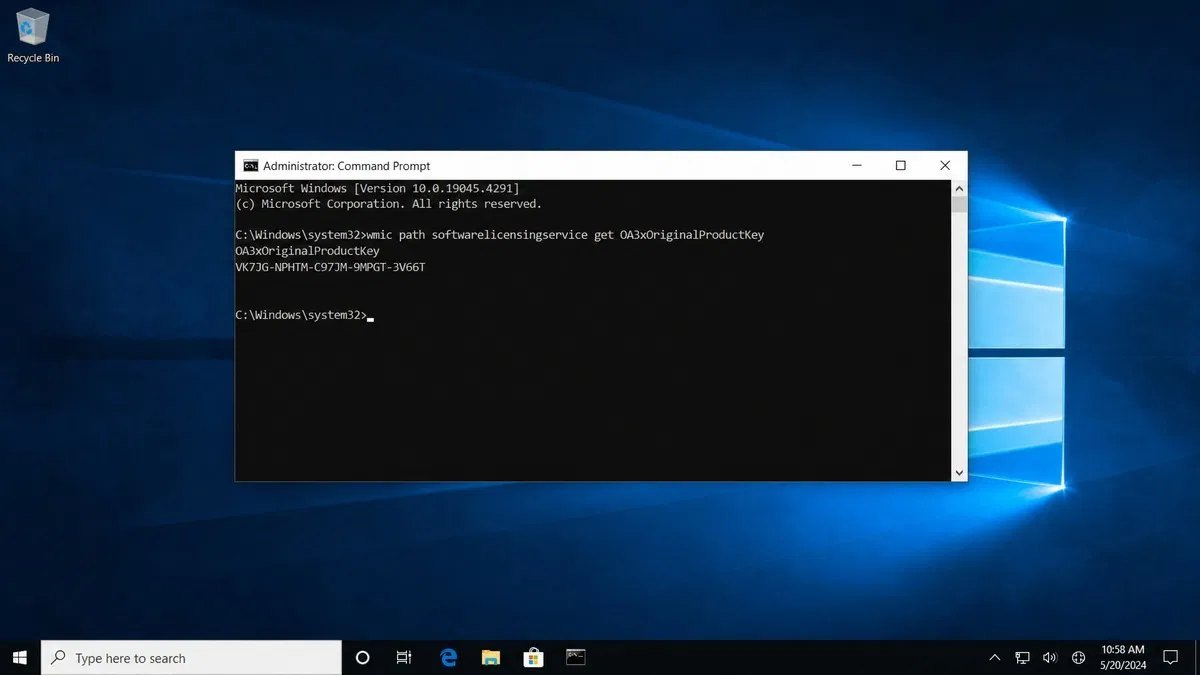
Open Command Prompt as administrator and run the command that reads the key stored in your motherboard firmware. On a machine that came with Windows preinstalled, that returns your key immediately. It is one line, it takes ten seconds, and it works on Windows 10 and Windows 11 identically.
If that comes back empty, the key was not embedded in firmware, which means the machine either got its licence some other way or the key was entered manually at some point. The registry method or a key finder utility will usually recover it in that case.
If both come back empty or return something obviously generic, you are probably on a digital licence with no retrievable key at all. That is not a fault and it is not a problem, but it does change what you can do next, and the sections below explain why and what your options actually are.
What a Windows product key actually is now
This is worth ten minutes before you start running commands, because half the confusion around finding a product key comes from people looking for something their machine genuinely does not have.
The shift from keys to digital licences
For most of Windows history, the product key was the licence. You bought a box, the box had a key, you typed the key in, and the key was the thing that proved you were entitled to run the software. Lose the key and you lost the proof.
That model started giving way with Windows 8 and is largely gone in Windows 10 and 11. What activates your machine now is a digital licence, which is a record held on Microsoft’s activation servers that associates your specific hardware with an entitlement to run a specific edition of Windows. The record is keyed against a hardware fingerprint, mostly derived from the motherboard, rather than against a string of characters you have to keep somewhere safe.
The practical consequence is that a fresh installation of Windows on that hardware activates itself. You skip the product key prompt during setup, connect to the internet, and within a few minutes the machine reports itself activated with no key ever being entered. That is the intended behaviour and it catches people out constantly, because they assume something has gone wrong when nothing has been typed in.
What that means in practice
On a machine running a digital licence, there may be no meaningful product key to find. The commands will either return nothing or return a generic placeholder key that Microsoft uses internally to identify the edition. Neither of those is your licence, and neither will activate anything anywhere.
This trips up an enormous number of people, because the internet is full of tutorials written in 2014 that assume every installation has a real key sitting in the registry. Those tutorials still get shared, still get followed, and still produce a string of characters that looks exactly like a product key and is completely useless. The section on generic keys further down explains how to tell the difference in about five seconds.
The other consequence is more reassuring. If your licence is digital and tied to your hardware, you do not need the key for the normal reasons people want it. Reinstalling Windows, replacing a hard drive, upgrading memory, adding a graphics card and moving to a new Windows version all work without it. Our guide to Windows 11 activation covers what actually triggers a reactivation and what does not.
When you still need the key itself
There are four situations where the actual key still matters and finding it is worth the effort.
The first is a retail licence you intend to move to a different computer. Retail licences are transferable between machines in a way that OEM licences are not, and moving one properly means having the key to enter on the destination machine. Our comparison of OEM and retail Windows licences explains which one you have and what each permits, and it is the single most useful thing to read before selling or rebuilding a computer.
The second is a machine that is failing to reactivate after a hardware change, where entering the key manually is the fastest route back to an activated state. The third is any situation involving a clean install onto different hardware, where there is no existing digital licence for the activation servers to match against.
The fourth is record keeping. If you bought a licence separately from the computer, having the key filed somewhere sensible is simply good practice, in the same way as keeping a receipt. It costs nothing to record it now and it is genuinely difficult to reconstruct later.
Find your firmware product key with PowerShell or Command Prompt
If your PC shipped with Windows preinstalled, the manufacturer stored the product key in the firmware (UEFI). Windows can read it back with one command. This is the first thing to try, because it needs no third-party software and cannot be wrong about what it finds.
The command (PowerShell, works on every current build)
Right-click Start, choose Terminal (Admin), and run:
(Get-CimInstance -ClassName SoftwareLicensingService).OA3xOriginalProductKeyIf a key is embedded, it prints as five groups of five characters. If nothing prints, there is no firmware key; that is a normal result on self-built PCs, on PCs activated with a retail key, and on volume-licensed machines, and it is covered below.
The older Command Prompt command, and why it may not work
Older guides use:
wmic path softwarelicensingservice get OA3xOriginalProductKeywmic is deprecated. On Windows 11 version 24H2 and later it is no longer installed by default, so the command returns “’wmic’ is not recognized.” You can add it back under Settings › System › Optional features (search for WMIC), but there is no reason to: the PowerShell command above reads the same value.
What the result means
A key returned here is the OEM key for the edition the PC shipped with. It belongs to this machine under the OEM license terms, and it reflects the original edition: if the PC shipped with Home and you later upgraded to Pro, the firmware still says Home. A firmware key is not evidence of what is installed or activated now; Settings › System › Activation is.
If you use an older PowerShell command
Many articles still give this form:
(Get-WmiObject -query 'select * from SoftwareLicensingService').OA3xOriginalProductKeyIt works in Windows PowerShell 5.1 (the blue window) but not in PowerShell 7, where Get-WmiObject was removed. Get-CimInstance, shown in the previous section, works in both. If you see a red error mentioning Get-WmiObject, switch to the Get-CimInstance version. If you copied either command from a web page and it fails on a quote character, retype the quotation marks: curly quotes from a web page break PowerShell.
Find the key in the registry
The registry method is the one every older tutorial reaches for, and it is worth understanding properly because the thing it finds is not always what people think it is.
Where it lives
Press the Windows key and R together, type regedit and press Enter. Navigate through HKEY_LOCAL_MACHINE, then SOFTWARE, then Microsoft, then Windows NT, then CurrentVersion. In the right-hand pane, look for a value named DigitalProductId.
Double-click it and you get a window full of numbers that looks nothing like a product key. That is expected. The value is a binary blob and the key is encoded inside it rather than stored as readable text, which is exactly why key finder utilities exist and why nobody reads this one by eye.
There is also a value called ProductId in the same location, which is readable and which people frequently mistake for the key. It is not. The product ID identifies the installation and the edition; it is not a licence and it will not activate anything. If somebody asks you for your product key and you send them the product ID, nothing will work and neither of you will understand why.
Why it looks like nonsense
The DigitalProductId blob stores the key in a compressed, encoded form that requires a specific decoding routine to unpack. That routine is trivial to implement and has been published for years, which is what every key finder tool is doing under the surface. There is nothing sinister about it and nothing clever about it either.
You can decode it yourself with a short PowerShell script if you would rather not install anything, and plenty of those scripts are floating around. The honest caution is that a script from an unknown source is exactly as much of a trust decision as a downloaded utility from an unknown source, and pasting code you cannot read into an administrator PowerShell window is not obviously safer than running a signed executable. Judge the source, not the format.
One more thing worth knowing: on machines running a digital licence with no key ever entered, the DigitalProductId blob still exists and still decodes, but what it decodes to is a generic edition key rather than your licence. That is the single most common way people end up convinced they have found their key when they have not.
Find the key in your Microsoft account
This is the method people expect to work and are surprised by, so it is worth being precise about what is actually stored there.
What is actually stored there
Your Microsoft account can hold a digital licence linked to a device. What it does not hold is a readable list of Windows product keys you can copy out. Microsoft deliberately does not display Windows keys in the account portal, and no amount of searching the settings will surface one, because it is not there to surface.
What the account gives you instead is arguably more useful. A licence linked to your account can be reactivated through the activation troubleshooter by signing in and selecting the device from a list, which turns a failed activation into a two minute fix without any key being typed. That is the mechanism the key would have given you, delivered a different way.
How to check
Open Settings, go to System and then Activation on Windows 11, or Update and Security then Activation on Windows 10. The panel tells you whether Windows is activated and, if it is, whether the digital licence is linked to your Microsoft account.
If it reports that it is activated with a digital licence but says nothing about an account, sign in with a Microsoft account and the link is created. Do this now rather than later. It takes two minutes while everything is working and it is the difference between a routine reactivation and a support conversation when something breaks. It matters most around hardware changes, which our guide to reactivating Windows after a hardware change covers in detail.
Purchases made through the Microsoft Store are a partial exception. If you bought a Windows upgrade or an edition change from the Store, the order history in your account will show the transaction, and in some cases the key associated with it. It is worth a look, but do not expect it for a licence that arrived preinstalled on a computer.
Find the key on a sticker, card or email
The unglamorous methods, which are also the ones that work when the machine will not turn on.
OEM stickers and the certificate of authenticity
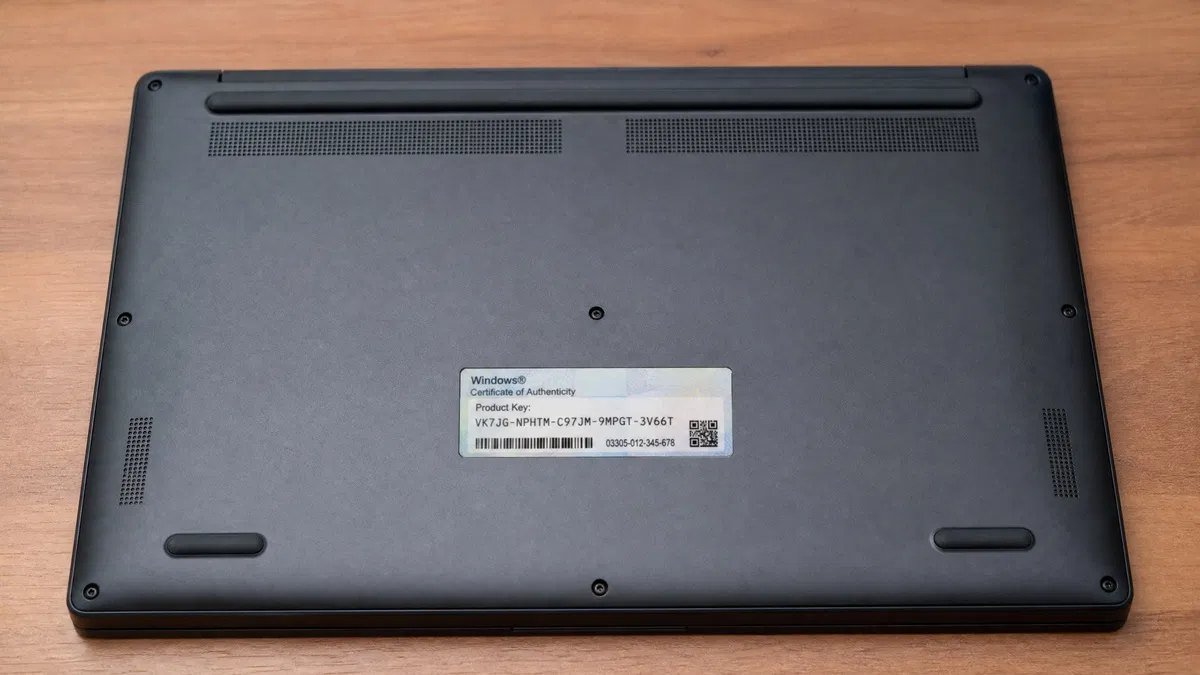
Computers sold with Windows preinstalled used to carry a sticker with the product key printed on it. On desktops it sat on the case, usually on the side or the top. On laptops it was on the underside, and on some models underneath the battery, which is worth remembering on older machines with removable batteries.
That practice largely stopped several years ago, precisely because the key moved into the firmware where it cannot fall off, fade or be photographed by somebody walking past. Machines from roughly 2013 onward mostly have no sticker at all, and the absence of one is not a sign that anything is wrong.
Where a sticker does exist, read it carefully. Sun-faded stickers turn eights into threes and Bs into eights with remarkable consistency, and a key that is one character wrong fails in exactly the same way as a key that is completely invented. Photograph it in good light and zoom in rather than squinting.
Retail boxes and cards
A retail copy of Windows bought in a box has the key on a card inside the packaging, or on a label inside the lid. Product key cards sold without media have it printed under a scratch-off panel.
If you still have the box, this is the definitive answer and takes precedence over anything a command tells you, because it is the key you were sold rather than a key the system happens to have recorded.
Purchase emails and order history
A licence bought online arrives by email, and that email is usually still in your inbox years later. Search your mail for the word “product key”, for the retailer’s name, or for the word “Windows” restricted to the month you think you bought it. Check the spam and promotions folders, because delivery emails from software retailers land there routinely.
Also check the order history on the site you bought from. Most retailers keep the key visible in the order details indefinitely, and it is often faster than digging through mail. If you bought from us, the key sits in your account order history and our page on how ordering works at Kymakers explains where to find it and what to do if the email never arrived.
Using a third-party key finder
These tools have a mixed reputation, some of it deserved, and the honest position is more nuanced than either the people who recommend them freely or the people who treat them as malware would suggest.
What they actually do
A key finder reads the DigitalProductId value out of the registry, decodes it, and displays the result. Some also read the firmware key, check the licence channel and list keys for other Microsoft products installed on the machine. That is the whole function. There is no privileged access involved and nothing is being extracted that the system was hiding.
Because the underlying job is so simple, the tools are essentially interchangeable in what they can find. Where they differ is in what else they do, which is the part that matters.
The safety question
The category attracts bundled software, browser toolbars, and installers that offer three unrelated things before getting to the point. That is the real risk, not some exotic threat. A key finder from a search advert is a coin flip; a well-known one from its own site is generally what it says it is.
Antivirus software sometimes flags these tools, which alarms people. The flag is usually a heuristic reaction to a program reading licence data rather than a detection of anything malicious, since that behaviour pattern overlaps with what some genuinely unpleasant software does. It is a reason to be careful about where you got the tool, not proof that the tool is bad.
The simple rule: download from the developer’s own site, decline every optional extra during installation, and uninstall it when you are done. If you would not be comfortable doing that, use the registry or PowerShell methods instead, because they get you the same answer with nothing installed.
How to use one sensibly
Run it, read the Windows key it reports, and check that key against the generic key test described below before trusting it. Write the key down somewhere durable. Then remove the tool.
Do not let it upload anything, do not use the feature that emails your keys to you, and treat any tool that wants an account or a subscription for this as a tool that has misunderstood its own value.
The methods compared
| Method | Works on a digital licence | Needs the PC to boot | Installs anything | Finds an upgraded edition key |
|---|---|---|---|---|
| Command Prompt firmware read | No | Yes | No | No |
| PowerShell firmware read | No | Yes | No | No |
| Registry DigitalProductId | No | Yes | No | Yes |
| Microsoft account | Yes | No | No | Yes |
| Sticker or certificate | No | No | No | No |
| Purchase email or order history | No | No | No | Yes |
| Third-party key finder | No | Yes | Yes | Yes |
Read that table as a sequence rather than a menu. Start with the firmware read because it is instant, fall back to the registry or a finder if it is empty, and treat the account, the sticker and the purchase email as the places to look when the machine itself cannot tell you anything.
Why the command returned nothing, and what you actually have
A blank result means there is no OEM key in the firmware. It does not mean the PC is unlicensed. There are three places a Windows license can live, and the firmware is only one of them.
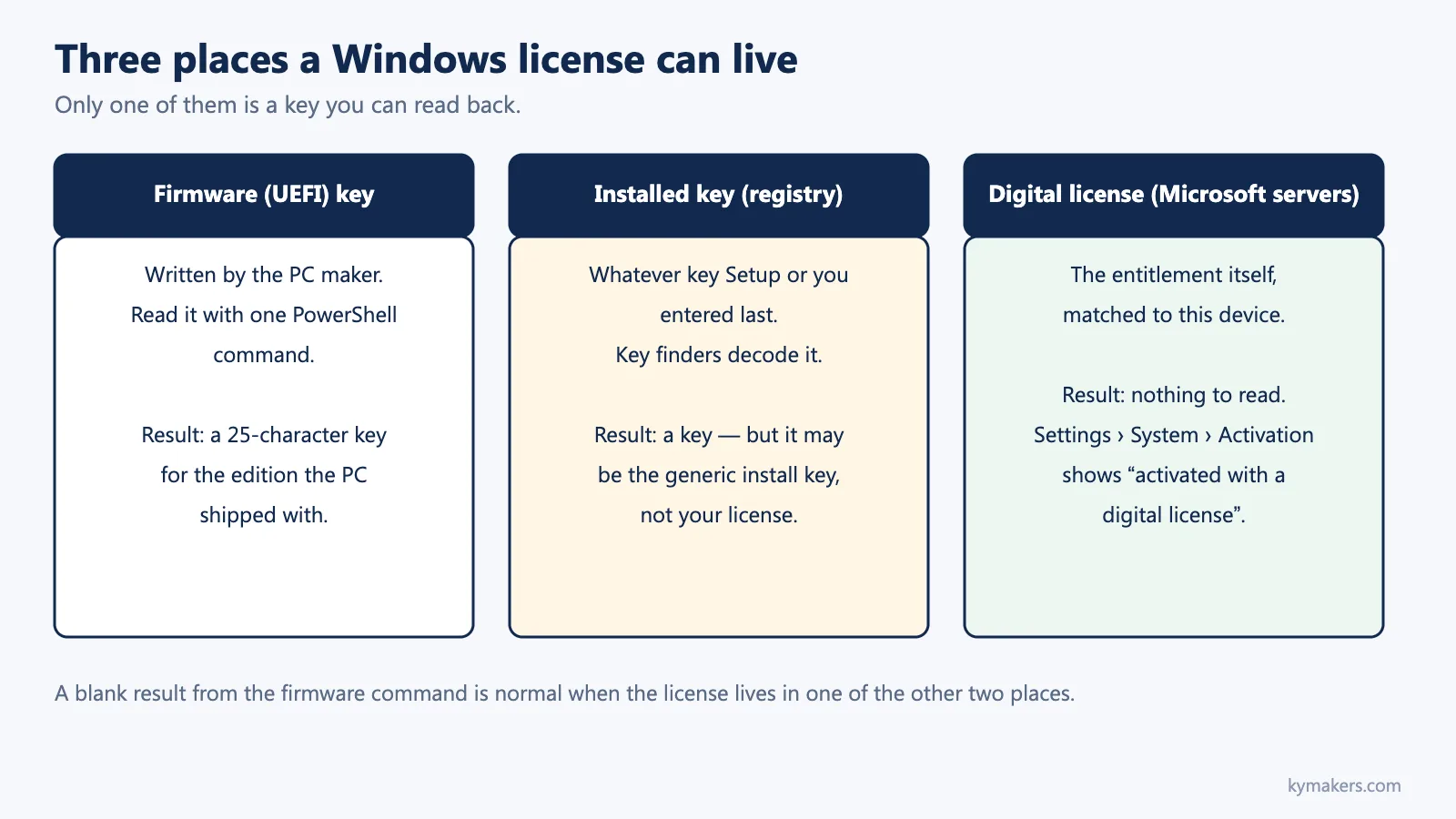
| Where the license lives | How to see it | Can you read a key? | Typical PC |
|---|---|---|---|
| Firmware (UEFI) OEM key | The PowerShell command above | Yes | Laptops and desktops sold with Windows preinstalled |
Installed key in the registry (DigitalProductId) | Third-party key finder, or an exported registry hive | Yes, decoded; but it may be a generic installation key rather than your license | PCs activated with a typed retail or volume key; PCs where Setup left a generic key |
| Digital license on Microsoft’s servers | Settings › System › Activation (“Windows is activated with a digital license”) | No; there is no key to read | PCs upgraded from Windows 10, Store purchases, PCs whose key was converted to a digital license at first activation |
Four reasons the firmware command returns nothing:
You have a digital license, not a key
Microsoft records the entitlement against the device. Microsoft’s guidance is that you can reinstall the same edition on this device without entering a key, and it activates online afterward. The useful action is to link your Microsoft account (Settings › System › Activation › Add an account) so the Activation troubleshooter can reactivate the device after a motherboard change.
The PC was activated with a retail key you typed
The key is in the registry and in your purchase email or order history; it was never in firmware.
It is a volume-licensed PC
Work and school machines activate against the organization’s KMS host or with a MAK; there is nothing for you to retrieve. slmgr /dli shows the channel as VOLUME_KMSCLIENT or VOLUME_MAK.
The firmware key was never written, or the motherboard was replaced
A replacement board carries no key for your Windows license. If a key finder shows you a key that starts with VK7JG, W269N or similar, stop: those are generic installation and KMS client keys that Setup uses and that cannot activate anything. The section “The generic key trap” below explains how to check, and our generic key vs activation key explainer covers what each one does.
The generic key trap
This deserves its own section because it wastes more time than every other problem on this page combined.
For the full story of what the generic Windows 11 Pro key does and why it never activates, see our explainer on the generic key vs activation key.
What a generic key is
Microsoft publishes a set of keys that identify a Windows edition without granting any entitlement. They exist so that installation media can be told which edition to install without needing a real licence at that point in the process. They are public, they are documented, and they activate nothing.
The most widely seen of these begins with VK7JG and ends with a run of characters that anybody who has spent time in Windows support can recite. There are equivalents for every edition.
Why the command shows one
On a digital licence installation, the generic key for the installed edition often ends up sitting in the DigitalProductId value, because that is what setup put there when it installed the edition without a real key. Read the registry and there it is, twenty five characters, five neat groups, looking exactly like the thing you were searching for.
People then write it down, keep it for two years, try to activate a new machine with it, and discover it does nothing. The disappointment is entirely avoidable with one search.
What to do instead
Take whatever key you found and search for it in quotation marks. If it comes back on a dozen sites as a public generic key for your edition, it is not yours and it is worth nothing. If it returns nothing at all, it is probably a real key, because real keys are unique and do not appear on public pages.
That five second check should be a reflex every time a tool hands you a key. It is the single most useful habit in this entire guide.
Finding the key on a PC that will not boot
The scenario nobody plans for and everybody eventually hits. The machine is dead, the drive is fine, and the key is somewhere inside it.
Reading the registry from another machine
Take the drive out and connect it to a working computer, either in a caddy or as a second internal drive. Open Registry Editor on the working machine, select HKEY_LOCAL_MACHINE, and use the load hive option in the File menu. Point it at the SOFTWARE hive on the attached drive, which lives in the Windows System32 config folder, and give it a temporary name.
The dead machine’s registry then appears as a branch under HKEY_LOCAL_MACHINE and you can navigate to the same Microsoft Windows NT CurrentVersion location and read the DigitalProductId value from it. Most key finder tools can also be pointed at an offline Windows installation directly, which is easier if the tool you have supports it. Unload the hive when you are finished so the drive can be disconnected cleanly.
This recovers the key that was in use on that installation, which is exactly what you want when the plan is to move the licence or rebuild the machine.
Reading the firmware key offline
If the motherboard still powers on but Windows will not start, the firmware key is still readable because it lives in the board rather than the drive. Boot from any Windows installation media, choose the repair option, open a command prompt from the troubleshooting menu, and run the same wmic query. It works in that environment and returns the key the same way.
If the motherboard itself is dead, the firmware key is gone with it, and that is the end of that particular road. An OEM licence lives and dies with the board it was issued against, which is one of the more consequential differences between OEM and retail and a good reason to know which one you have before you need to.
Windows 11 differences
The methods are the same on Windows 10 and Windows 11. Three practical differences on Windows 11: the default console is Terminal rather than Command Prompt, so the right-click Start menu says Terminal (Admin); wmic is absent on 24H2 and later unless you add it as an optional feature, so use the PowerShell command; and the Settings path for activation is Settings › System › Activation rather than Settings › Update & Security › Activation. The activation status messages are also slightly different; Windows 11 shows “Windows is activated with a digital license linked to your Microsoft account” when the account link is in place.
Checking your activation status and licence type
Knowing the key is half the picture. Knowing what kind of licence it belongs to tells you what you can actually do with it.
The slmgr commands
In an administrator Command Prompt, run slmgr /xpr for a one line answer about whether the machine is permanently activated. Run slmgr /dli for a short summary including the last five characters of the installed key and the licence status. Run slmgr /dlv for the full detail, which includes the activation ID, the licence channel and the number of activations remaining where that applies.
These open small dialog boxes rather than printing to the console, which surprises people the first time. The information in slmgr /dlv is the most complete picture Windows will give you about its own licensing without any third-party help.
Reading the channel
In the slmgr /dli or /dlv output, look for the description line. It contains a word that tells you the channel: OEM for a licence that came with the machine, RETAIL for one bought separately, and VOLUME for a managed corporate licence.
That single word determines everything about transferability. Retail can move to another machine once the first is decommissioned. OEM cannot, legitimately, whatever a forum post says. Volume is the organisation’s, not yours. If you are about to sell a computer or move a licence, read that line before you make plans, and read our breakdown of what OEM and retail actually permit if the answer is not what you hoped.
If the key fails to activate once you have found it, the Windows product key not working guide diagnoses edition, entitlement, error code and hardware change in order.
What to do once you have the key
Finding it is the easy part. Keeping it findable is where people fall down twice.
Store it properly
Put the key somewhere that is not the computer it belongs to. A password manager is the obvious home, filed under the machine’s name with a note about which edition it is and where it came from. A text file on the desktop of the machine in question is not storage; it is a copy of the problem.
Record three things alongside the key itself: the edition it activates, the channel it belongs to, and the date and source of purchase. In two years the key on its own will not tell you whether it is the Home key from the old desktop or the Pro key you bought separately, and that distinction is exactly the one you will need.
A photograph of a sticker counts, provided the photograph is somewhere you can find it. Buried in a phone camera roll from three years ago, it does not count.
Link the licence to a Microsoft account
Do this even if you now have the key written down, because the two recovery routes cover different failures. The key helps when you are installing on new hardware. The account link helps when activation breaks on existing hardware, which is the more common event.
Settings, then Activation, then sign in if it is not already linked. Two minutes, no cost, and it converts the worst version of an activation problem into a routine one.
What the key does and does not let you do
A key is not permission. Having the characters for an OEM licence does not make that licence transferable, and a machine that refuses to activate with a key you technically possess is usually enforcing a rule rather than malfunctioning.
Equally, not having a key does not mean you have no licence. A digital licence with no retrievable key is a complete, valid entitlement, and machines running one are exactly as activated as machines running a typed-in key.
Whether a license can move to another PC is set by its channel; OEM vs retail explains the rules and transferring a Windows license explains the procedure.
When you do not have a key and cannot find one
Sometimes every method comes back empty, the account has nothing, the sticker is gone and the purchase email predates your current mailbox. That is a real situation with real answers.
The genuine options
If the machine is currently activated, you may not need a key at all. Link it to a Microsoft account, confirm it reports as activated with a digital licence, and carry on. The licence is intact whether or not you can see a key.
If the machine is not activated and you have no key, you need a licence. Windows runs unactivated more or less indefinitely with personalisation settings locked and a watermark in the corner, which our guide to the activate Windows watermark explains in full, but it is a state to resolve rather than live in.
If a key you do have is being rejected, that is a different problem with its own diagnostics, and our guide to what to do when a Windows key will not work goes through the error codes and what each one actually indicates.
What to avoid
Activation cracks and key generators. They do not produce licences, they modify system files or install a fake activation service, and they are one of the most reliable ways to end up with something unpleasant on a machine you use for banking. The saving is not worth it and the risk is not theoretical.
Keys advertised at prices that make no sense, sold with no invoice, no channel stated and no support. Some are fine and some are stolen or already deactivated, and the listing gives you no way to tell which. Our piece on whether cheap Microsoft keys are safe covers what separates a legitimate discounted licence from one that will stop working, and our guide to telling legitimate cheap Windows keys from scams lists the specific checks worth making before paying.
If you decide to buy, the things that matter are a stated channel, an invoice, a working support route and a seller who will replace a key that fails. Our Windows licences are sold with all four.
The honest trade-offs
Two of these come up repeatedly and neither has a clean answer.
The first is whether to install a key finder at all. It is the fastest route to a key on a machine where the built-in commands come back empty, and it is also an executable from the internet running with enough access to read your licence data. The registry and PowerShell routes get you the same result with nothing installed but take longer and require more care. Neither choice is wrong; it depends on how much you trust the source and how much time you want to spend.
The second is whether the key is worth chasing at all. On a machine with a healthy digital licence properly linked to an account, the honest answer is often no. People spend an afternoon extracting a key that will never be used, when ten minutes spent confirming the account link would have covered every scenario they were actually worried about. Chase the key when you have a specific plan for it. Chase the account link always.
Mistakes people keep making
Confusing the product ID with the product key. They sit next to each other in the registry and in the system information panel, one is a licence and one is an identifier, and they are not interchangeable in any direction.
Trusting the first key a tool reports without checking whether it is generic. Five seconds of searching would have settled it, and skipping those five seconds is how people end up two years later with a worthless string of characters they were relying on.
Assuming an OEM key from one machine will activate another. It will not, and no amount of retrying, phone activation or reinstallation changes the licence terms that are being enforced.
Writing the key in a file on the machine it belongs to. When the machine dies, so does the note. Storage that shares a failure mode with the thing it is protecting is not storage.
Copying a key by eye from a faded sticker without photographing it first. Eights, threes, Bs and zeros are all the same character to a tired person in bad light, and a one character error produces exactly the same rejection as a fabricated key.
Believing the Microsoft account will show a list of Windows keys. It will not, it never has, and hunting through the account settings for the page that displays them is time spent looking for something that does not exist.
Reinstalling the wrong edition because the firmware key said Home when the machine had been upgraded to Pro. The firmware key describes what shipped, not what the machine is entitled to now.
Running key generators. They do not generate licences. They generate strings that look like licences, and the software that ships alongside them is the actual product.
Treating an unactivated machine as urgent and an unlinked digital licence as unimportant, when the second is the one that will cost you an afternoon later.
Selling a computer without deciding what happens to the licence. If it is OEM, it stays with the machine and is part of what you are selling. If it is retail, you can remove it and keep it, but only if you actually have the key and do so before the machine leaves.
A practical order to work through
Run the PowerShell firmware command first. It takes ten seconds and it answers the question outright on most preinstalled machines.
If it is empty, check whether Windows is currently activated and whether the licence is linked to a Microsoft account. If it is activated and linked, stop. You have what you need and there is no key to find.
If you specifically need a key because you are moving a retail licence or activating different hardware, check the registry or run a key finder from a source you trust, then test whatever it returns against the generic key search before relying on it.
If the machine will not boot, pull the drive and load the hive, or boot installation media and run the firmware query from the recovery command prompt.
If everything is empty and the machine is not activated, you need a licence rather than a key, and the sections above cover what to look for and what to avoid.
Frequently asked questions about finding your Windows product key
Where is my Windows product key stored on the computer
In two possible places. Machines that shipped with Windows preinstalled have the key written into the motherboard firmware, readable with a single command. Machines where a key was typed in have it encoded in the registry under the DigitalProductId value. Machines running a digital licence may have neither, because the entitlement lives on Microsoft’s servers rather than on your computer.
Can I find my Windows 11 product key the same way as Windows 10
Yes. Every method here works identically on both. The only practical difference is that the older wmic tool is more likely to be absent on a current Windows 11 build, so use the PowerShell command instead.
Why does the command return a blank result
Because there is no key in the firmware, which is normal on machines that did not ship with Windows preinstalled, on upgraded machines, and on volume licensed corporate machines. It is not an error and it does not mean your licence is invalid.
Is the product ID the same as the product key
No. The product ID identifies the installation and the edition. The product key is the licence. They look similar in the system panel, sit near each other in the registry, and do completely different jobs. Sending somebody your product ID when they asked for the key will not work.
Does Microsoft show my Windows key in my account
No, and it never has for Windows. What the account holds is a digital licence linked to a device, which lets you reactivate through the troubleshooter by selecting the machine from a list. Store purchases may show a key in the order history, but a preinstalled licence will not.
Are third-party key finders safe
The reputable ones do a simple job and do it honestly. The category attracts bundled junk and misleading downloads, so the risk is mostly about where you got the tool rather than what the tool does. Download from the developer’s own site, decline the extras, and uninstall when finished.
Why is my antivirus flagging the key finder
Because reading licence data out of the registry looks, to a heuristic scanner, similar to something less benign. It is usually a false positive, but it is also a fair reason to be careful about the download source rather than to click through the warning automatically.
The key I found starts with VK7JG. Is that mine
No. That is one of Microsoft’s public generic keys used to identify an edition during installation. It activates nothing. If a search for your key in quotation marks returns results on multiple sites, it is generic.
Can I use my old PC’s key on a new computer
Only if it is a retail licence and the old machine is no longer using it. An OEM licence is tied to the machine it shipped with and will not activate different hardware. Check the channel with slmgr /dli before making any plans.
I lost the key but Windows is activated. Do I need it
Probably not. A digital licence tied to your hardware reactivates automatically after a reinstall of the same edition on the same machine. Link it to a Microsoft account and you have covered the realistic failure cases without ever seeing a key.
How do I get the key off a computer that will not start
Either connect the drive to a working machine and load its SOFTWARE registry hive to read the DigitalProductId value, or boot installation media on the original machine and run the firmware query from the recovery command prompt. The first recovers the installed key, the second recovers the manufacturer’s key.
Does upgrading to Windows 11 change my product key
No. The firmware key stays as it was and the digital licence updates itself to cover Windows 11. Nothing needs entering during the upgrade and nothing needs recording afterwards.
Will replacing my hard drive lose the licence
No. The digital licence is keyed mostly to the motherboard, so drives, memory and graphics cards can all be changed without affecting activation. Replacing the motherboard is the change that matters.
Can I find my Office product key the same way
Not with these commands, which read Windows licensing specifically. Office keys live in your Microsoft account under services and subscriptions for modern versions, or in the original purchase email for perpetual ones. Our guide to finding an Office product key covers the differences.
If the key is genuinely gone, and it often is on a machine that has been reinstalled, replacing it costs less than a rebuild. A Windows 10 Pro product key covers a desktop you want to keep as it is, and a Windows 11 Pro product key makes sense if you plan to move that machine forward instead.
The bottom line on finding your Windows product key
One PowerShell command answers the question on most machines in ten seconds, and the registry or a reputable key finder covers most of the rest. The methods are genuinely easy and none of them is the hard part.
The hard part is knowing what you are actually looking at. A blank result usually means a digital licence rather than a problem. A key that looks perfect may be a public generic string worth nothing. A key you legitimately possess may still not be transferable to the machine you want to use it on. Every one of those is a five second check, and every one of them is skipped constantly.
So run the command, test what it gives you, and then do the thing that actually protects you: confirm the licence is linked to a Microsoft account and write down what you found somewhere that is not the computer it came from. That combination covers every realistic scenario, including the ones where the machine never turns on again.