To create bootable usb windows 11 or 10, download Microsoft’s official Media Creation Tool from microsoft.com, plug in an 8GB+ USB stick, run the tool, choose USB flash drive, and wait 15-30 minutes. That stick will boot any PC into Windows Setup and doubles as a repair kit for years.
One safety rule before anything else: never download a Windows 11 ISO from a torrent, forum, or “free ISO” site. Modified ISOs are a well-documented malware vector and a single poisoned installer gives full control of your PC before antivirus even exists. Get the installer only from Microsoft — the license is the only part that should cost money. This guide gives you the honest, complete picture — what a bootable USB is, why you need one in 2026, what you need before you start, 6 proven methods to build it, UEFI vs Legacy pitfalls, and the permanent genuine license fix that ends activation errors.
Table of Contents
- What is a bootable USB Windows installer?
- Why you need to create bootable usb windows in 2026
- What you need before you start
- How to create bootable usb windows: 6 proven methods
- Warning: never use random ISO download sites
- The permanent fix: genuine license after you create bootable usb windows
- Fix comparison table
- FAQ
What is a bootable USB Windows installer?
A bootable USB Windows installer is an ordinary 8GB+ flash drive that has been prepared with boot sector code and the complete Windows installation files — bootmgr.efi, sources/install.wim, and setup.exe. Unlike a normal USB that only stores files, this one is marked as bootable in its partition table so that your PC’s firmware — UEFI or legacy BIOS — can start from it before Windows loads.
When you create bootable usb windows, you are not buying Windows. Microsoft gives the installer free, always. What you are creating is the delivery mechanism. Activation — whether your Windows is genuine — is verified later by Microsoft servers when you enter a key. That separation is important: free installer, paid genuine license. At Kymakers we keep that line clean: free tools stay free, genuine keys arrive by email in minutes.
Why you need to create bootable usb windows in 2026
If you have never needed one, create bootable usb windows sounds like an IT-department job. It isn’t, and in 2026 it is no longer a luxury — it’s a necessity.
First, Windows 10 support ends in October 2026. Millions of PCs that fail Windows 11 checks need a fresh Windows 10 LTSC or a clean 11 install via media. Second, every clean install starts with this stick — new build, swapped SSD, virus infection, or unfixable boot loop all end in the same place: booting from USB. Third, that same stick is a recovery tool. Boot from it, click Repair your computer, and you get Startup Repair, System Restore, Command Prompt fixes, and the ability to uninstall a bad update without losing files. Keeping one labeled stick in a drawer is the difference between a 10-minute fix and an evening of phone-searching panic.
Check which Windows you currently run before you rebuild: kymakers.com/what-windows-do-i-have/ It determines which installer and which key you need.
What you need before you start to create bootable usb windows
Three things, and you probably have them already:
A USB flash drive 8GB or more. Everything on it will be erased — this is the step people learn the hard way, so move photos off it first. Name-brand USB 3.0 sticks write faster and last longer in a drawer.
A working PC with internet. For downloading the tool and Windows image. It doesn’t have to be the PC you’re installing on.
A genuine Windows license for the destination machine. If the PC was activated before, its digital license usually reactivates itself after reinstall. For a new build, you will need a key. You can grab a genuine license at kymakers.com/ mid-install and activate later — delivery takes minutes.
Check if the target PC meets official requirements before you waste a download: kymakers.com/windows-11-requirements/
How to create bootable usb windows: 6 proven methods
Work through these in order. Fixes 1-3 cover 95% of users.
Method 1 — Official Media Creation Tool [Fastest for beginners]
This is the recommended way to create bootable usb windows for most people.
Go to the official Microsoft download page: Microsoft’s Windows 11 download page — or /windows10 if you need Windows 10. Under Create Windows 11 Installation Media, click Download Now. You get a small MediaCreationTool.exe. Run it, accept license. Plug in USB, keep recommended language and edition — the same stick holds Home and Pro and asks during setup. Choose USB flash drive, pick your drive, click Next. Wait 15-30 minutes for download and write. When it says Your USB flash drive is ready, you’re done. This is the safest way to create bootable usb windows because download comes straight from Microsoft servers.
Method 2 — Boot the PC from the USB
This is where most people get stuck when they try to create bootable usb windows. PCs boot internal drive by default.
Plug stick into target PC, turn on, immediately tap boot-menu key: F12 on Dell/Lenovo, F9 on HP, F8 on ASUS, F11 on MSI. First screen says which. Pick USB drive — if you see it twice, choose UEFI entry. Windows logo appears and setup starts. If it boots old Windows instead, tap was too late — restart and try earlier and faster.
Method 3 — Install Windows
After you create bootable usb windows and boot from it:
Choose language/keyboard > Install Now > when asked for key, enter yours or click I don’t have a product key to activate later in Settings. Our activation guide covers that step: kymakers.com/how-to-activate-microsoft-product-key/ Pick edition matching your license — Home vs Pro difference explained here: kymakers.com/windows-11-home-vs-pro/ Choose Custom: Install Windows only for clean install. Select drive where Windows should live. If backed up, deleting old partitions gives cleanest result. PC copies files and restarts a few times — don’t pull USB until setup asks region/account. After first boot you can remove stick.
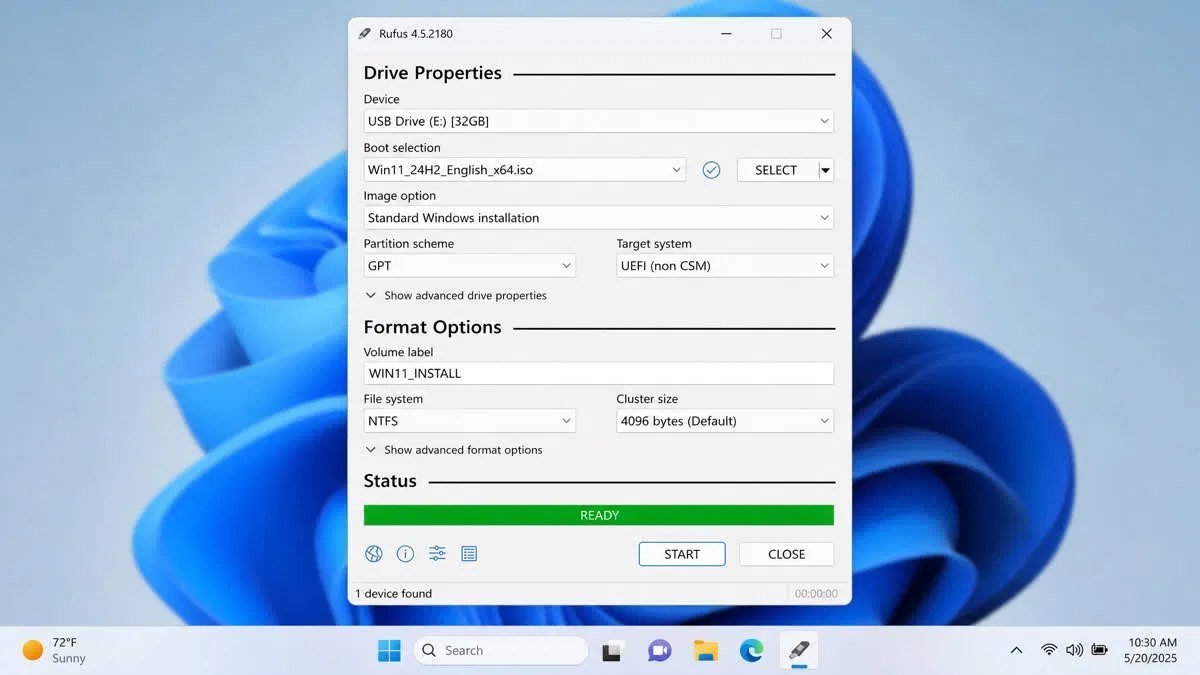
Method 4 — Rufus method: enthusiast route to create bootable usb windows
Every technician also keeps Rufus, a tiny free utility that writes a Windows ISO faster with more control.
Download ISO directly from same Microsoft page: under Download Windows 11 Disk Image (ISO) pick multi-edition. It’s 5-6GB, reusable forever. Download Rufus from rufus.ie — single file, no installer. Launch, SELECT your ISO, Partition scheme: GPT for any modern PC (UEFI) — only pick MBR if reviving genuinely old machine that boots legacy BIOS. Click START. Rufus offers options to skip Microsoft account requirement or bypass hardware checks — tick only what you understand. Note: bypassing TPM/CPU checks installs unsupported configuration, caveats covered in requirements guide. 5-10 minutes later drive is ready — quicker because download already happened.
Method 5 — Manual diskpart method when tools fail
If tools fail to create bootable usb windows, Windows’ built-in diskpart can prepare stick with no third-party software: Open CMD as admin > diskpart > list disk > identify USB by size triple-check > select disk N > clean > convert gpt > create partition primary > format fs=fat32 quick > assign > exit > Mount ISO double-click and copy everything to USB. That’s a bootable UEFI installer. One catch: FAT32 cannot hold files over 4GB, and install.wim sometimes exceeds that — Rufus solves this by splitting the image, which is why we recommended it earlier.
Method 6 — ISO without USB at all [shortcut]
If PC already runs Windows and you just want clean reinstall or upgrade, you don’t need to create bootable usb windows at all. Download ISO, right-click > Mount, Windows opens it like virtual DVD. Run setup.exe inside, choose keep files and apps, keep files only, or keep nothing. Same installer as USB, minus boot gymnastics. USB stays necessary for empty drives, dead systems, replacing disk, dual-boot builds, and when Windows won’t start.
When things don’t cooperate
Tool won’t write to USB: Usually dying stick or USB hub in the way. Plug directly into PC, not hub, try different stick — flash wears out quietly.
PC won’t show USB in boot menu: Enter BIOS Del/F2 at power-on, find Boot options, ensure USB boot enabled and Secure Boot accepts drive. On desktops rear ports are more reliable than front.
Setup says key doesn’t match edition: You picked Pro with Home key or vice versa. Restart setup and pick matching edition — full breakdown in our key not working guide: kymakers.com/windows-key-not-working/
Setup can’t see drive at all (new laptops): Recent laptops with Intel RST hide disk from old installer. Use current Windows 11 ISO or fetch storage driver from laptop maker’s site onto same USB and click Load driver.
UEFI vs Legacy BIOS, GPT vs MBR — the two-minute version
These four acronyms cause most create bootable usb windows failures. UEFI is modern firmware since ~2012; Legacy BIOS is old. GPT and MBR are drive layouts — GPT pairs with UEFI, MBR with Legacy. Rule: building for any PC from last decade, choose GPT/UEFI and never think again. Reviving ancient PC, choose MBR and look for Legacy/CSM boot options. If boot menu shows stick twice — plain and UEFI — pick UEFI.
Making a Windows 10 bootable USB instead
Everything to create bootable usb windows works identically for Windows 10 — Media Creation Tool has Windows 10 edition, Rufus writes same way. Two honest notes: First, consumer security updates for Windows 10 end October 2026, so fresh Windows 10 today needs reason — usually hardware fails Windows 11 checks. Our end of support guide ranks paths: kymakers.com/windows-10-end-of-support/ Second, if reason is older PC, consider long-life LTSC edition instead of standard — same skills to build, much longer support.
Your bootable USB is also a repair kit
After you create bootable usb windows, keep it. Boot from stick as if installing, but click Repair your computer instead of Install Now. You get Startup Repair for boot loops, System Restore that keeps documents, Command Prompt bootrec /fixmbr /fixboot /rebuildbcd, and Uninstall Updates. The day Windows won’t boot, that drawer saves evening.
After the install: checklist nobody writes down
- Windows Update first — let it pull drivers before judging anything. Half of “clean install problems” are just drivers arriving within first hour.
- Graphics drivers second — gamers grab latest from NVIDIA/AMD/Intel.
- Activate and verify — Settings > System > Activation should read Activated with digital license. If machine was activated before, it happens itself online. If fresh build, enter key — genuine keys at kymakers.com/ arrive minutes after purchase.
- Reinstall essentials, then make restore point while clean.
If Windows does not activate on its own after the install, the Windows 11 activation guide starts with whether this PC already has a digital license.
Verifying your download — thirty seconds that beats malware
Only download Windows from microsoft.com. If you want belt-and-braces certainty, Microsoft publishes SHA-256 checksums for ISOs. Open PowerShell run Get-FileHash against file — if fingerprint matches Microsoft’s published value, copy is bit-for-bit genuine. Same logic we preach about licenses: genuine sources, verifiable results.
Which edition should the USB install?
Multi-edition installer asks mid-setup. Plan 60 seconds before you create bootable usb windows:
Family PC/gaming/student: Home — full performance, no management features you never touch.
Work machine with sensitive files: Pro — BitLocker, Remote Desktop hosting, Group Policy.
Small business fleet: Pro — domain join is entry ticket.
Old hardware that fails checks: Windows 10 or LTSC — supported reality beats unsupported ambition.
Already installed Home and regretting? Home to Pro upgrade key converts in place, no USB required.
For Pro specifically, the Windows 11 Pro install walkthrough covers the setup screens in order.
Clean install vs cloning when swapping drives
Common reason to create bootable usb windows is new SSD. Cloning preserves everything — apps, clutter, slowdown — faithfully copied to faster storage. Clean install from your USB onto new SSD costs afternoon of reinstalling apps and pays back with machine feeling genuinely new.
License survives either path. Digital licenses attach to machine, not disk — after clean install on new drive in same PC, activation returns once online. Only motherboard swap counts as new PC, covered in our hardware change guide: kymakers.com/upgrade-windows-7-to-windows-10/
Warning: do NOT download pre-made USB images
This is most important safety section. Sites selling “pre-made Windows 11 bootable USB download” or “free Windows USB creator pro full” bundle trojans inside Activators because you run them as administrator by default. A lone ISO from torrent may contain infostealer that survives even after reinstall if you restore infected backup. Always get tools only from official Microsoft page listed above and Rufus from rufus.ie.
The permanent fix for activation after you create bootable usb windows
Notice what this entire guide never required: paying anyone for installer, ISO, or tools. Microsoft gives software free — business model lives in license that activates it. Anyone charging for “Windows 11 download” is charging for free part. Only part that legitimately costs money is product key — and that’s exactly where genuineness matters, because it’s what Microsoft servers verify.
Get create bootable usb windows genuine license at Kymakers — instant email delivery, one-time purchase, activated on Microsoft servers, money-back guarantee: kymakers.com/ Browse all Windows 11 editions: kymakers.com/product-category/windows/windows-11/ The permanent fix for recurring loops after you create bootable usb windows is to own Retail key from kymakers.com/ — it ends watermark, unlocks personalization and keeps update channel healthy. If you create bootable usb windows often for multiple PCs, our multi-PC packs price sensibly.
Fix comparison table
| Method | Best for | Fixes root cause? | Effort |
|---|---|---|---|
| Media Creation Tool | Beginners first time | Yes — genuine installer | Low |
| Rufus with ISO | Enthusiasts, faster write | Yes | Low |
| Manual diskpart | When tools fail | Workaround | Medium |
| Mounted ISO (no USB) | Upgrade/reinstall within working Windows | Yes | Low |
| Genuine Retail license | Repeat activation errors | Yes — permanent | Low |
The USB gets the installer onto the machine. Activating what you install is a separate step, and it needs a key that matches the edition you picked during setup: a Windows 11 Pro product key for Windows 11 Pro, or a Windows 10 Pro product key if you are installing the older release.
Create bootable usb windows — FAQ
Can I use same USB to install Windows on several PCs after I create bootable usb windows?
Yes — stick reusable indefinitely. Each PC still needs its own license; installer is free, activation isn’t. Multi-PC packs exist for exactly this.
Do I need to create bootable usb windows to upgrade from Windows 10 to 11?
No — upgrades happen through Windows Update keeping files. USB clean install wins when machine misbehaving, drive replaced, or Windows won’t boot.
Which is better to create bootable usb windows — Media Creation Tool or Rufus?
For most people official tool — can’t really be done wrong. Rufus is enthusiast option: faster writes and advanced switches, worth it once you’ve done this a few times.
How big should USB be to create bootable usb windows 11?
8GB minimum, 16GB comfortable. Bigger buys nothing — smaller decent-quality USB 3.0 beats huge bargain-bin one.
Can I still use USB for files afterwards?
Yes — reformat in File Explorer and it returns to ordinary storage. But honestly: Windows installer stick earns keep as permanent recovery tool. Sticks cheap; dedicate one.
Does creating bootable USB give free Windows license?
No. Installer free, license isn’t. You can install and run unactivated indefinitely with watermark, but activation needs genuine key. That’s where Kymakers helps.
How long does bootable USB stay usable after you create bootable usb windows?
Stick works years, but Windows on it ages — old stick immediately downloads months of updates. Rebuild yearly, Media Creation Tool fetches current release.
Can I make bootable USB from Mac or Linux?
Yes — download ISO in any browser, write with balenaEtcher or Ventoy. Media Creation Tool is Windows-only, but ISO doesn’t care what wrote stick.
Written by the KYMakers Technical Team. Last updated: August 2, 2026. KYMakers sells genuine Microsoft license keys with instant delivery.