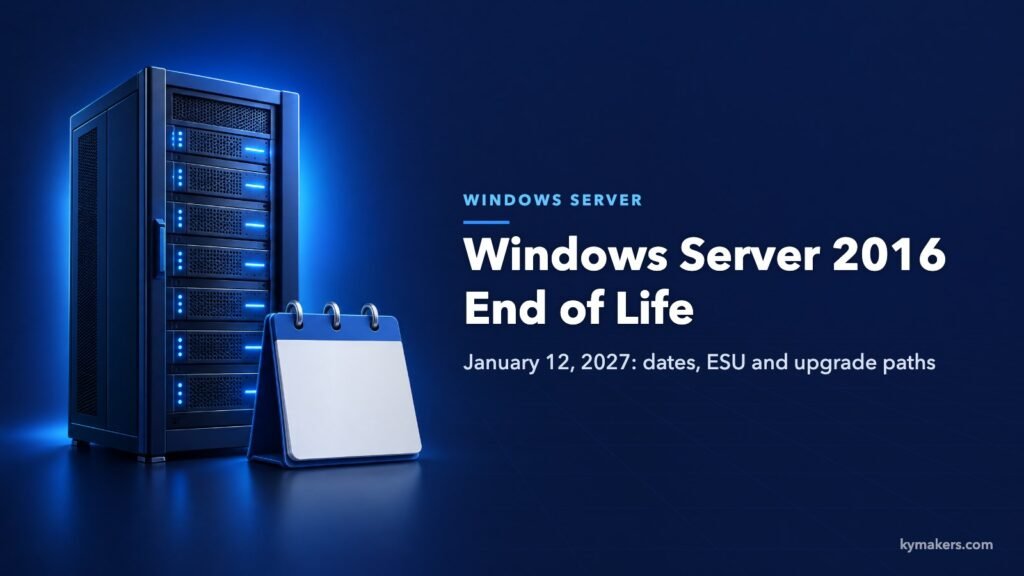
Windows Server 2016 end of life is January 12, 2027. That Tuesday brings the last security update Microsoft will release for it under normal support. After that date a Server 2016 machine keeps running, but every new vulnerability found in it stays open unless you pay for Extended Security Updates. If you still have domain controllers, file servers or application servers on 2016, this article gives you the exact dates, what stops and what does not, the four realistic options, and how the licensing works for each one.
Key takeaways
- Extended support for Windows Server 2016 ends on January 12, 2027. Mainstream support already ended on January 11, 2022.
- Standard, Datacenter, Essentials and MultiPoint Premium all lose support on the same day.
- Microsoft offers paid Extended Security Updates for up to three more years, through January 2030, for Standard and Datacenter only.
- Windows Server 2025 supports an in-place upgrade straight from 2016, so you do not have to step through 2019 or 2022 first.
- A newer server version needs new server licenses and new CALs. Your 2016 CALs cannot be used to access a 2022 or 2025 server.
Contents
- The dates that matter
- What stops on January 12, 2027
- What it means in practice to run it afterwards
- Your four options
- Extended Security Updates explained
- Upgrading: in place or to a new server
- Licensing the replacement
- 2022 or 2025: which one to move to
- A short migration checklist
- Frequently asked questions
- Sources
The dates that matter
Windows Server 2016 follows Microsoft’s Fixed Lifecycle Policy: five years of mainstream support and then five years of extended support. The table puts it next to the versions that came after it, because the replacement you choose decides how long it will be before you do this again.
| Version | Mainstream support ended or ends | Extended support ends |
|---|---|---|
| Windows Server 2016 | January 11, 2022 | January 12, 2027 |
| Windows Server 2019 | January 9, 2024 | January 9, 2029 |
| Windows Server 2022 | October 13, 2026 | October 14, 2031 |
| Windows Server 2025 | November 13, 2029 | November 14, 2034 |
Two related products from the same generation have already gone. SQL Server 2016 reached the end of extended support on July 14, 2026, and Windows 10 Enterprise LTSB 2016 followed on October 13, 2026. If a 2016 server also hosts a 2016 database, you have two expired products on one machine, not one.
What stops on January 12, 2027
January 12, 2027 is a Patch Tuesday. Server 2016 receives one final cumulative update that day. From then on, Microsoft stops:
- security updates for newly discovered vulnerabilities
- non-security fixes and reliability updates
- assisted technical support, including paid incidents
- updates to the online documentation
What does not stop: the server itself. It boots, it serves files, Active Directory keeps authenticating, and activation is not affected. Nothing expires inside the operating system. That is exactly why end of life is easy to ignore until an audit or an incident forces the question.
For Essentials there is one extra detail. Features that depend on Microsoft services, such as Remote Web Access, lose support on the same date, and Microsoft will not fix them if they break.
What it means in practice to run it afterwards
The first few months after end of life usually feel uneventful. The exposure grows with each monthly patch cycle, because every fix Microsoft ships for Server 2019, 2022 and 2025 is also a hint about where to look in 2016. Shared code means shared bugs, and attackers compare patched and unpatched versions as routine work.
The business side tends to bite sooner than the technical side:
- Compliance. Frameworks such as PCI DSS and HIPAA expect supported, patched systems. An unsupported operating system in scope is a finding you have to explain or compensate for.
- Cyber insurance. Many insurers ask about unsupported software on renewal forms. An honest “yes” can raise the premium or narrow the cover.
- Vendor support. Backup agents, antivirus, line-of-business applications and hardware drivers drop old platforms from their support matrices, often within a year of Microsoft doing so.
We covered the same pattern in more detail for the next version in line in Windows Server 2019 end of life.
Your four options
| Option | What you get | Best when | Main cost |
|---|---|---|---|
| In-place upgrade to 2022 or 2025 | Same machine, same roles, new OS | Hardware is recent and the server has a simple, well understood role | New server licenses and CALs, a maintenance window |
| Migrate to a new server or VM | Clean install, roles and data moved across | Hardware is old, or the server has years of accumulated configuration | Licenses, possibly hardware, more planning time |
| Extended Security Updates | Security patches only, for up to three years | An application cannot move yet and you need time | A recurring ESU charge on top of what you already own |
| Move the workload to the cloud | No server to maintain for that role | The role is generic, such as file sharing or a web app | Monthly service fees and a migration project |
Most small and mid-sized environments end up combining the first two: upgrade the simple servers in place and rebuild the complicated ones.
Extended Security Updates explained
Microsoft has confirmed an Extended Security Updates program for Windows Server 2016. The facts published so far:
- ESUs run for up to three years after end of support. Microsoft’s lifecycle page lists three one-year periods, ending January 11, 2028, January 9, 2029 and January 8, 2030.
- They are available for the Standard and Datacenter editions. Essentials and MultiPoint Premium are not eligible.
- They deliver Critical and Important security updates only. There are no new features, no non-security fixes and no extension of technical support.
- Microsoft has made Azure Arc-enabled ESUs generally available. You connect the on-premises server to Azure Arc and enroll it from the Azure portal, with pay-as-you-go billing and no activation keys to install.
Microsoft sets ESU pricing per core and has changed it between programs, so check the current rate in the Azure portal or with your licensing provider before you budget. One pattern from earlier ESU programs is worth knowing: organizations that enrolled late were still charged for the months they skipped. Waiting does not make ESUs cheaper.
ESUs buy time. They do not change the destination. After January 2030 the same server needs replacing anyway, and by then the jump to a current version is bigger.
Upgrading: in place or to a new server
Windows Server 2025 lets you upgrade in place across up to four versions at a time, which means a direct move from Windows Server 2012 R2 or later. A 2016 server can go straight to 2025. It can also go directly to 2019 or 2022.
The rules that catch people out:
- You must keep the installation type. Server Core stays Server Core, and Desktop Experience stays Desktop Experience.
- You can keep the edition or go up from Standard to Datacenter. You cannot go down from Datacenter to Standard during an upgrade.
- An evaluation installation cannot be upgraded in place. Convert it to a licensed edition first.
- Check hardware support. Windows Server 2025 needs a processor with SSE4.2 and POPCNT, which rules out some very old CPUs, and your server vendor has to offer drivers and firmware for the target version.
Domain controllers deserve separate treatment. The cleaner path is to add a new 2025 or 2022 domain controller, let it replicate, move the FSMO roles, and then demote the 2016 one. An in-place upgrade of a domain controller works, but a failed upgrade on the machine holding your directory is a bad afternoon.
Whichever route you take, take a full backup or a snapshot you have actually tested restoring, and confirm that each application on the server is supported on the target version.
Licensing the replacement
There is no free upgrade between Windows Server versions unless you have active Software Assurance. Moving from 2016 to 2022 or 2025 means new licenses, and three rules decide how many.
Cores. Standard and Datacenter are licensed by physical core. Every physical core in the server must be licensed, with a minimum of 8 cores per processor and 16 cores per server. A small single-CPU server with 8 cores still needs a 16-core license.
Virtual machines. Standard covers two virtual machines per fully licensed host. Datacenter covers unlimited virtual machines on that host. The break-even point and the stacking rules are in Windows Server Standard vs Datacenter.
Client access licenses. CALs are version specific in one direction. A CAL lets a user or device access servers of the same version or older. Your 2016 CALs do not cover a 2022 or 2025 server, so the users need new CALs. Remote Desktop Services CALs follow the same rule. See Windows Server CALs and RDS CALs explained for the counting.
For the full picture on the newest version, including pricing models, read Windows Server 2025 licensing explained. If you already know what you need, the Windows Server 2025 keys and Windows Server 2022 keys are listed by edition and core count.
2022 or 2025: which one to move to
If you are replacing 2016 now, Windows Server 2025 is the default answer. It has mainstream support until November 2029 and security updates until November 2034, three more years than 2022. It also brings hotpatching options, SMB over QUIC in all editions, and Active Directory improvements that 2022 will never receive, because 2022 left mainstream support in October 2026 and now gets security fixes only.
Windows Server 2022 still makes sense in two cases: an application vendor has certified 2022 but not yet 2025, or the hardware is supported for 2022 only. It remains patched until October 14, 2031, so it is a safe landing place, just a shorter one. We compared the three current versions feature by feature in Windows Server 2019 vs 2022 vs 2025.
Windows Server 2019 is not a sensible target. It leaves support in January 2029, barely two years after the date you are trying to get away from.
The most common purchase for a single small-business server is Windows Server 2025 Standard, or Windows Server 2022 Standard where the application matrix requires it. Our Windows Server 2025 Standard installation guide covers the ISO, setup and activation.
A short migration checklist
- List every server still on 2016. Run
winveror check for version 1607, build 14393. - Write down the roles and applications on each one, and check each vendor’s support statement for 2022 and 2025.
- Check hardware warranty status and driver support for the target version.
- Decide per server: upgrade in place, rebuild, ESU, or retire.
- Count physical cores, virtual machines and users or devices, then buy server licenses and CALs to match.
- Back up, test the restore, and run the first upgrade on the least important server.
- Leave domain controllers and database servers until you have one clean upgrade behind you.
Two months is a comfortable amount of time for a handful of servers. It is tight for anything involving new hardware, so order early.
Frequently asked questions
When is Windows Server 2016 end of life? January 12, 2027. That is the end of extended support and the date of the last regular security update.
Will Windows Server 2016 stop working after January 2027? No. It continues to run and stays activated. It simply stops receiving security updates, fixes and Microsoft support.
Is there an ESU program for Windows Server 2016? Yes. Microsoft offers paid Extended Security Updates for up to three years, through January 2030, for Standard and Datacenter. Enrollment is available through Azure Arc.
Can I upgrade directly from Windows Server 2016 to 2025? Yes. Windows Server 2025 supports in-place upgrades from Windows Server 2012 R2 and later, as long as you keep the same installation type and do not move down an edition.
Do my Windows Server 2016 CALs work with Windows Server 2025? No. CALs allow access to the same server version or earlier versions. You need 2025 CALs for a 2025 server, or 2022 CALs for a 2022 server.
Is Windows Server 2016 Essentials covered by ESU? No. The ESU program applies to Standard and Datacenter only.
Sources
- Microsoft Learn, “Windows Server 2016” lifecycle page: learn.microsoft.com
- Microsoft Learn, “Prepare to deliver Extended Security Updates” (Azure Arc): learn.microsoft.com
- Microsoft Learn, “Overview of Windows Server upgrades”: learn.microsoft.com
- Help Net Security, “Microsoft extends security patching for three Windows products at a price”: helpnetsecurity.com