You need a Microsoft account for almost everything Microsoft makes — activating Windows, installing Office, using OneDrive, buying from the Store, or signing into Xbox. This guide shows you how to create a Microsoft account in a few minutes, and covers the choices most people get wrong the first time.
It also explains what the account actually does for your software licences, which matters more than most guides admit.
What a Microsoft Account Is
A Microsoft account is a single email address and password that unlocks the whole Microsoft ecosystem. It is free, and it is different from a work or school account issued by an employer.
One account covers Windows sign-in, Office, Outlook.com, OneDrive, the Microsoft Store, Xbox, Teams, and Copilot. Your settings, files, and — importantly — your product licences follow that account rather than the machine.
How to Create a Microsoft Account
The whole process takes about three minutes.
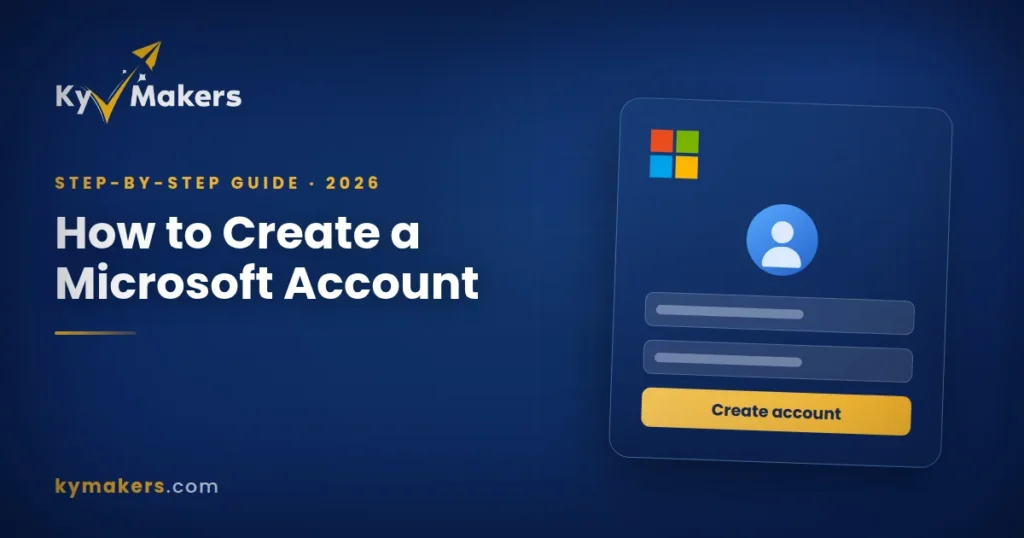
- Go to the sign-up page. Open account.microsoft.com and choose Create a Microsoft account.
- Enter an email address. Use an existing address you already control — Gmail, Yahoo, your own domain, anything. Or click Get a new email address to create a free @outlook.com address instead.
- Choose a password. Make it unique to this account. It will guard your licences and files, so do not reuse one.
- Add your name, country, and date of birth. The country setting affects Store pricing and availability, so set it correctly.
- Verify the address. Microsoft emails a code; enter it to confirm.
- Complete the puzzle check. A short visual challenge replaces the old captcha.
That is it — the account is live immediately. Microsoft’s own walkthrough for creating a new Microsoft account is the authoritative reference if a step looks different on your screen.
Use an Existing Email or Get a New One?
This is the first real decision, and both answers are defensible.
Use your existing address if you want one less inbox to check. Everything Microsoft sends — licence keys, receipts, security alerts — lands where you already look. This is the right choice for most people.
Create a new @outlook.com address if you want a clean separation between Microsoft services and your personal mail, or if your current address is an old one you may lose access to. Losing the email behind your Microsoft account is genuinely painful, because recovery depends on it.
One warning: do not use a work address for a personal Microsoft account. When you leave that job, the address disappears and your licences go with it.
Secure It Properly Before You Do Anything Else
Your Microsoft account will end up holding software licences worth real money. Two minutes of setup now saves a great deal of trouble later.
- Turn on two-step verification. Account settings, Security, Advanced security options. This alone blocks the overwhelming majority of account takeovers.
- Add a recovery phone and a second email. Without at least one, a forgotten password can lock you out permanently.
- Save your recovery code. Microsoft generates a 25-character code you can use if everything else fails. Store it somewhere that is not your inbox.
Why the Account Matters for Your Licences
This is the part most guides skip, and it is the reason to get the account right before you buy software.
When you activate Windows while signed in, Microsoft can attach a digital licence to your account. That linkage is what lets you reactivate after replacing a motherboard or moving to a new PC — without it you are relying on the 25-character key alone and on phone activation when things go wrong. Our guide to transferring a Windows 11 licence to a new computer walks through exactly how that works in practice.
The same applies to Office. A perpetual Office licence redeemed against your account can be re-downloaded and reinstalled from account.microsoft.com whenever you need it, rather than hunting for the original email.
Practical order of operations: create the account, secure it, then buy and activate. Doing it the other way round is recoverable but tedious.
Local Account vs Microsoft Account on Windows
Windows 11 pushes hard towards signing in with a Microsoft account during setup, and many people would rather use a local account.
A Microsoft account gives you digital licence linkage, settings sync across devices, OneDrive integration, BitLocker key backup, and Store access. A local account keeps everything on the machine, with no cloud connection.
You can switch later in either direction, and Microsoft documents changing from a local account to a Microsoft account. For anyone who buys their own licences, the Microsoft account is worth it purely for the licence linkage. If you are weighing editions too, see Windows 11 Home vs Pro.
Common Problems When Creating an Account
“This email is already used as a Microsoft account.” You made one previously, possibly years ago via Xbox or Skype. Use password recovery rather than creating a duplicate.
The verification code never arrives. Check spam first. If it is genuinely missing, wait ten minutes before requesting another — rapid retries can trigger a temporary block.
The puzzle check keeps failing. Usually a VPN or an aggressive ad blocker. Turn both off for the sign-up, then re-enable.
“We can’t create your account right now.” A rate limit, typically from too many attempts on one connection. Wait a few hours and try again.
Questions & Answers
How do you create a Microsoft account?
Go to account.microsoft.com, choose Create a Microsoft account, enter an email address you control or make a new @outlook.com one, set a password, add your name and country, then verify with the emailed code. It takes about three minutes and costs nothing.
Is a Microsoft account free?
Yes. The account itself costs nothing and includes free Outlook.com email and 5 GB of OneDrive. Only subscriptions such as Microsoft 365 carry a charge.
Can I create a new Microsoft account with my existing Gmail?
Yes. Any email address you control works — Gmail, Yahoo, or your own domain. You do not need an Outlook address.
Do I need a Microsoft account to use Windows?
Not strictly — a local account works. But you need one for the Store, for settings sync, and for a digital licence tied to your account, which makes reactivating after a hardware change far easier.
How many Microsoft accounts can I have?
As many as you like, each with a different email. Keeping licences spread across several accounts gets confusing quickly, though — one account for everything you buy is much easier to manage.
What happens if I lose access to my Microsoft account?
Recovery runs through your verification phone or backup email. Without either, and without your recovery code, regaining access is difficult and sometimes impossible — which is why setting those up at creation matters.
Why Buy From Kymakers
- Genuine Microsoft licences that activate on Microsoft’s own servers
- Instant email delivery — key and download link within minutes
- One payment, lifetime licence, no subscription
- Help linking your licence to your Microsoft account if you need it
- Money-back guarantee