
Install Office LTSC Professional Plus 2024 on Windows in about 20 minutes with Microsoft’s free Office Deployment Tool: requirements, the configuration file, activation and the errors people actually hit.
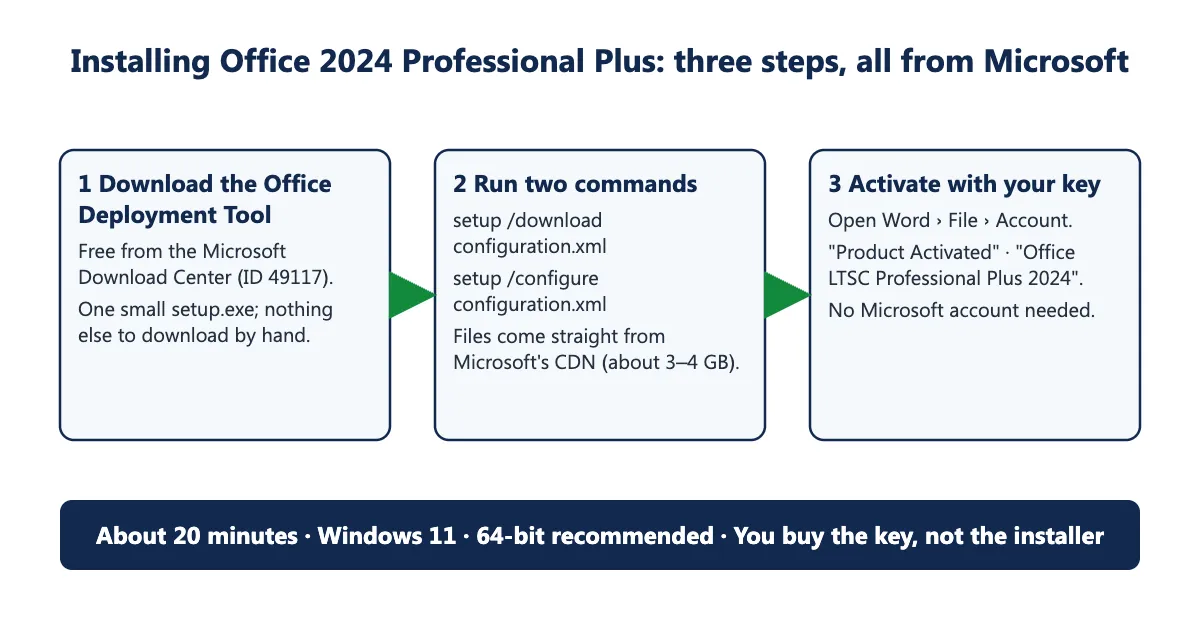
Office 2024 Professional Plus installs in three steps: download Microsoft’s free Office Deployment Tool, run two commands that pull the installation files from Microsoft’s servers, and enter your product key once. The whole process takes about 20 minutes on a normal connection, and nothing you download comes from anywhere except Microsoft. This guide covers the Windows build that Kymakers sells, which Microsoft calls Office LTSC Professional Plus 2024, and walks through requirements, removing an old Office, the download and install commands, activation, and the errors people actually hit.
Key takeaways
Contents
The product key from your Kymakers order activates Office LTSC Professional Plus 2024, the volume-licensed Windows edition of Office 2024. “LTSC” stands for Long-Term Servicing Channel: the apps receive security and stability updates until October 9, 2029, but no new features after release, which is what makes it a one-time purchase rather than a subscription. Our explainer on Office LTSC Professional Plus 2024 covers how it differs from Microsoft 365 Apps and from the retail Home and Home & Business editions.
Microsoft’s published app list for this edition is Access, Excel, OneNote, Outlook, PowerPoint and Word, with Skype for Business available as an optional install. Two apps that older guides still mention are not there: Publisher is not included with Office LTSC 2024 because Microsoft retired it in October 2026, and Microsoft Teams is not preinstalled but can be downloaded separately from Microsoft. If you need Access, this is the right edition; if you do not, Office 2024 Standard installs the same way with a different Product ID. Our Office 2024 edition comparison lays out the differences.
If you have not bought a key yet, the Office 2024 Professional Plus product key page covers one PC, and the Office 2024 Professional Plus 5 PC pack is one key that activates up to five PCs.
These are Microsoft’s requirements for Office LTSC 2024 on Windows.
| Component | Microsoft’s requirement |
|---|---|
| Processor | 1.1 GHz or faster, 2 cores |
| Memory | 4 GB RAM |
| Disk | 4 GB of available space (the installer is placed on the system drive; the location cannot be changed) |
| Display | 1280 × 768. 64-bit Office is required for 4K and higher |
| Graphics | Direct3D 9.1 adapter with a WDDM 1.3 or later driver for hardware acceleration |
| Operating system | Windows 11; Windows 11 LTSC 2024; Windows 10 LTSC 2021; Windows 10 LTSC 2019; Windows Server 2025; Windows Server 2022. On Arm devices, Windows 11 is the minimum |
| Other | Internet connection for download and activation; an administrator account on the PC; .NET 3.5 or 4.6+ for some features |
Two notes on that table. First, “supported” is Microsoft’s word: Office LTSC 2024 will usually run on a Windows 10 Home or Pro PC, but Windows 10 reached end of support on October 14, 2025, and Microsoft does not list it as a supported platform for this Office version, so problems on Windows 10 are yours to solve. If you are setting up a new PC anyway, the Windows 11 Pro + Office 2024 Pro Plus bundle licenses both. Second, Microsoft’s table gives one memory figure, 4 GB, for both architectures; you will see “2 GB for 32-bit” in older guides, which was the Office 2019 and 2021 figure.
Office 2024 Professional Plus does not exist for macOS. The Mac equivalent sold at retail is Office 2024 Home & Business, and our Microsoft Office for MacBook guide explains what the Mac suite does and does not include.
Office LTSC 2024 cannot share a PC with a different architecture of Office, and Microsoft recommends removing earlier versions before installing. This includes the Microsoft 365 trial that ships on many new laptops, which otherwise causes the “conflicting product” error in the troubleshooting section.
<RemoveMSI />, which Microsoft recommends; the installer removes those versions itself. For Office 2019 or 2021 Click-to-Run installs, Microsoft’s method is a <Remove> element in the configuration file, or uninstalling from Settings first, which is the simpler route for one PC.Removing Office does not delete your documents, Outlook data files or templates.
The Office Deployment Tool (ODT) is Microsoft’s free installer for volume-licensed Office. Microsoft’s instruction is to always use the latest version.
C:\Office2024.setup.exe and several sample XML files. You only need setup.exe; the sample files can be ignored.This is the only installer you download. Everything else is fetched by setup.exe from Microsoft’s content delivery network. Any site that offers a pre-packaged “Office 2024 Professional Plus full download” is not Microsoft, however convenient it looks.
The configuration file tells the Deployment Tool which product, architecture, language and key to use. You can type it or generate it with Microsoft’s Office Customization Tool at config.office.com, which supports Office LTSC 2024. For one PC, typing it is quicker.
Open Notepad, paste the following, replace the five groups of # with your product key, and save it as C:\Office2024\configuration.xml (set “Save as type” to All files so Notepad does not add .txt).
<Configuration>
  <Add OfficeClientEdition="64" Channel="PerpetualVL2024">
    <Product ID="ProPlus2024Volume" PIDKEY="#####-#####-#####-#####-#####">
      <Language ID="en-us" />
    </Product>
  </Add>
  <RemoveMSI />
  <Display Level="Full" AcceptEULA="TRUE" />
</Configuration>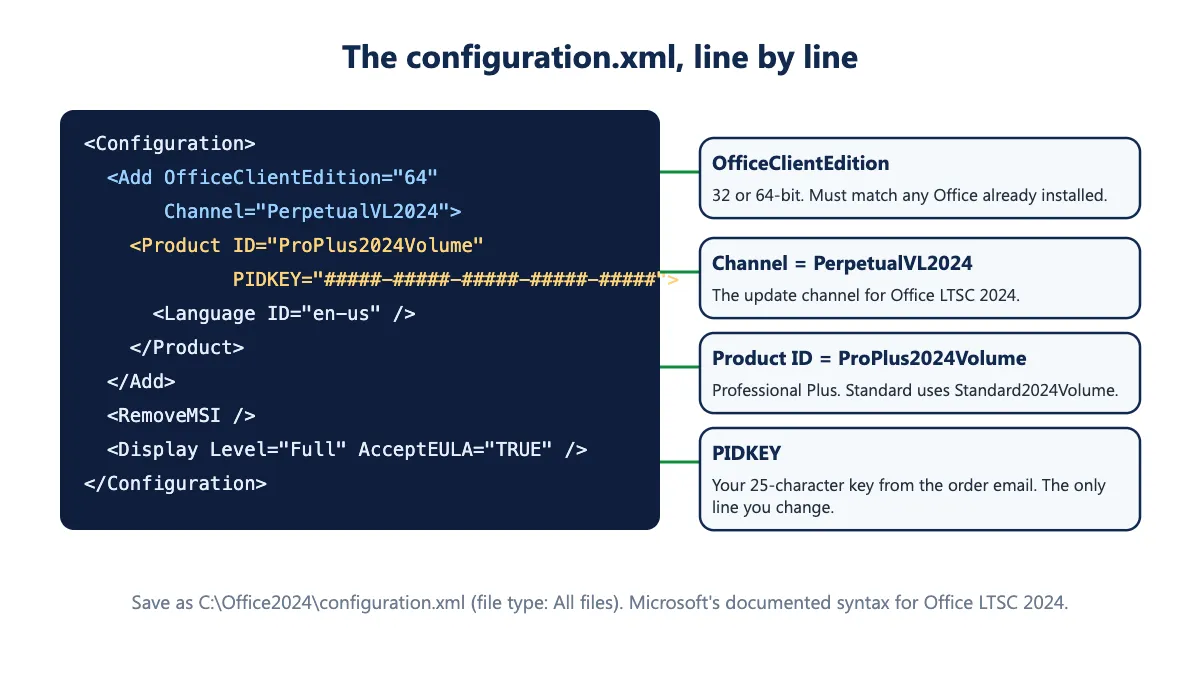
What each line does, in Microsoft’s terms:
OfficeClientEdition="64": installs 64-bit Office. Change to "32" only if you must (see below).Channel="PerpetualVL2024": the update channel for Office LTSC 2024. Updates then come directly from Microsoft’s CDN by default.Product ID="ProPlus2024Volume": Office LTSC Professional Plus 2024. For Standard the ID is Standard2024Volume; Project and Visio use ProjectPro2024Volume and VisioPro2024Volume.PIDKEY: your product key. The Deployment Tool installs the key during setup so the apps can activate on first launch.Language ID="en-us": US English. Add further <Language> lines for other languages, or <Language ID="MatchOS" /> to follow Windows.<RemoveMSI />: removes Office 2016 and earlier MSI installs. Microsoft marks it “Recommended”.Display Level="Full": shows the installation progress. "None" runs silently.Microsoft’s own sample adds a SourcePath for installing from a network share; you do not need it on a single PC.
cd C:\Office2024setup /download configuration.xml. The prompt returns with no message when it finishes; it can take 10 to 20 minutes and the folder gains an Office subfolder of roughly 3 to 4 GB. Microsoft’s download always includes every volume-licensed Office product, whichever one your file names, so the size is the same for Standard.setup /configure configuration.xml. A progress window appears and Office installs in a few minutes.If you saved the file under a different name, use that name in both commands.
Because the key was supplied in the configuration file, activation normally happens automatically the first time you open an app while online.
cd "C:\Program Files\Microsoft Office\Office16" then cscript ospp.vbs /dstatus to see the status, cscript ospp.vbs /inpkey:XXXXX-XXXXX-XXXXX-XXXXX-XXXXX to install the key if needed, and cscript ospp.vbs /act to activate. These are Microsoft’s documented volume-activation commands; they do not bypass anything.Office does not require a Microsoft account to activate this edition; File › Account may show a sign-in prompt, which you can skip. A valid activation does not by itself tell you what the license allows you to do later (moving to a new PC, number of activations); those are terms of the license you bought, and Kymakers’ delivery email states what your order covers. If a key is rejected as already used or blocked, reply to your delivery email with the error text and we replace it under our refund and replacement policy.
Microsoft offers Office LTSC 2024 in both architectures and recommends 64-bit on devices with 4 GB or more of memory, which is every PC that meets the requirements above. 64-bit Office handles large Excel workbooks and Access databases better and is required for 4K displays. Choose 32-bit only if you depend on a 32-bit COM add-in, an ActiveX control or VBA code that calls 32-bit libraries, and the vendor has no 64-bit build.
Microsoft’s rule is strict: all Office products on one device must be the same architecture. You cannot install 64-bit Office 2024 next to 32-bit Visio or Project, or next to a 32-bit Microsoft 365 install. The installer refuses with the error in the next section. Fix it by uninstalling the other product first or by matching OfficeClientEdition to what is already installed.
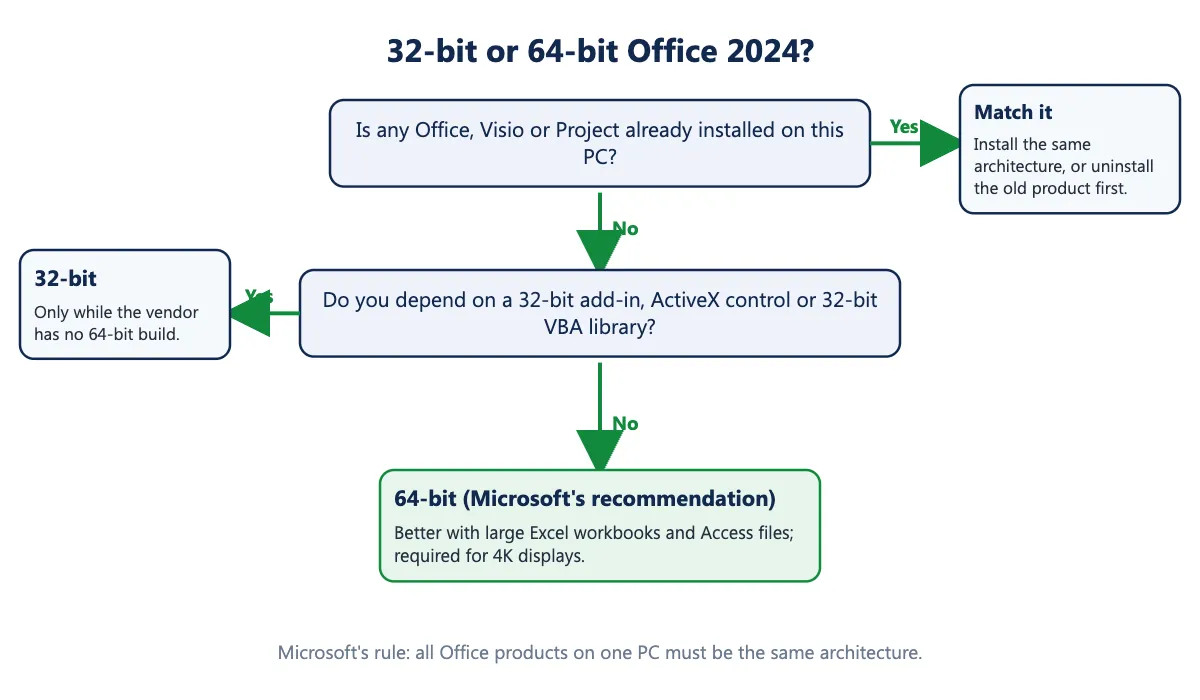
“We can’t install the 64-bit version of Office because we found 32-bit Office programs” (or the reverse). Architecture mismatch. Uninstall the existing Office product from Settings › Apps, or change OfficeClientEdition in the configuration file to match it, then run setup /configure again.
“We’re sorry, but we can’t install Office because of a conflicting product” / “Something went wrong”. An earlier Click-to-Run Office or the Microsoft 365 trial is still present. Go back to Step 1 and use Microsoft’s uninstall support tool, then restart and re-run the install command.
“Couldn’t find the configuration file” or “Please specify a valid configuration file”. The command prompt is not in C:\Office2024, the file is named configuration.xml.txt, or there is a typo in the XML. Show file extensions in File Explorer, fix the name, and check that every < has a matching >.
Download stalls or setup /download returns an error code. Check the connection, disable a VPN, and run the command again; the Deployment Tool resumes partial downloads. Microsoft’s deployment guide has the full list of setup error codes.
“Product Activation Failed” or error 0xC004F074 after installation. The PC tried to activate against a Key Management Service that does not exist, which happens if a generic KMS client key was entered instead of yours. Enter the key from your order email with Change Product Key or ospp.vbs /inpkey. Our guide to error 0xC004F074 covers the KMS case in detail.
“This product key has already been used” or “Your product key is blocked”. Do not try a different method; the key itself needs attention. Reply to your delivery email with a screenshot and the key will be checked and replaced.
Apps open in “Unlicensed Product” or reduced-functionality mode. Activation has not completed. Follow Step 5; if the PC has been offline since installation, connect it and open an app.
Outlook asks to set up a profile; Access is missing. Outlook asking for a mail account on first launch is normal. If Access is absent from the Start menu, the configuration file used Standard2024Volume or a different Product ID; correct it and run setup /configure again.
Does Office 2024 Professional Plus include Publisher? No. Microsoft states that Publisher is not included with Office LTSC 2024, and Publisher reached end of life in October 2026. Keep an existing Publisher 2021 installation if you need to open .pub files, or export them to PDF.
Is the Office 2024 download free? The Office Deployment Tool and the installation files it downloads are free from Microsoft for everyone. The product key is what you pay for; without one, Office installs but does not activate.
Can I install it on Windows 10? It will usually install and run, but Windows 10 Home and Pro are out of support since October 14, 2025 and are not on Microsoft’s supported-platform list for Office LTSC 2024. Windows 11 is the supported choice.
Do I need a Microsoft account? No. Office LTSC 2024 activates with the product key and does not require signing in.
How many PCs does the key cover? The single key sold on the Office 2024 Professional Plus product page covers one PC. For several PCs, the 5 PC pack is one key with up to five activations.
Can I reinstall after a Windows reset? Yes, on the same PC: repeat Steps 2 to 5 with the same key. If activation is refused after a reinstall, reply to your delivery email.
What happens on October 9, 2029? Microsoft stops releasing security updates for Office 2024. The apps keep opening, editing and saving files; they just no longer receive fixes. Our article on what Office 2021’s end of support changed describes the same milestone for the previous version.
Is this the same product as “Office 2024” in the Microsoft Store? No. Microsoft’s Store sells Office Home 2024 and Office Home & Business 2024, retail editions without Access. Professional Plus is the volume-licensed edition, which Microsoft documents as Office LTSC Professional Plus 2024. The apps are the same 2024 versions.
Get your genuine one-time license key from Kymakers and follow this guide to be up and running in about 20 minutes.
Play our Christmas Play & Win game and get a 15% OFF code for your Microsoft key by email.
Play & Win 15% OFFOne code per player every 30 days. Valid 7 days.