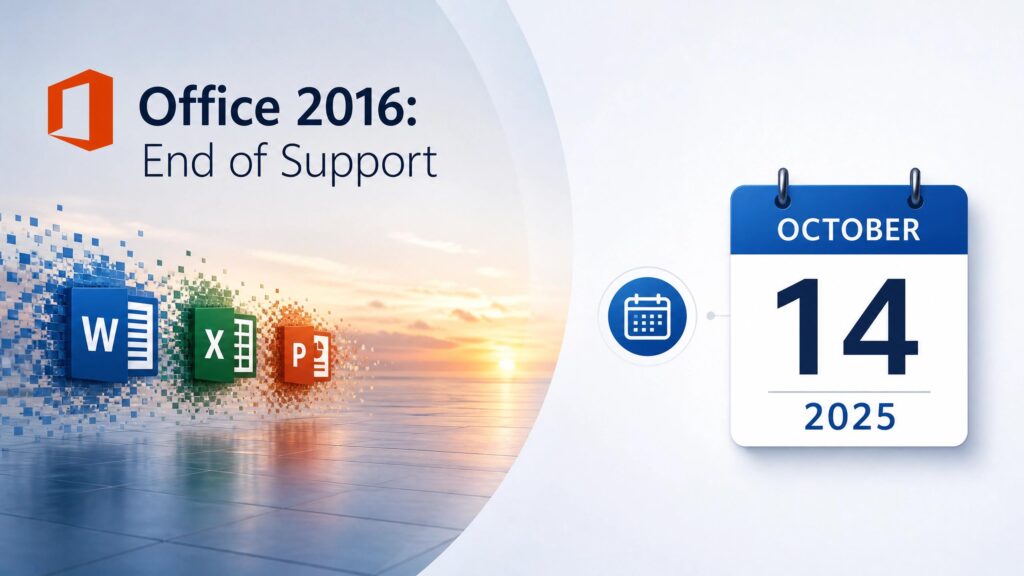
The date has already passed, and that changes how you should think about this.
Office 2016 end of support arrived on October 14, 2025. Microsoft no longer provides security updates, bug fixes, or technical support for it. And unlike Windows 10, there is no Extended Security Updates programme for Office — no paid bridge, no extension, nothing. Once Office 2016 end of support landed, that was the end of the line.
Your Office 2016 apps still open. Word still writes, Excel still calculates. But every security vulnerability discovered from October 2025 onward stays permanently unpatched on your machine. This guide covers what that actually means and five proven steps to get onto a supported version without losing anything.
⚠️ What “end of support” actually means
Office 2016 end of support does not mean the software stops working. It means Microsoft stops fixing it. No security patches for newly discovered flaws, no bug fixes, no help desk. The apps keep running exactly as before — which is precisely the trap, because nothing visibly breaks on day one while the risk quietly accumulates underneath.
Table of Contents
- What Office 2016 end of support means for you
- Why there’s no ESU rescue this time
- Step 1: Confirm you’re actually on Office 2016
- Step 2: Back up your files and data
- Step 3: Choose your supported version
- Step 4: Uninstall Office 2016 cleanly
- Step 5: Install and activate the new version
- What happens if you do nothing
- FAQ
What Office 2016 End of Support Means for You
Office 2016 followed Microsoft’s Fixed Lifecycle Policy — ten years total, five mainstream and five extended. That clock ran out on October 14, 2025, which is the Office 2016 end of support date for every app in the suite: Word, Excel, PowerPoint, Outlook, Access, Publisher, and the rest.
After that date, three things stopped:
- Security updates. Vulnerabilities found after October 2025 will never be patched.
- Bug fixes. Anything that breaks stays broken.
- Technical support. No phone, no chat, and most online help content is being retired.
The apps continue to function, and Microsoft says so plainly. But “functions” and “safe to use” are different claims. Running an unpatched productivity suite that opens email attachments and downloaded documents — exactly the files that carry malware — is the security exposure that Office 2016 end of support creates.
Why There’s No ESU Rescue This Time
This is the part that catches people who followed the Windows 10 story.
When Windows 10 reached end of support on the same day — October 14, 2025 — Microsoft offered an Extended Security Updates programme, a paid way to keep getting security patches for a while longer. Many people assumed Office 2016 end of support would come with the same safety net.
It does not. Microsoft made it explicit: there is no extension and no extended security updates for Office 2016 or Office 2019. The consumer ESU option that exists for Windows 10 has no equivalent for Office. Once the Office 2016 end of support date passed, the only supported path was to move to a newer version.
There are third-party micropatch services that continue supporting Office 2016 unofficially, but those are a stopgap from outside Microsoft, not a supported configuration. For anything involving sensitive or regulated data, they don’t solve the compliance problem.
Step 1: Confirm You’re Actually on Office 2016
Before doing anything, verify which version you have. People are often wrong about this.
Open any Office app — Word is easiest — go to File → Account, and look under “About Word.” It will show the version. If it says 2016, Office 2016 end of support applies to you. If it says 2021, 2024, or “Microsoft 365,” you’re on a supported version and can stop reading.
This matters because office 2016 end of support caught Office 2019 on the same day, while Office 2021 (supported into 2026) and Office 2024 (supported to October 2029) were unaffected. Know exactly where you stand before you plan a move.
Step 2: Back Up Your Files and Data
Any version change is a moment to protect your data, and Outlook users especially need to pay attention here.
Your documents — Word, Excel, PowerPoint files — are just files; copy them to an external drive or cloud storage and they’re safe. The risk area is Outlook. If you use Outlook 2016 with a local PST file, that file holds your emails, contacts, and calendar, and it does not move automatically. Locate your .pst file and back it up explicitly before you touch the installation.
Do this before uninstalling anything. A calm office 2016 end of support migration is one where the data was safe before the software changed. A clean move from Office 2016 end of support to a supported version should never put your data at risk, but only if you’ve backed it up first.
Step 3: Choose Your Supported Version After Office 2016 End of Support
Three real options remain after Office 2016 end of support, and the right one depends on how you prefer to pay.
Office 2024 — one-time purchase. The direct successor to the perpetual-license model you already know. Buy it once, own it, no subscription. Office 2024 is supported until October 9, 2029, which gives you a long runway. For anyone who liked owning Office 2016 outright and resents monthly fees, this is the natural landing spot.
Office 2021 — one-time purchase. Still supported, slightly older, often cheaper. A reasonable choice if you want a perpetual license and don’t need the newest features. Note its support window is shorter than 2024’s.
Microsoft 365 — subscription. Always current, always supported, with cloud storage and the mobile apps. The trade-off is a recurring bill for as long as you use it. Right for people who want the latest features continuously; wrong for people who just want a stable suite they own.
The honest framing after Office 2016 end of support: if you valued owning your Office license, Office 2024 replaces that model exactly. Subscriptions are a different deal, not automatically a better one.
Step 4: Uninstall Office 2016 Cleanly
Don’t install a new version on top of the old one. Remove Office 2016 first.
Go to Settings → Apps → Installed apps, find Microsoft Office 2016, and uninstall it. If the standard uninstall leaves fragments behind — which happens on installations that have been around since 2016 — Microsoft publishes a support-and-recovery tool that removes Office completely. Use it if the normal path leaves anything behind.
Reboot after uninstalling. This clears the way for a clean installation and avoids the conflicts that cause activation headaches later — the last hurdle in an office 2016 end of support migration.
Step 5: Install and Activate the New Version
With Office 2016 removed and your files backed up, install your chosen version.
Download the installer, run it, and activate with your product key. If you’re moving to a perpetual license, the process is straightforward — install, enter the key, done. Our guide to downloading, installing, and activating your Microsoft license walks through it step by step, and covers what to do if activation doesn’t take on the first try.
Once installed, point Outlook back at your backed-up PST if you use it, and confirm your documents open correctly. That’s the Office 2016 end of support migration complete — supported software, patched against new threats, with all your data intact.
What Happens If You Ignore Office 2016 End of Support
Office 2016 keeps working after end of support. That’s the trap, so let’s be clear about the actual risk.
Every security flaw discovered in Office from October 2025 onward stays open on your machine forever. Office apps are a prime malware target precisely because they open documents and email attachments from outside sources — a malicious Word or Excel file exploiting an unpatched flaw is one of the oldest and most reliable attack methods there is. After Office 2016 end of support, there is no patch coming for any of it.
For home users doing light editing on files they trust, the risk is real but modest. For anyone handling sensitive data, client information, or working under any compliance regime, running past Office 2016 end of support is a liability that grows every month — and “the apps still open” is not a defence anyone wants to make after an incident.
FAQ About Office 2016 End of Support
When exactly was the Office 2016 end of support date? October 14, 2025. The same date applied to Office 2019.
Can I still use Office 2016 after end of support? Yes, the apps continue to function. But they receive no security updates, so using them carries growing risk — especially for anything involving sensitive data.
Is there an ESU programme for Office 2016 like there is for Windows 10? No. Microsoft confirmed there is no extension and no Extended Security Updates for Office 2016 or 2019. This is a key difference from the Windows 10 situation.
Do I have to move to a subscription? No. Office 2024 and Office 2021 are one-time purchases you own outright — the same model as Office 2016. Microsoft 365 is the subscription option, not the only option.
Will I lose my documents when I upgrade? No, if you back them up first. Your files are compatible with newer versions. Pay particular attention to Outlook PST files, which need to be backed up and reconnected manually.
Which supported version is closest to Office 2016? Office 2024 as a one-time purchase is the direct successor to the perpetual-license model, and it’s supported until October 2029.
Moving off Office 2016 end of support doesn’t have to mean a subscription. Kymakers supplies genuine perpetual licenses for Office 2024 Professional Plus and Office 2021 Professional Plus — buy once, own it, no monthly fee — with instant digital delivery and activation support. If you only need the core apps, Office 2024 Home and Business covers Word, Excel, PowerPoint, and Outlook. Our Office 2021 vs 2024 comparison helps you choose between them.
Back up first. Uninstall cleanly. Then install a version that’s actually supported.
Official reference: Microsoft — end of support for Office 2016 and Office 2019