Most Microsoft Planner vs Project comparisons you’ll find are describing a world that no longer exists.
Here’s what changed, and why it matters before you read anything else on the topic: in August 2025, Microsoft folded Project for the web into the new Planner. The two apps that everyone spent years comparing are now, at the web level, largely the same app with different tiers. And Project Online — the enterprise cloud service — retires on September 30, 2026.
So the real Microsoft Planner vs Project question in 2026 isn’t “which of these two separate apps?” It’s “which tier do I need, and does my team need the desktop application at all?” This guide answers that, in six differences that actually decide it.
The one-line answer
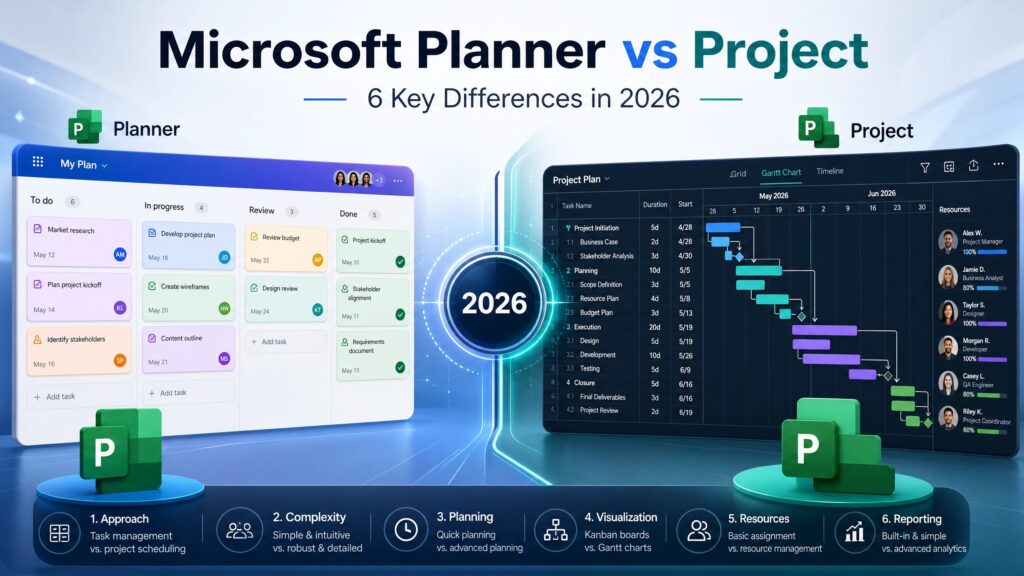
Planner is the lightweight task board included with Microsoft 365 — buckets, cards, due dates, Kanban. Project is the heavy scheduling engine — critical path, resource leveling, baselines, .mpp files. If your work is “who’s doing what by when,” Planner. If it’s “this 200-task build has dependencies and a resource who’s overbooked across three projects,” Project. Everything below is detail on that split.
Table of Contents
- The big 2026 change: the two apps merged
- Difference 1: Complexity and scheduling
- Difference 2: Dependencies and critical path
- Difference 3: Resource management
- Difference 4: Pricing and licensing
- Difference 5: Where each one lives
- Difference 6: The desktop app that isn’t going anywhere
- Which should you choose?
- FAQ
The Big 2026 Change: The Two Apps Merged
Before comparing features, understand the landscape, because it reframes the whole Microsoft Planner vs Project decision.
Project for the web no longer exists as a separate product. In August 2025 Microsoft retired it, along with the Project and Roadmap apps in Teams, and redirected everyone to the new Planner. The new Planner combines three things that used to be separate: Microsoft To Do, the old Planner, and Project for the web’s scheduling features.
The premium scheduling capabilities — Timeline/Gantt view, dependencies, milestones, custom fields — now live inside Planner Premium. Microsoft’s recommended successor to Project Online is Planner Premium, which comes with Project Plan 3 and Plan 5.
Two dates to put in your calendar:
- Project Online retires September 30, 2026. Sales of Project Online-only SKUs already ended in October 2025.
- Project desktop is unaffected. The standalone application you install on a Windows PC continues exactly as before.
That last point matters more than any feature comparison, and we come back to it.
Difference 1: Complexity — the Core of Microsoft Planner vs Project
This is the fundamental split in Microsoft Planner vs Project, and everything else follows from it.
Planner tracks tasks with due dates. You create buckets, drop cards into them, assign owners, set deadlines, tick things off. It’s a coordination tool — it shows a group what needs doing, who owns each piece, and what’s done. It’s genuinely quick: a team lead can build a working board in minutes.
Project schedules work. It doesn’t just list tasks — it understands how they relate. Change one task’s duration and Project recalculates every downstream date automatically. That dynamic scheduling, where the plan adjusts as reality shifts, is the thing Planner fundamentally does not do.
The test that settles most microsoft planner vs project decisions: if a task slipping by three days should automatically move everything that depends on it, you need Project. If you’d just drag a card and eyeball it, Planner is enough.
Difference 2: Dependencies and Critical Path
Planner Premium added Gantt charts and basic dependencies, which narrowed the Microsoft Planner vs Project gap considerably. But one capability stays firmly on the Project side: critical path analysis is not available in Planner at any tier — not Plan 1, not Plan 3, not Plan 5 of the Planner product.
Critical path is the sequence of tasks that determines your project’s minimum possible duration. On a complex project it’s the single most useful thing a scheduling tool tells you: which delays actually matter and which have slack. If you manage the kind of work where that question has a real financial answer — construction, IT rollout, engineering — that alone decides Microsoft Planner vs Project in Project’s favour.
For a simple project with a handful of loosely related tasks, you’ll never miss it — and microsoft planner vs project tips toward Planner.
Difference 3: Resource Management
This is the clearest line in the entire Microsoft Planner vs Project comparison, because it’s binary.
Planner has no resource management at any tier. You can assign a task to a person and see a list of that person’s tasks. What you cannot do is see aggregated workload across multiple projects, or spot that one specialist is overallocated across three workstreams. There is no workload view, no resource leveling, nothing.
Project does this. Resource requests appear at Project Plan 3, and full enterprise resource management is a Plan 5 capability. On resourcing, microsoft planner vs project isn’t close. If “who is overbooked, and where” is a question you need answered, Planner cannot answer it, and no amount of upgrading the Planner tier changes that.
Difference 4: Pricing and Licensing
Here’s where Microsoft Planner vs Project gets genuinely confusing, so let’s be concrete. (Confirm current numbers on Microsoft’s pricing page before you buy — these move.)
- Base Planner is included in most Microsoft 365 business subscriptions. If you already pay for M365, you already have it. Effective extra cost: nothing.
- Planner Plan 1 runs around $10/user/month and adds the Gantt timeline, dependencies, goals, and sprints.
- Project Plan 3 is roughly $30/user/month — this is where critical path, baselines, and resource requests appear.
- Project Plan 5 sits around $55/user/month for full enterprise resource and portfolio management.
- Project desktop is a separate, perpetual license — buy once, own it, no subscription. This is the option microsoft planner vs project guides routinely forget exists.
The trap in Microsoft Planner vs Project is treating it as “free versus paid.” A tool included in your subscription is only cheap if it fits the job. A poorly managed project — missed deadlines, rework, overtime — costs far more than a license. Match the tool to the work, then look at price.
Difference 5: Where Each One Lives in the Microsoft Planner vs Project Split
Planner lives inside Microsoft 365, and specifically inside Teams. That’s its real strength in the Microsoft Planner vs Project matchup. Tasks assigned in Planner surface in Teams activity feeds and in Microsoft To Do, and plans pin as tabs in Teams channels. For a team that already runs its day in Teams, that integration is the whole selling point — the work lives where the conversation already is.
Project is a heavier, more standalone experience. The plans are richer, but they don’t melt into the daily Teams flow the way a Planner board does. That’s not a flaw — it reflects who Project is for. A project manager building a schedule doesn’t need it embedded in a chat channel; they need the scheduling engine.
Many organisations run both: the PM controls the plan in Project, the wider team executes against a Planner board. That hybrid is often the right answer to Microsoft Planner vs Project rather than picking just one.
Difference 6: The Desktop App That Isn’t Going Anywhere
Here’s the part the cloud-consolidation story buries, and it’s the most important practical point in Microsoft Planner vs Project for a lot of buyers.
While Microsoft moves everything toward the subscription cloud — Planner, Planner Premium, the retirement of Project Online — Project desktop is untouched. It remains a standalone application you install on one Windows PC, available as a perpetual license you buy once and own outright.
For a project manager who mainly needs a powerful planning tool on their own machine, and who doesn’t want a per-user monthly subscription forever, that perpetual desktop license is often the most sensible answer to the whole Microsoft Planner vs Project question. You get the full scheduling engine — Gantt, critical path, resource management, .mpp compatibility with external partners — without an ongoing bill.
That is a real, defensible reason to choose Project desktop over any cloud tier, and it has nothing to do with features and everything to do with how you’d rather pay.
Which Should You Choose?
| Your situation | Choose |
|---|---|
| Team already in Teams, tracking everyday tasks | Base Planner (you already have it) |
| Want Gantt and dependencies, no dedicated PM | Planner Plan 1 |
| Complex projects needing critical path | Project Plan 3 |
| Enterprise resource and portfolio management | Project Plan 5 |
| One PM, powerful planning, no subscription | Project desktop (perpetual license) |
| Currently on Project Online | Migrate to Planner Premium before Sept 30, 2026 |
The honest summary of Microsoft Planner vs Project: most teams already have Planner and should start there. Reach for Project the moment dependencies, critical path, or resource conflicts start having real consequences. And if you’re a project manager who wants the full engine on your own PC without a monthly bill, the desktop license is the quiet best answer.
FAQ About Microsoft Planner vs Project
In microsoft planner vs project, are the two the same thing now? No, but they’re closer than they were. Project for the web merged into Planner in August 2025, so their web experiences overlap heavily. Full Microsoft Project — the desktop app and the higher plans — remains a separate, more powerful product.
Is Microsoft Project being discontinued? No. Project Online (the older enterprise cloud service) retires September 30, 2026. Project desktop and the Project plans continue. Only the specific Project Online service is going away.
Does Planner have Gantt charts? Planner Premium (Plan 1 and up) has a Timeline/Gantt view and basic dependencies. What it does not have, at any tier, is critical path analysis.
Is Planner free? Base Planner is included with most Microsoft 365 business subscriptions, so there’s no separate charge. Planner Plan 1 and the Project plans cost extra.
Should I buy Project desktop or a subscription? If you need powerful planning on one PC and dislike ongoing subscriptions, the perpetual desktop license is usually the better value. If you need cloud collaboration and resource management across a team, a plan makes more sense.
If the answer to Microsoft Planner vs Project for you is the desktop application, Kymakers supplies genuine perpetual licenses for Microsoft Project 2024 Professional and Microsoft Project 2021 Professional — buy once, own it, no subscription — with instant digital delivery and activation support. If you also map processes alongside schedules, Microsoft Visio 2024 pairs naturally with Project. And if you just need the Office apps that Planner rides on, our Office 2024 Professional Plus covers that.
Match the tool to the work first. Buy the license once you know which tier the work actually needs.
Official reference: Microsoft Project plans and pricing