
✔ GENUINE LICENSE • STEP-BY-STEP INSTALL GUIDE
Set up your genuine Office 2024 Standard on Windows in about 15 minutes with our step-by-step Office Deployment Tool method — or use the quick direct-download option.
This complete guide walks you through how to download Microsoft Office 2024 Standard, install it on Windows, and activate it with your product key. Whether you just bought your license or are reinstalling on a new PC, you can be up and running in about 15 minutes.
Microsoft Office 2024 Standard (the LTSC “Long-Term Servicing Channel” release) is the newest perpetual, one-time-purchase version of Office. It gives you fully installed desktop versions of Word, Excel, PowerPoint, Outlook, Publisher and Access — with no Microsoft 365 subscription required. If you don’t have a license yet, you can get a genuine lifetime Microsoft Office 2024 Standard product key from Kymakers below, then follow the steps on this page.
Get Your Genuine License Key
Lifetime activation • 1 PC • Instant email delivery • 24/7 support
What’s in this guide
Microsoft Office 2024 Standard system requirements
Before you download Office 2024 Standard, make sure your PC meets the minimum requirements. Office LTSC 2024 runs on Windows only — it is not available for Mac.
| Requirement | Minimum |
|---|---|
| Operating system | Windows 10 or Windows 11 (64-bit) |
| Processor | 1.6 GHz or faster, dual-core |
| Memory (RAM) | 4 GB or more |
| Disk space | 4 GB of free space |
| Display | 1280 × 768 resolution |
| Internet | Required for download and activation |
What you need before you start
| Item | Why you need it |
|---|---|
| Product key | Your genuine Office 2024 Standard key from Kymakers (sent by email) |
| Administrator access | Needed to install Office from Command Prompt |
| Internet connection | To download the Office installation files |
| Office Deployment Tool | A free Microsoft utility used to download and install Office |
Step 1 — Remove any older Office versions
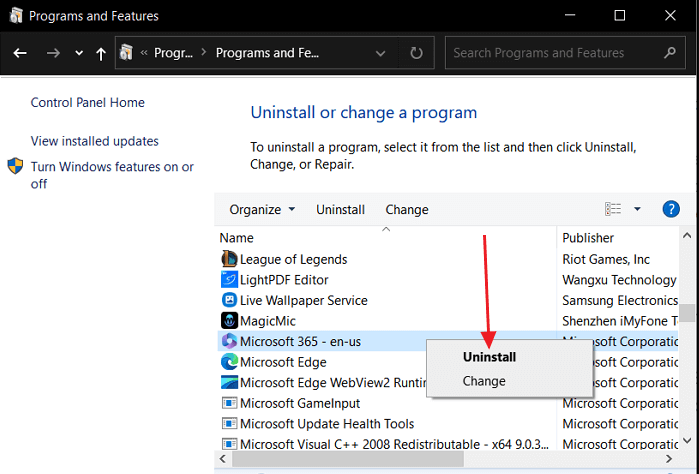
To avoid conflicts, uninstall Microsoft 365, Office 2021, Office 2019 or any earlier Office (including OneNote) before installing Office 2024 Standard.
- Open the Control Panel and choose Programs and Features.
- Right-click your existing Microsoft Office entry and select Uninstall.
- Follow the wizard, then restart your PC when it finishes.
Office Deployment Tool (Advanced)
Office LTSC 2024 is installed with the free Office Deployment Tool (ODT), which downloads the official Microsoft installation files.
- Go to the Office Deployment Tool download page on Microsoft.com and click Download.
- Create a new folder on your C: drive named Office2024Setup (path:
C:Office2024Setup). - Run the downloaded file and, when asked where to extract, choose the Office2024Setup folder.
You should now see setup.exe and a few sample .xml files inside the folder.
Create the configuration file
This small file tells the installer to download Microsoft Office 2024 Standard (Volume/LTSC edition).
- Open Notepad and paste the code below.
- Replace
XXXXX-XXXXX-XXXXX-XXXXX-XXXXXwith the product key from your Kymakers email.
<Configuration>
  <Add OfficeClientEdition="64" Channel="PerpetualVL2024">
    <Product ID="Standard2024Volume" PIDKEY="XXXXX-XXXXX-XXXXX-XXXXX-XXXXX">
      <Language ID="en-us" />
    </Product>
  </Add>
  <RemoveMSI />
  <Display Level="None" AcceptEULA="TRUE" />
  <Property Name="AUTOACTIVATE" Value="1" />
</Configuration>
Save it inside the Office2024Setup folder as configuration.xml — in the Save As dialog set “Save as type” to All Files and encoding to UTF-8.
Install via Command Prompt
- Click Start, type cmd, then right-click Command Prompt and choose Run as administrator.
- Move into your setup folder by running:
cd C:Office2024Setup- Start the download and installation:
setup.exe /configure configuration.xmlManual activation (if needed)
Because AUTOACTIVATE is set to 1, Office usually activates automatically once installed. If it doesn’t, activate it manually with your product key:
- Open any Office app (e.g. Word) and go to File → Account.
- If prompted, choose “I want to activate the software by telephone” and follow the steps to get a Confirmation ID.
- Once activated, the app will show “Product Activated.” No Microsoft account is required.
Direct Download & Install (Easiest)
Prefer a one-click setup with no command line? Download the ready-to-install package, run it as administrator, then activate with your product key.
Troubleshooting common issues
“Configuration file not found”
Command Prompt isn’t in the right folder or wasn’t run as administrator. Re-open Command Prompt as admin and confirm both setup.exe and configuration.xml are inside C:Office2024Setup.
“We can’t install because of a conflicting product”
An older Office or OneNote is still present. Remove it via Settings → Apps → Installed apps, restart, then run the installer again.
Activation limit reached
Switch to “activate by telephone” in the activation wizard, provide the Installation ID and enter the Confirmation ID Microsoft gives you.
Frequently asked questions
Is Microsoft Office 2024 Standard a lifetime license?
Yes. It’s a perpetual, one-time purchase that doesn’t expire. The license is tied to the PC where it’s activated.
Can I install Office 2024 Standard on Mac?
No. Office LTSC 2024 Standard works on Windows 10 and Windows 11 only. For macOS, see Microsoft Office for Mac.
Do I need a Microsoft account to activate it?
No. It’s a volume license activated with a product key or by phone — no Microsoft account needed.
How many PCs can one key activate?
One. Each Office 2024 Standard product key activates a single device.
Where do I get a genuine product key?
You can buy a genuine lifetime Microsoft Office 2024 Standard key from Kymakers with instant email delivery.
Ready to install Office 2024 Standard?
Get your genuine lifetime license key from Kymakers and follow this guide to be up and running in minutes.