Every day, we make choices about what we bring into our lives. We look for control, reliability, and something that works on our own schedule. But figuring out how to stop Windows Update from hijacking your workflow shouldn’t feel like a treasure hunt through buried settings menus.
At kymakers.com, we started with a simple question: why does something this basic have to be so complicated?
We believe that a smooth, predictable computer experience should be effortless. That’s why we didn’t just list another registry tweak; we curated a full breakdown of how to stop Windows Update the right way, without breaking security or losing future patches you actually want. Our identity is rooted in simplicity, reliability, and putting your needs first.
Why People Search for How to Stop Windows Update in the First Place
An update that restarts mid-presentation, a laptop that reboots overnight and closes every open tab, or a slow, unexplained CPU spike — these are the moments that send people searching for how to stop Windows Update. The good news is that Windows gives you several legitimate ways to control this behavior without disabling security entirely, and the right choice usually comes down to how much control you actually need versus how much you’re willing to manage manually going forward.
Here are five reliable methods, from the simplest to the most permanent.
1. Pause Updates Temporarily From Settings
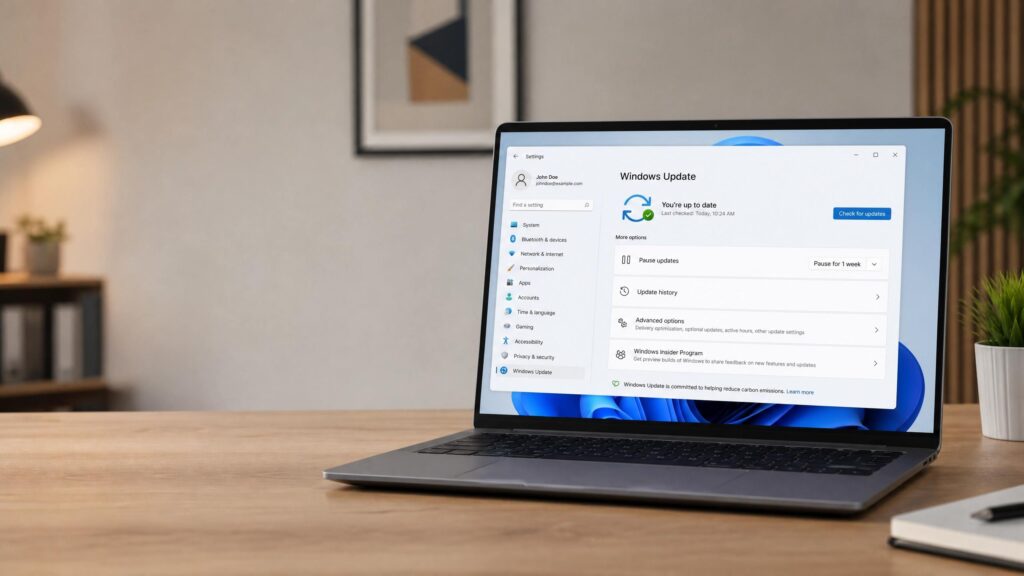
The easiest answer to how to stop Windows Update, at least short-term, is built directly into Windows. Head to Settings > Windows Update and choose “Pause updates,” which lets you delay installation for up to five weeks depending on your version of Windows. This is the safest option because updates resume automatically once the pause period ends, so you’re never permanently exposed to unpatched vulnerabilities. It’s also the fastest fix if you just need to get through a busy week, a presentation, or a deadline without an unexpected restart derailing your progress.
2. Set Your Connection as Metered
Marking your Wi-Fi connection as “metered” is a quieter answer to how to stop Windows Update from downloading large files in the background. Windows treats metered connections conservatively, holding back most non-critical updates until you’re back on an unrestricted network. This is particularly useful for anyone on a limited data plan, a slow connection, or a shared network where large downloads noticeably affect everyone else using it. Keep in mind that some updates, particularly security-critical ones, may still download regardless of this setting.
3. Use Group Policy Editor for More Control
For anyone on Windows 10 or 11 Pro, the Group Policy Editor offers a more granular answer to how to stop Windows Update on your own terms. Under Computer Configuration > Administrative Templates > Windows Components > Windows Update, you can set updates to notify before download, giving you a manual approval step instead of silent installation. This method is popular in small offices and among power users who want visibility into exactly what’s being installed and when, rather than leaving it entirely automated.
4. Disable the Windows Update Service (Advanced)
A more aggressive approach to how to stop Windows Update involves disabling the Windows Update service directly through the Services app. This stops updates entirely until manually re-enabled, which is useful for specialized machines — like an isolated test environment or a legacy system running specific software — but not recommended for everyday devices, since it also blocks important security patches indefinitely rather than just delaying them.
5. Adjust Active Hours to Prevent Disruptive Restarts
If your real goal isn’t stopping updates altogether but stopping the disruption, adjusting your Active Hours under Settings > Windows Update > Advanced options ensures Windows won’t restart your machine during the hours you actually use it. For a lot of people, this quietly solves the entire problem behind their search for how to stop Windows Update, since the frustration was never really about the update itself — it was about the timing.
Things to Consider Before You Stop Windows Update
Before committing to any single method, it’s worth weighing a few tradeoffs that apply no matter how to stop Windows Update you choose:
- Security exposure: The longer updates stay paused or disabled, the longer known vulnerabilities remain unpatched on your machine. Temporary methods like pausing or adjusting active hours keep this risk minimal.
- Feature updates vs. security updates: Some people searching for how to stop Windows Update actually just want to avoid feature updates, not security patches. Windows lets you separate these in more recent versions, which is worth checking before reaching for a more permanent fix.
- Business vs. personal use: On a shared or business network, disabling updates entirely can create compliance issues if your organization requires devices to stay current. Group Policy is usually the better fit in that context.
- Reversibility: Pausing and adjusting active hours are fully reversible with no lasting side effects. Disabling the update service is not something to do casually, since re-enabling it later sometimes requires additional troubleshooting.
Weighing these factors up front makes the whole process of how to stop Windows Update far less likely to cause a headache down the line.
Which Method Should You Actually Use?
“Your daily routine deserves the best version of what the market can offer.”
Figuring out how to stop Windows Update doesn’t need to mean hours of digging through forums with conflicting advice. For most people, pausing updates or adjusting active hours solves the problem without any real downside. Group Policy and service-disabling are better reserved for advanced users or specific business environments where update timing needs tighter control. That’s the philosophy behind everything we curate at kymakers.com — cutting the guesswork out of decisions like how to stop Windows Update so you can get back to actual work.
For official guidance straight from the source, Microsoft’s own support page on managing Windows Update is a solid, credible reference before making permanent changes.
Common Questions About How to Stop Windows Update
Is it safe to permanently stop Windows Update? Not really recommended. Most methods for how to stop Windows Update are designed to delay or control timing rather than block security patches forever, since those patches protect against real vulnerabilities that get discovered and exploited over time.
Will pausing updates cause problems later? No — pausing is the safest way to approach how to stop Windows Update, since Windows automatically resumes and catches up once the pause period ends, downloading and installing everything you missed in the background.
Does this work the same on Windows 10 and Windows 11? Mostly yes. The core settings for how to stop Windows Update are nearly identical across both versions, though Group Policy options are more limited on Home editions of either, which typically push users toward the Settings-based methods instead.
What’s the difference between pausing and disabling the service? Pausing is temporary and reversible by design, with a built-in expiration date that brings updates back automatically. Disabling the service is a harder stop and is generally only worth it for specialized setups, since it removes the built-in safety net that comes with staying updated and requires manual intervention to undo.
Ready to Take Back Control of Your PC?
If you’re ready to elevate your daily experience without the guesswork, we’ve curated a collection of guides just for you.
👉 https://kymakers.com/ and find exactly what your routine has been missing.