Every day, we make choices about what we bring into our workflow. We look for speed, reliability, and tools that just work. But when an app freezes mid-task, all of that quality can grind to a halt in an instant — and figuring out how to force quit on Windows shouldn’t feel like a treasure hunt.
At kymakers.com, we started with a simple question: why does something as basic as closing an unresponsive program still trip people up? Whether you’re a longtime Windows user or new to the operating system, knowing how to force quit on Windows quickly can save you from lost work, frustrating freezes, and unnecessary restarts.
We believe that a smooth daily computing experience should be effortless. That’s why we’ve put together this complete, no-guesswork guide to every method for forcing an app to close on Windows — from the simplest keyboard shortcut to advanced command-line tricks.
“Your daily routine deserves the best version of what your operating system can offer.”
Why You Need to Force Quit on Windows
Sometimes a program stops responding. The window freezes, your clicks do nothing, and the little “Not Responding” label appears in the title bar. This is exactly when you need to force quit on Windows rather than waiting around or restarting your whole machine.
Learning how to force quit on Windows the right way means you can:
- Close a frozen app without losing unsaved work in other programs
- Avoid a full system restart just to fix one glitchy window
- Free up memory and CPU being hogged by a stuck process
- Get back to work in seconds instead of minutes
Below are the seven most reliable ways to force quit on Windows, ranked from quickest to most advanced.
Method 1: Force Quit on Windows with Task Manager
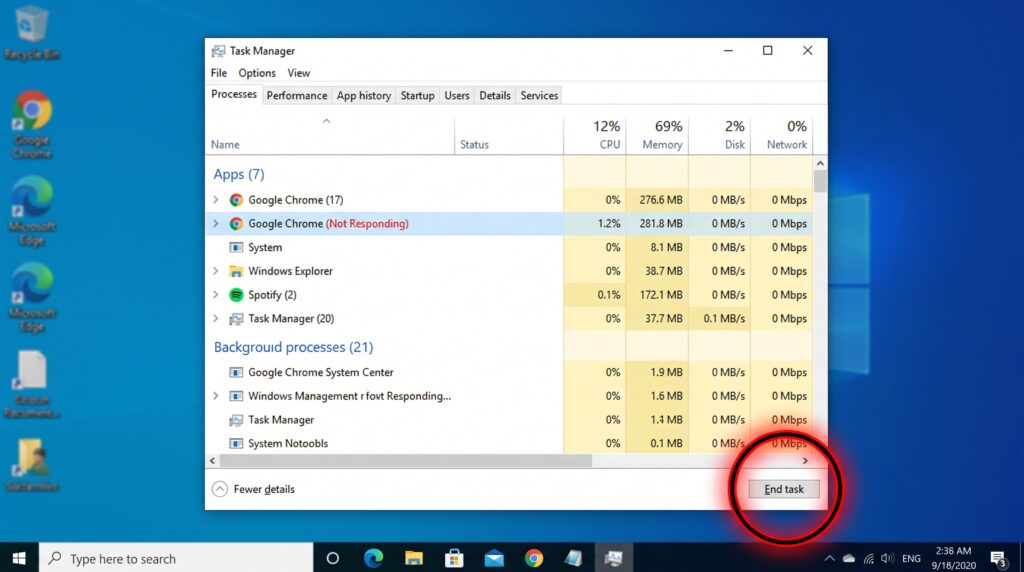
The most common way to force quit on Windows is through Task Manager.
- Press Ctrl + Shift + Esc to open Task Manager instantly.
- Find the unresponsive app under the “Processes” tab (it may be labeled “Not Responding”).
- Click on it, then select End Task in the bottom-right corner.
This is the go-to method most people reach for first when they need to force quit on Windows, and it works for almost any frozen application. For a deeper look at what Task Manager can do, see Microsoft’s official Task Manager overview.
Method 2: Use Ctrl + Alt + Delete
If Task Manager doesn’t open directly, you can still force quit on Windows through the security screen.
- Press Ctrl + Alt + Delete.
- Select Task Manager from the menu that appears.
- Choose the frozen app and click End Task.
This route is especially useful if your system feels sluggish and the direct Task Manager shortcut isn’t responding.
Method 3: Force Quit on Windows via Alt + F4
For a lighter freeze, where the app is still partially responsive, try:
- Click on the frozen window to make sure it’s selected.
- Press Alt + F4.
This sends a close request directly to the application. It won’t always work on a fully frozen program, but it’s a fast first step before you force quit on Windows through Task Manager.
Method 4: Right-Click the Taskbar Icon
Another quick way to force quit on Windows without opening any extra menus:
- Right-click the app’s icon in the taskbar.
- Select Close window (or Close all windows if multiple are open).
If the app is truly frozen, this option may not appear, and you’ll need to escalate to Task Manager.
Method 5: Force Quit on Windows Using Command Prompt
For more control, Command Prompt lets you force quit on Windows by targeting a specific process.
- Open Command Prompt (search “cmd” in the Start menu).
- Type
tasklistand press Enter to see all running processes and their Process IDs (PID). - Type
taskkill /PID [process ID] /Fand press Enter, replacing[process ID]with the correct number.
This method is popular with power users who want a precise, no-guesswork way to force quit on Windows without touching a mouse.
Method 6: Force Quit on Windows with PowerShell
PowerShell offers a similarly reliable way to force quit on Windows, especially useful for scripting or repeated tasks.
- Open PowerShell from the Start menu.
- Type
Get-Processto list active processes. - Type
Stop-Process -Name "AppName" -Forceto close the specific app.
This method is ideal if you often need to force quit on Windows programs that repeatedly freeze, since it can be scripted for automatic use.
Method 7: Use Resource Monitor for Stubborn Processes
If a program refuses to close through the usual channels, Resource Monitor gives you one more way to force quit on Windows.
- Open Task Manager, click the Performance tab, then select Open Resource Monitor at the bottom.
- Go to the CPU tab and find the process.
- Right-click it and choose End Process.
This is a great backup option when standard methods fail to force quit on Windows for a particularly stuck application.
What to Do If You Still Can’t Force Quit on Windows
If none of these methods work, the app may be tied to a system-level process. In that case:
- Save any other open work immediately.
- Restart Windows Explorer through Task Manager (search for “explorer.exe,” right-click, and select Restart).
- As a last resort, restart your PC.
These steps are rarely needed, but it’s good to know the escalation path if a simple force quit on Windows doesn’t resolve the freeze.
Make Freezes a Non-Issue
Knowing how to force quit on Windows is a small skill with a big payoff: less downtime, less frustration, and more control over your own machine. Once you’ve got these seven methods memorized — or bookmarked for the next freeze — you’ll never be stuck staring at a “Not Responding” window again.
If you’re ready to streamline the rest of your daily digital routine without the guesswork, we’ve curated a collection of tools and resources just for you. For more quick fixes and answers to everyday tech questions, check out more posts on the Kymakers Blog.
👉 Visit kymakers.com and find exactly what your routine has been missing.