Written by: Kymakers Support Team · Reviewed by: Kymakers Technical Team Last updated: July 2026 · Applies to: iPad Pro (M-series and earlier), iPadOS Difficulty: Beginner to Intermediate · Estimated time: 15–45 minutes
You can’t install Windows 10 on iPad Pro the way you would on a PC — Apple’s hardware and iPadOS don’t allow a native Windows install. But you absolutely can run Windows 10 on iPad Pro through other methods: streaming a cloud PC, remoting into a real Windows machine, or running an emulator. Each has real trade-offs.
This guide covers the four proven ways to get Windows 10 on iPad Pro, honestly — how each works, what it costs, and which fits your situation. No method turns the iPad itself into a Windows device; they give you access to Windows from the iPad.
The honest reality first
The iPad Pro’s M-series chip is powerful, but it runs iPadOS, and Apple doesn’t permit a native Windows install (no Boot Camp on iPad). So every method here is a form of access — you’re either streaming Windows from elsewhere or running it in a limited emulator. If you need real, full-speed Windows, the best setup is often the iPad plus a genuine Windows PC you connect to.
Table of Contents
- Can you install Windows 10 on iPad Pro natively?
- Way 1: Windows 365 Cloud PC
- Way 2: Remote Desktop to your own PC
- Way 3: Third-party streaming services
- Way 4: Emulation (UTM / QEMU)
- Which method should you choose?
- FAQ
Can You Install Windows 10 on iPad Pro Natively?
No. This is the first thing to be clear about with Windows 10 on iPad Pro: there is no Boot Camp for iPad, and iPadOS won’t boot a Windows installer. The M-series chips are ARM-based and locked to Apple’s OS.
So when people search for Windows 10 on iPad Pro, what they actually want is a way to use Windows apps on the iPad — and that’s very achievable. It just happens through access methods rather than installation. The four below are the real options.
Way 1: Windows 365 Cloud PC
The most seamless way to get Windows 10 on iPad Pro is Microsoft’s own Windows 365 — a full Cloud PC that runs on Microsoft’s servers and streams to your iPad through the Windows App.
You get a complete, always-on Windows desktop that picks up where you left off, on any device. It’s genuinely good on an iPad Pro’s screen.
- Cost: a monthly subscription per user (no product key — it’s a service).
- Best for: users who want full Windows regularly and don’t have a PC to remote into.
- Trade-off: ongoing subscription, and it needs a solid internet connection.
Way 2: Remote Desktop to Your Own PC
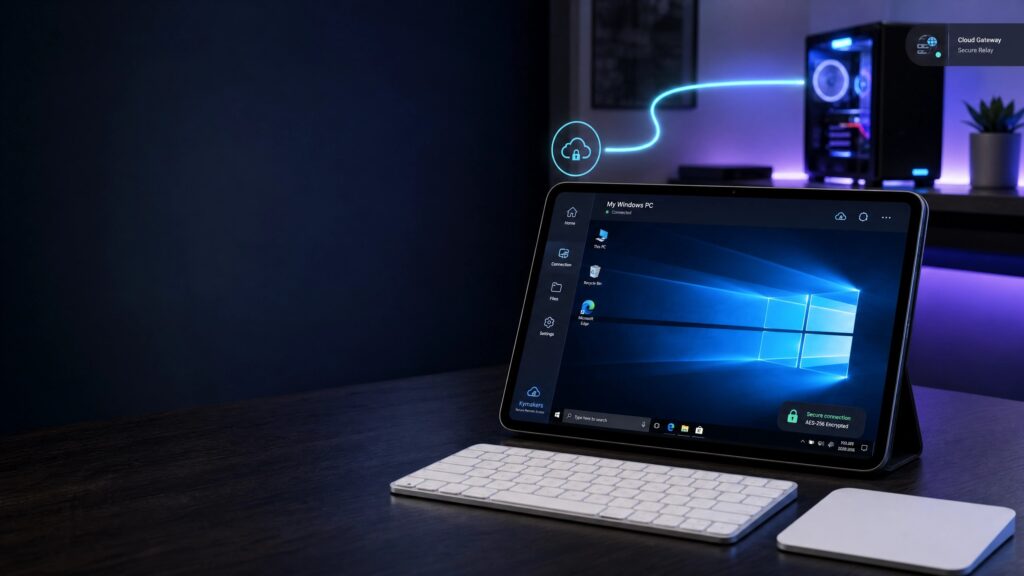
If you already have a Windows PC, this is the most cost-effective way to run Windows 10 on iPad Pro — and often the best. Microsoft’s free Remote Desktop app streams your actual PC to the iPad.
Your home or office PC does the work; the iPad is the screen and keyboard. You get your real desktop, your real files, your real apps — full speed, no subscription beyond what you already own.
- Cost: free (you use a PC you already have).
- Best for: anyone with a Windows PC they can leave on and connect to.
- Trade-off: the PC must be powered on and online, and it must be running a genuine, activated copy of Windows with Remote Desktop enabled (a Windows Pro feature on the host side).
This last point is where a real Windows license matters: Remote Desktop hosting requires Windows Pro on the PC you connect to. If your PC is on Home, upgrading the host to Pro is what unlocks this method.
Way 3: Third-Party Streaming Services
Several cloud services stream a Windows desktop to any device, iPad Pro included — think of them as Cloud PC alternatives from providers other than Microsoft.
They work similarly to Windows 365: Windows runs in the cloud, you interact with it on the iPad. Some target gaming, others general desktop use.
- Cost: subscription, varies by provider.
- Best for: users wanting cloud Windows with a specific provider’s pricing or features.
- Trade-off: subscription, internet-dependent, and you’re trusting a third party with your session.
Way 4: Emulation (UTM / QEMU)
For the technically adventurous, emulators like UTM (built on QEMU) can run Windows on the iPad itself, no internet required. It’s the only method that’s truly local.
Be realistic about performance, though: emulating Windows on ARM hardware through iPadOS is slow. It’s a fascinating project and fine for light, occasional tasks — but it is not a smooth daily-driver experience for Windows 10 on iPad Pro.
- Cost: free tools, but setup is involved and needs a Windows image.
- Best for: enthusiasts and tinkerers, not productivity.
- Trade-off: slow, complex setup, limited real-world usefulness.
Which Method Should You Choose?
Cutting through the options for Windows 10 on iPad Pro:
| Your situation | Best method |
|---|---|
| You own a Windows PC | Remote Desktop (free, full speed) |
| No PC, want full Windows daily | Windows 365 Cloud PC |
| Want a non-Microsoft cloud option | Third-party streaming |
| Enthusiast, want local Windows | Emulation (UTM) |
For most people, the answer is Remote Desktop if you have a PC, and a Cloud PC if you don’t. Emulation is a hobby, not a solution.
FAQ About Windows 10 on iPad Pro
Can I install Windows 10 on iPad Pro directly? No. Apple doesn’t allow a native Windows install on iPad, and there’s no Boot Camp for iPadOS. You access Windows through cloud streaming, Remote Desktop, or emulation instead.
What’s the best way to run Windows 10 on iPad Pro? If you have a Windows PC, Remote Desktop is best — free and full-speed. If you don’t, Windows 365 Cloud PC gives you a full Windows desktop for a monthly fee.
Does running Windows 10 on iPad Pro need a product key? The cloud methods are subscriptions, not keys. Remote Desktop uses your existing PC’s license — and that PC needs a genuine, activated Windows, with Windows Pro on the host to enable Remote Desktop hosting.
Is emulating Windows on iPad Pro any good? It works but it’s slow. Emulation via UTM is fine for tinkering and light tasks, not for daily productivity.
Can I use Windows apps on iPad Pro this way? Yes. With Cloud PC or Remote Desktop you get a full Windows desktop and can run standard Windows applications, streamed to the iPad.
Most ways to run Windows 10 on iPad Pro are subscriptions or use a PC you already own. The one place a license matters is Remote Desktop: the PC you connect to needs a genuine, activated Windows, and Remote Desktop hosting requires Windows Pro. If your host PC is on Home, Kymakers supplies the Windows 10 to Pro upgrade and genuine Windows 11 Pro keys with instant delivery and activation support — so the machine you remote into is properly licensed and Remote Desktop-ready.
Pick the method that fits: Remote Desktop if you have a PC, a Cloud PC if you don’t.
Official reference: Remote Desktop clients — Microsoft Learn