Written by: Kymakers Support Team · Reviewed by: Kymakers Technical Team Last updated: July 2026 · Applies to: Windows 11 Home, Pro, Education, Enterprise Difficulty: Beginner · Estimated time: 5–10 minutes
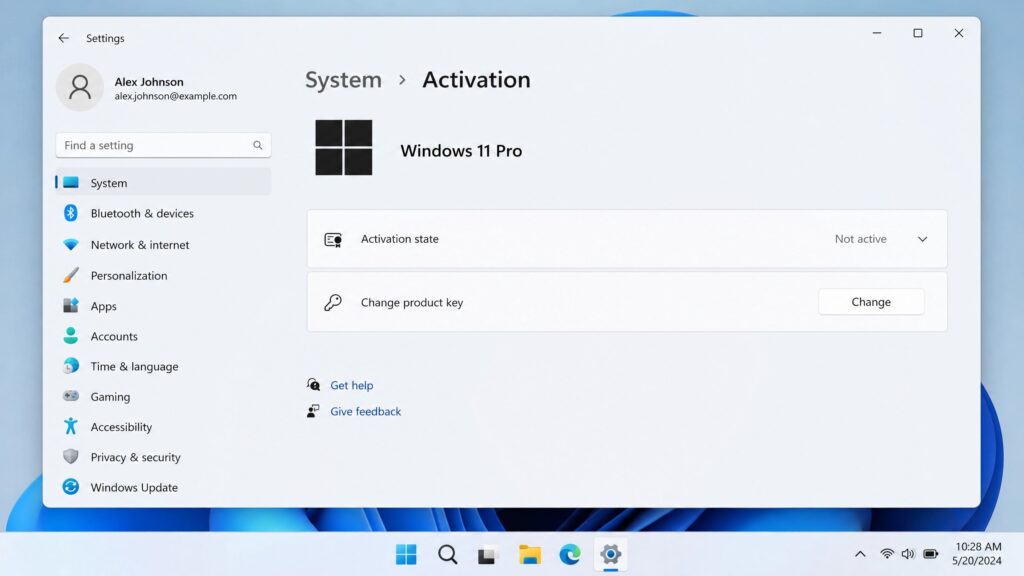
Windows 11 activation is simple: open Settings → System → Activation → Change product key, enter your 25-character key, and click Next — it completes in under a minute with an internet connection. That’s the whole process. Below is the full walkthrough on how to activate Windows 11 — with screenshots’ worth of detail, the fixes for every common Windows 11 activation error, and how to tell a genuine key from a fake one before you spend money.
Table of Contents
- What you need before you start
- Step-by-step: activate Windows 11
- How to activate after a hardware change
- How to fix activation errors
- Where to get a genuine, cheap key
- FAQ
What You Need Before Windows 11 Activation
Windows 11 activation needs three things ready before you start.
A genuine 25-character product key, in the format XXXXX-XXXXX-XXXXX-XXXXX-XXXXX. This comes from your purchase — Microsoft, a retailer, or a licensed reseller.
The right key for your edition. A Windows 11 Pro key activates Pro, not Home, and vice versa. Check which edition is installed under Settings → System → About before you start, so you’re not fighting a mismatch later.
An internet connection. Activation contacts Microsoft’s servers to validate the key. Phone activation exists as a fallback, but online is faster and is what this guide assumes.
One thing worth checking first: if you upgraded from a genuine, activated Windows 10, Windows 11 may already be activated with a digital license and need no key at all. Look at Settings → System → Activation before buying anything.
Step-by-Step: How to Activate Windows 11
Here’s how to activate Windows 11 with a product key, start to finish.
- Open Settings. Press
Windows + I, or right-click Start and choose Settings. - Go to System → Activation. You’ll see your current activation state at the top.
- Expand “Activation state,” then click “Change” next to Change product key. (If Windows isn’t activated yet, you’ll see an “Activate now” option that leads to the same place.)
- Enter your 25-character product key. Type it carefully or paste it. Windows validates the format as you go.
- Click Next, then Activate.
- Wait for confirmation. Within a minute you should see “Windows is activated with a digital license” or “with a product key.”
That’s it — Windows 11 activation done. To confirm it held, return to Settings → System → Activation, or run slmgr /xpr in Command Prompt to see the activation status.
Windows 11 Activation After a Hardware Change
A common reason people run into a Windows 11 activation problem is that it was activated, then deactivated after they replaced a part — most often the motherboard or drive.
Windows ties a digital license to your hardware. Change enough of it and the license can deactivate. The fix is the activation troubleshooter:
- Go to Settings → System → Activation.
- Click Troubleshoot (it appears when Windows detects an activation problem).
- Choose “I changed hardware on this device recently.”
- Sign in with the Microsoft account linked to your license and select the device.
This re-links the license to the new hardware — which is why linking your license to a Microsoft account before a hardware change is worth doing. If the troubleshooter can’t fix it, you’ll need to enter your product key manually as in the steps above.
How to Fix Windows 11 Activation Errors
If activation fails, the cause is usually one of these — not always a bad key.
Check your connection. The most common Windows 11 activation failure is not reaching Microsoft’s servers. Disconnect from any VPN, and on a work network try from home — corporate firewalls often block activation.
Check the date and time. A wrong system clock breaks the certificate checks activation relies on. Settings → Time & language → Date & time → turn on “Set time automatically,” then “Sync now.”
Confirm the key matches the edition. A Pro key won’t activate Home. If there’s a mismatch, you need either the right key or the right edition installed.
Run the troubleshooter. Settings → System → Activation → Troubleshoot resolves many errors automatically, and is often the fastest way to activate Windows 11 after a failed attempt.
If you see “blocked,” “invalid,” or code 0xC004C060 — that’s the key itself. Microsoft’s guidance is that these mean the key is invalid, stolen, or already in use, and to contact the seller for a refund. No fix on your end will change that; you need a genuine key. Our full breakdown of activation error codes covers each one in detail.
Where to Get a Genuine Key to Activate Windows 11
If you need a key for Windows 11 activation — new PC, clean install, or moving from Home to Pro — the goal is genuine and affordable, not just cheap. A $3 key from an anonymous marketplace often activates once and deactivates weeks later. The rule for a safe purchase: the seller states the license type, guarantees replacement if the key fails, and offers activation support.
Kymakers is built to that standard — genuine Windows 11 Pro and Windows 11 Home keys with a stated license type, instant email delivery, a replacement guarantee, and activation support if you get stuck. If you’re only stepping up from Home, the Home-to-Pro upgrade is cheaper than a full license. For more on spotting a genuine key, see our guide on where to buy a Windows 11 key.
FAQ
How do I activate Windows 11 with a product key? Settings → System → Activation → Change product key → enter your 25-character key → Next → Activate. It completes in under a minute online.
How do I know if Windows 11 activation is already done? Go to Settings → System → Activation. It will say “Windows is activated with a digital license” or “with a product key.” You can also run slmgr /xpr to check the Windows 11 activation status.
Can I activate Windows 11 with a Windows 10 key? Often yes. A genuine Windows 10 license generally activates the equivalent Windows 11 edition on eligible hardware. Enter it the same way, via Change product key.
Why won’t my Windows 11 product key activate? Usually connection, clock, or edition mismatch — not the key. Check those first. If you see a “blocked” or “invalid” code, the key itself is the problem and needs replacing.
When is Windows 11 activation required? You can run unactivated for a while with some personalization features disabled and a watermark. For full functionality, complete Windows 11 activation with a genuine key.
Is it safe to buy a cheap Windows 11 key online? Yes, from a seller that states the license type and guarantees the key. Avoid suspiciously cheap keys from anonymous sellers — they often get revoked after activating.
CTA
Need a genuine key to activate Windows 11? Kymakers supplies Windows 11 Pro and Windows 11 Home keys with instant delivery, a stated license type, replacement guarantee, and activation support — so activation works the first time, and if it doesn’t, we help.
Official reference: Activate Windows — Microsoft Support