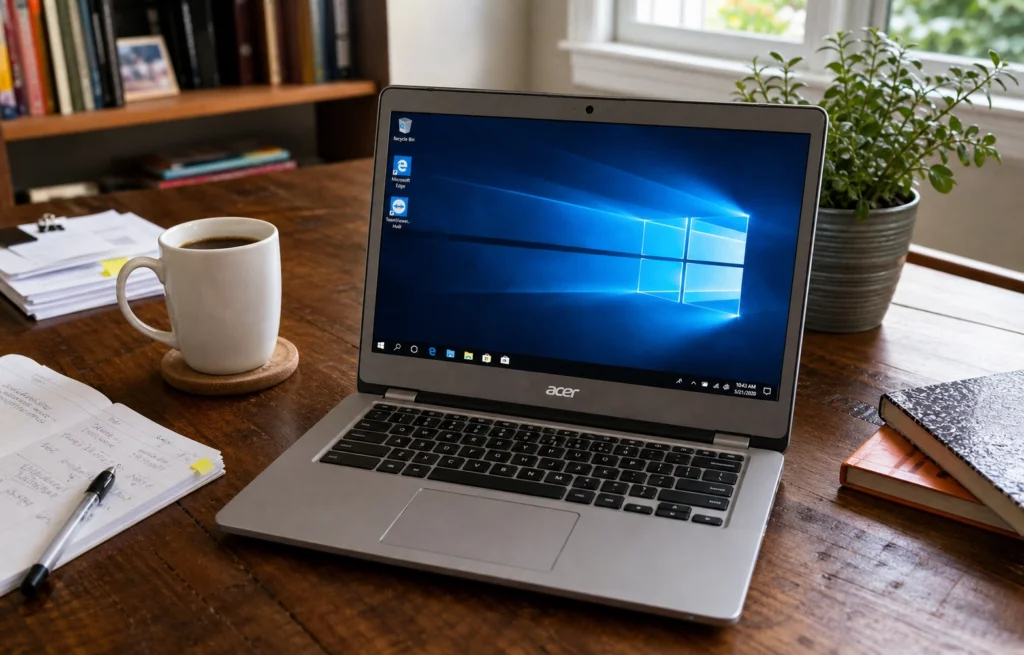
The Acer C720 was sold as a Chromebook, not a Windows laptop. That single fact explains almost every problem people hit with Acer C720 Windows 10 — sluggish disk performance, missing audio, an unresponsive trackpad, storage that fills up in a week. Acer never shipped a Windows driver package for this device, so nothing is going to work out of the box the way it would on a machine designed for Windows.
That doesn’t make it impossible. It means the order of operations matters. Below are seven fixes that address the real limitations of this hardware, starting with the one most guides skip entirely.
⚠️ Before you start
Installing Acer C720 Windows 10 requires modifying the device’s firmware, and that carries real risk. Back up anything on the device first — this process wipes it. Create a ChromeOS recovery USB before you touch the firmware, so you have a way back if the install doesn’t go the way you want. A firmware flash interrupted by a dead battery can leave the machine unbootable, so keep it plugged in throughout. If you’re not comfortable with that risk, this is not the right project for your only working laptop.
Table of Contents
- Why this machine needs a different approach
- Fix 1: Flash the firmware first
- Fix 2: Install the correct chipset and storage drivers
- Fix 3: Fix the trackpad and keyboard
- Fix 4: Solve the audio problem
- Fix 5: Reclaim storage on the tiny SSD
- Fix 6: Tune power settings for the Celeron
- Fix 7: Consider a lighter Windows build
- Should you even run Windows 10 on this hardware?
- FAQ
Why Acer C720 Windows 10 Needs a Different Approach
The C720 runs a Haswell-era dual-core Celeron, 2GB or 4GB of soldered RAM, and a 16GB or 32GB M.2 SSD. ChromeOS was built to run comfortably inside those limits. Windows 10 was not. Every fix below is really about the same thing: reducing what the operating system asks of hardware that was never sized for it.
Just as importantly, the C720 ships with Chromebook firmware that will not boot Windows at all. That’s the first wall people hit, and no driver fixes it.
Fix 1: Flash the Firmware First — the Real Acer C720 Windows 10 Blocker
This is the step generic guides leave out, and it’s the reason so many Acer C720 Windows 10 attempts stall before they begin. Stock Chromebook firmware has no legacy/UEFI boot path for a Windows installer, so the installer simply won’t start.
The sequence looks like this:
- Remove or disable write protection. On the C720 this means opening the bottom cover and removing the physical write-protect screw on the mainboard. Note where it came from — you’ll want it back if you ever restore ChromeOS.
- Enable Developer Mode so you can reach a shell.
- Flash a full Windows-capable firmware using a community firmware utility, most commonly the MrChromebox script, which replaces the stock firmware with one that presents a standard UEFI boot environment.
- Reassemble, then boot from a Windows installer USB. If you don’t already have installation media, our guide to creating a bootable USB flash drive covers it.
Once the firmware is replaced, the machine behaves like an ordinary UEFI PC and the Acer C720 Windows 10 installer will run. Everything after this point is a normal driver problem.
Fix 2: Install the Correct Chipset and Storage Drivers
The most common complaint after installation is that Acer C720 Windows 10 feels slow to load anything — and it’s usually a generic Microsoft storage driver rather than a hardware ceiling.
Windows will install a default AHCI/storage driver that works but isn’t tuned for the Haswell platform. Installing the proper Intel chipset and storage drivers typically produces a clear, immediate improvement in disk responsiveness. Get them from Intel’s official driver support page rather than a random driver-pack site — those bundles are a common source of malware and mismatched packages.
Download drivers to a USB stick beforehand if you can, since Wi-Fi often doesn’t work on a fresh Acer C720 Windows 10 install and you’ll have no way to fetch them.
Fix 3: Fix the Acer C720 Windows 10 Trackpad and Keyboard
Two things break together on a fresh Acer C720 Windows 10 install, and both have the same root cause: Chromebook input hardware doesn’t announce itself to Windows the way a normal laptop’s does.
Trackpad: the C720 uses an Elan or Synaptics module depending on the production batch. Windows loads a basic mouse driver that gives you a cursor and a click, but no two-finger scroll and no reliable tap-to-click. You’ll need the specific driver for your unit’s revision — check Device Manager to see which controller is actually present before downloading anything.
Keyboard: the C720 has no Delete, Home, End, Page Up/Down, Caps Lock, or F-keys in the usual places. Windows expects all of them. A keyboard remapping utility that maps the search key as a modifier layer restores the missing keys and makes the machine genuinely usable rather than merely bootable.
Fix 4: Solve the Audio Problem
Be warned: this is the hardest one, and on many units it is never fully resolved.
The C720’s Haswell HD Audio implementation has no official Windows driver. Community drivers exist and work for some people, but reports vary between hardware revisions — some units get working speakers, others get nothing at all. If audio matters to you, plan on a USB audio adapter or a Bluetooth speaker as the reliable fallback.
Setting expectations honestly here is better than promising an Acer C720 Windows 10 audio fix that may not materialize on your specific board.
Fix 5: Reclaim Storage on the Tiny SSD
A 16GB SSD does not comfortably hold Acer C720 Windows 10 plus updates plus a user profile. On a 16GB model, you’ll be managing storage constantly. Several things help:
- Disable System Restore, which consumes gigabytes on a drive this small
- Run Disk Cleanup and remove the
Windows.oldfolder if present - Move Documents, Pictures, and Downloads to a microSD card or external drive
- Keep the pagefile small, or move it off the system drive
- Control update behavior — cumulative updates can stall for lack of space. Our guide on how to stop Windows Update covers the safe ways to manage this rather than disabling security patches entirely
If you plan to run Acer C720 Windows 10 seriously, replacing the M.2 SSD with a larger one is the single highest-value upgrade available to you.
Fix 6: Tune Power Settings for the Celeron
The default Windows power plan pushes the C720’s low-power Celeron harder than the chassis can cool. The result is thermal throttling — brief bursts of speed followed by sustained slowness, which feels worse than steady moderate performance.
Switch to Balanced, and cap the maximum processor state around 80–90%. On Acer C720 Windows 10 that usually costs very little in real responsiveness and gives back meaningful battery life and thermal headroom.
Fix 7: Consider a Lighter Windows Build
If Acer C720 Windows 10 still drags after all of the above — especially on a 2GB model — the problem is the number of background services, not the drivers.
A Windows 10 LTSC build strips out the Store, bundled apps, and much of the background telemetry stack, which frees up RAM that this machine genuinely does not have to spare. We break down the differences in Windows LTSC vs standard Windows if you’re weighing it up.
This isn’t necessary for everyone. But on 2GB of RAM, an LTSC build of Acer C720 Windows 10 is often the difference between “usable” and “not.”
Should You Even Run Windows 10 on This Hardware?
Honest answer: it depends on what you need from it.
Acer C720 Windows 10 is workable for browsing, documents, and light tasks. It will not feel like a modern laptop. A 4GB model with a larger SSD, correct drivers, and an LTSC build is a perfectly reasonable machine for a specific job — a Windows-only application, a kiosk, a spare travel laptop, a kid’s homework machine.
A 2GB model with the stock 16GB drive is a project, not a daily driver. If your goal is a smooth everyday computer, your time is better spent elsewhere. If your goal is to get a specific Windows app running on hardware you already own, this path works.
FAQ About Acer C720 Windows 10
Can I install Windows 10 on an Acer C720 without modifying the firmware? No. Stock Chromebook firmware won’t boot a Windows installer. Firmware replacement is a prerequisite, not an optional tweak.
Will installing Windows void my warranty or damage the Chromebook? Most C720 units are far out of warranty by now. Opening the case and removing the write-protect screw would void an active warranty. The change is reversible — you can restore stock firmware and ChromeOS — but a firmware flash that fails midway can leave the device unbootable, which is why the backup and power warnings above matter.
Does everything work after installing Acer C720 Windows 10? Not quite. Storage, chipset, Wi-Fi, and trackpad drivers can all be sorted out. Audio is the persistent Acer C720 Windows 10 problem, and results vary by hardware revision.
Is 2GB of RAM enough for Acer C720 Windows 10? It’s below what Windows 10 wants for comfortable use. It boots and runs, but multitasking is limited. An LTSC build helps meaningfully; it doesn’t eliminate the constraint.
Can I go back to ChromeOS after installing Acer C720 Windows 10? Yes, if you made a ChromeOS recovery USB beforehand and kept the write-protect screw. Restore the stock firmware, then recover ChromeOS from the USB.
If you go ahead with the install, you’ll need a valid license to activate. Kymakers supplies genuine Windows 10 Pro and Windows 10 Enterprise LTSC keys with instant delivery and activation support — LTSC being the better fit if you’re working with 2GB of RAM. Sort out the firmware and drivers first — activation is the last step of an Acer C720 Windows 10 build, not the first.