How to Install Windows 11 Pro: Download, Install & Activate
Learning how to install Windows 11 Pro on your PC is straightforward when you follow the right steps. This guide covers everything — from checking system requirements and downloading the official installation media to performing a clean install and activating your genuine product key.
System Requirements for Windows 11 Professional
Before installing Windows 11 Professional, make sure your PC meets the following minimum requirements. Installing on unsupported hardware can cause errors and prevent activation.
| Component | Requirement |
|---|---|
| Processor | 1 GHz or faster with 2 or more cores on a compatible 64-bit processor or System on a Chip (SoC) |
| RAM | Minimum 4 GB |
| Storage | At least 64 GB of available storage |
| System Firmware | Must support UEFI and be Secure Boot capable |
| TPM | Trusted Platform Module (TPM) version 2.0 |
| Graphics Card | Compatible with DirectX 12 or later with WDDM 2.0 driver |
| Display | HD (720p) display, minimum 9" screen, 8 bits per colour channel |
| Internet | Required for downloading and activation |
Additional Notes
- Check compatibility using Microsoft’s PC Health Check tool — download it at microsoft.com.
- If your device does not support TPM 2.0 or Secure Boot, you may need to enable them in your BIOS/UEFI settings.
- Windows 11 cannot be installed on 32-bit systems — a 64-bit processor is required.
How to Download Windows 11 Professional
Download directly from Microsoft’s official website:
https://www.microsoft.com/en-us/software-download/windows11
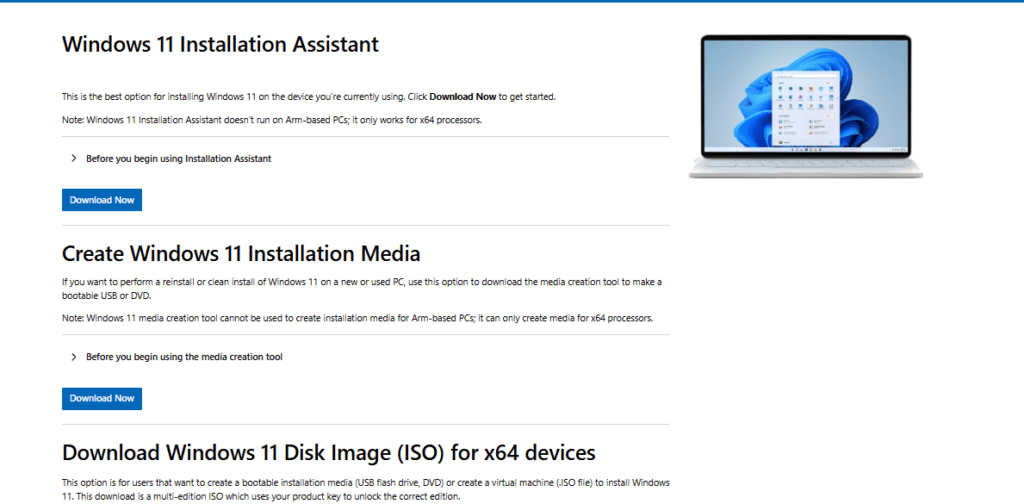
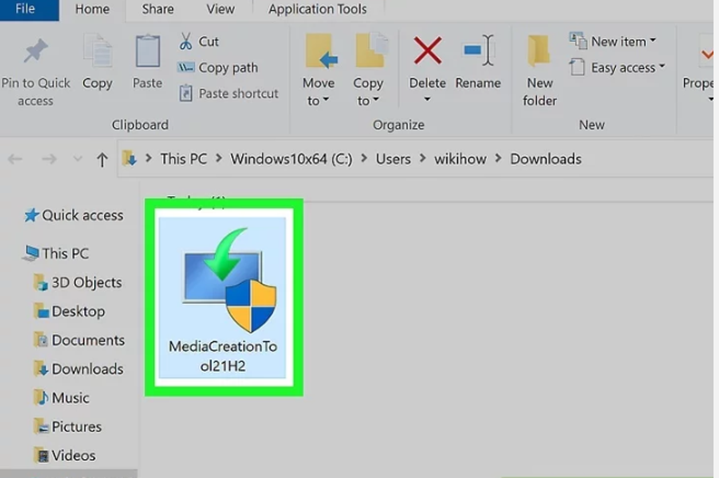
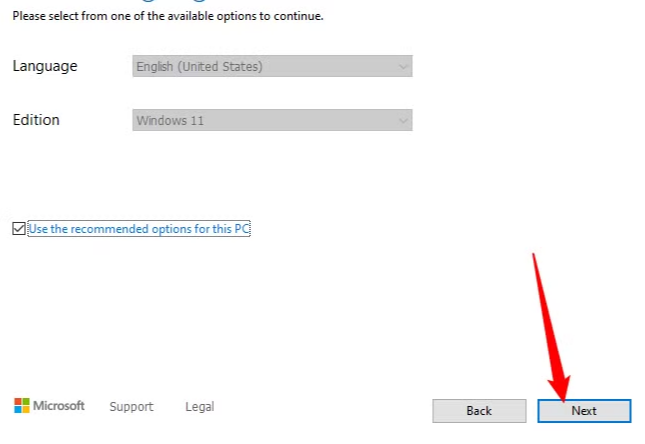
MediaCreationTool.exe to launch the setup wizard.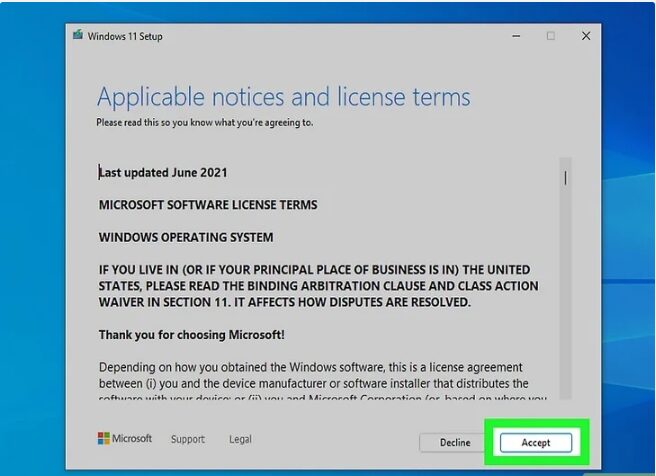
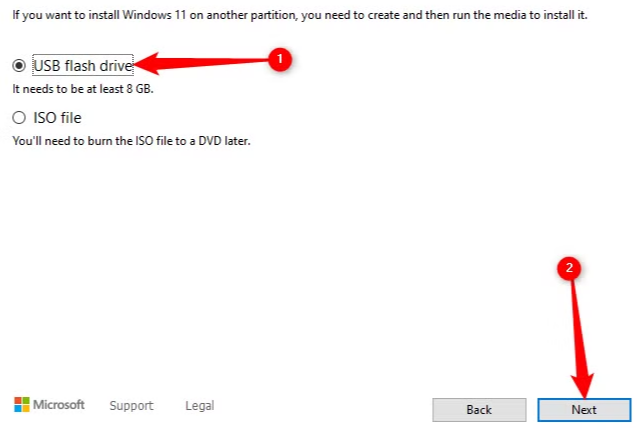
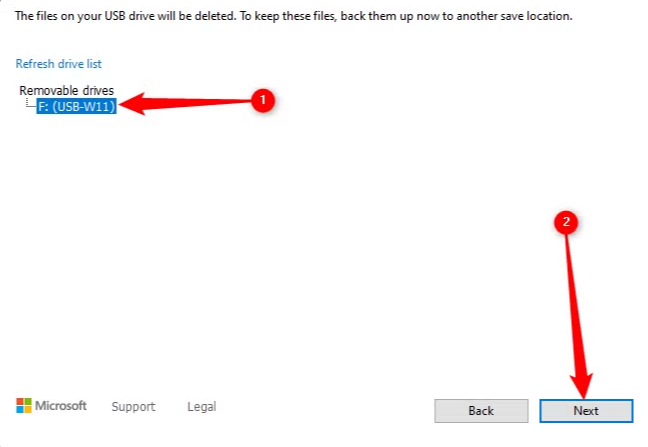
ISO File: Save the ISO to your PC. Once downloaded, open your DVD burner, select your drive, and click Burn.
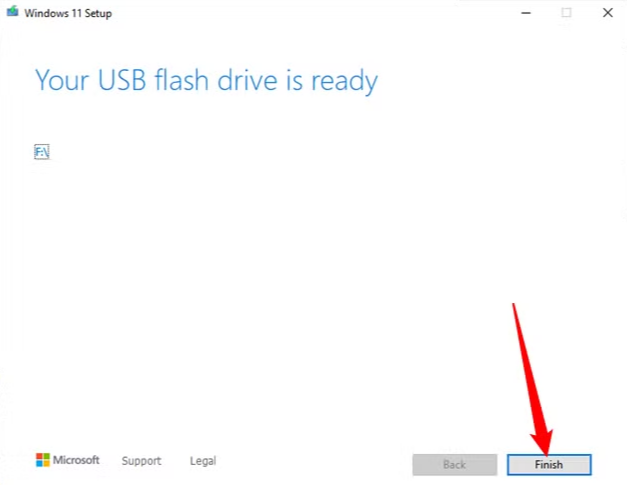
Make sure your USB drive has at least 8 GB of free space before starting. All existing data on the drive will be erased during the process.
Booting from Windows 11 Installation Media
With your bootable USB drive or DVD ready, you need to boot your PC from it before the installation can begin.
Follow the full step-by-step instructions in our dedicated guide:
kymakers.com/booting-from-windows-10-11-installation-media/
With the boot media ready, you can now proceed to install Windows 11 Professional.
Installing Windows 11 Pro
A clean install erases the target drive. Back up all important files before proceeding.
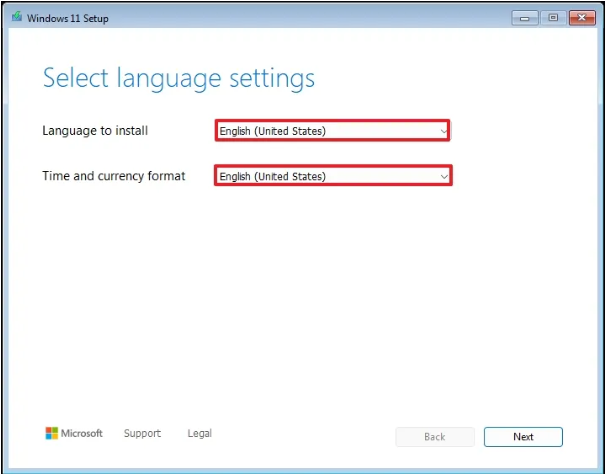
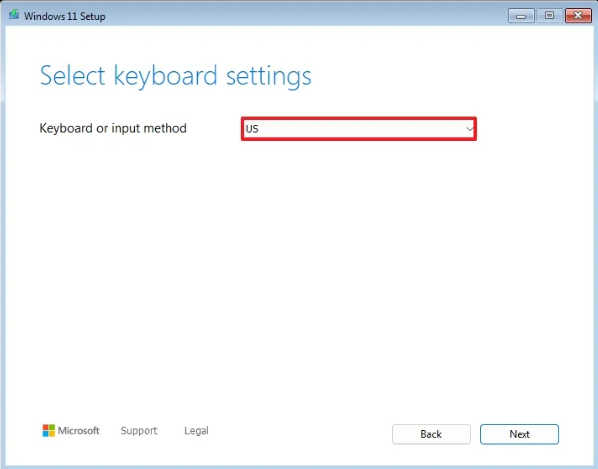
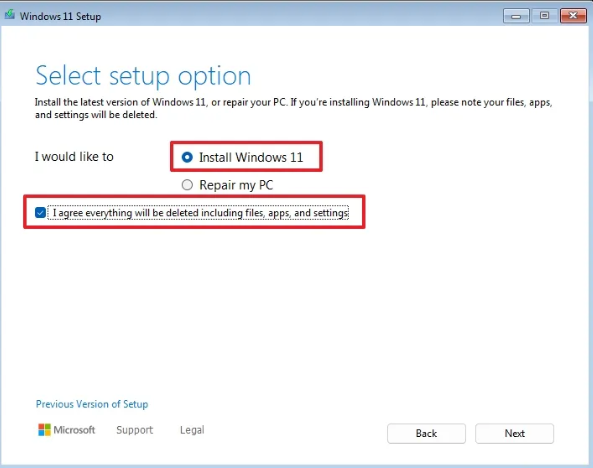
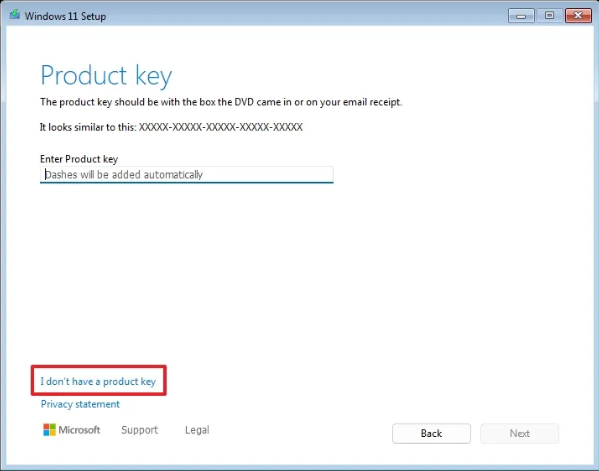
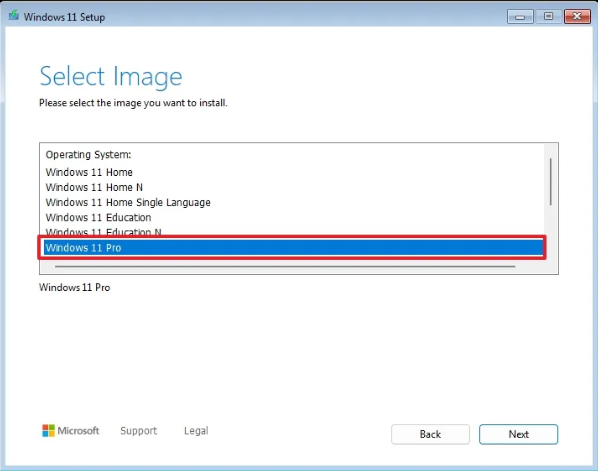
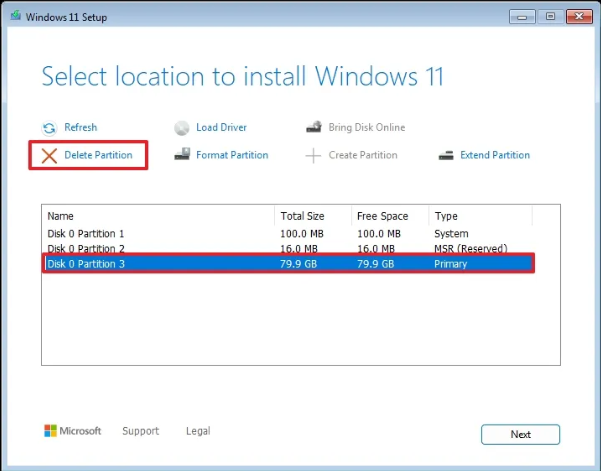
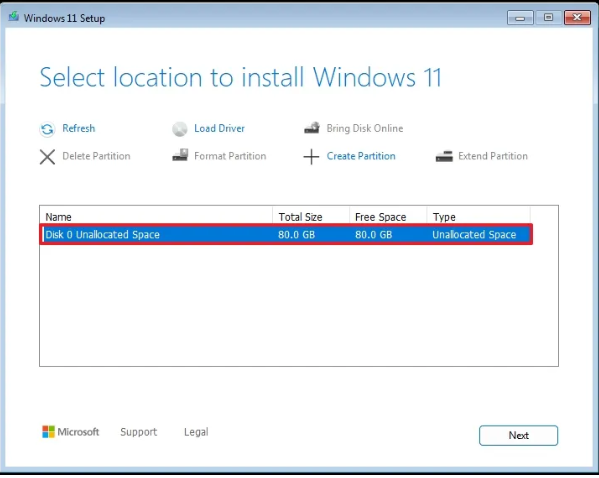
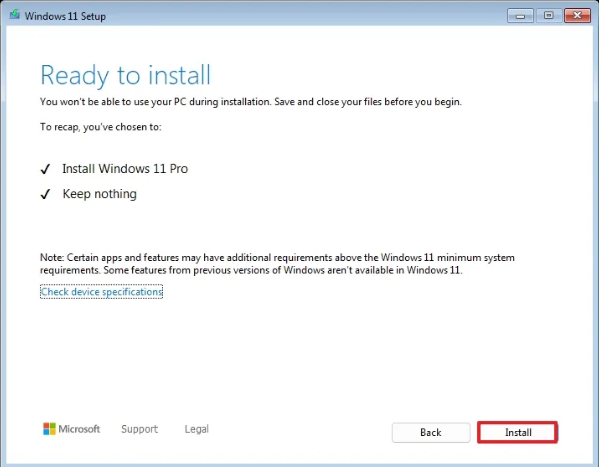
Once complete, Windows 11 24H2 will finish the clean installation on your computer.
During first-run setup, Windows may require a Microsoft account. To use a local account instead, disconnect from the internet temporarily before that step — Windows will then offer the local account option.
Activating Windows 11 Professional
Get a genuine Windows 11 Pro key instantly at kymakers.com — delivered to your email within minutes, with free step-by-step activation support included.
Activation links your product key to your hardware and unlocks all Windows 11 Pro features. Without activation, Windows displays a watermark and personalisation options are restricted.
System → Activation.XXXXX-XXXXX-XXXXX-XXXXX-XXXXX. Your key is delivered by email when you purchase from Kymakers.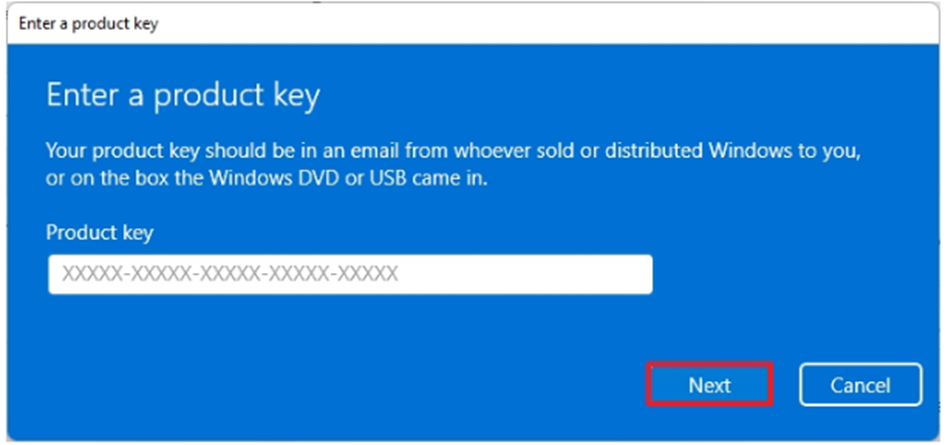
Once successful, the Activation page will show: “Windows is activated with a digital license linked to your Microsoft account” or “Windows is activated.”
Get Your Genuine Windows 11 Professional License Today
100% authentic Windows 11 Pro key with instant email delivery, free activation guidance, and 24/7 support.
Buy Windows 11 Pro Key →Why Purchase from Kymakers?
Don’t risk using counterfeit or unauthorised keys. Get your Windows 11 Pro license from Kymakers and upgrade with confidence.
Immediate Access
Get your secure product key delivered straight to your email right after purchase.
Genuine Licenses
All keys are 100% verified, authentic, and work for activation without issues.
Expert Support
Step-by-step activation guidance and 24/7 support to ensure smooth installation.
Our support team is available 24/7 to help you with installation and activation. Contact us here →