Written by: Kymakers Support Team · Reviewed by: Kymakers Technical Team Last updated: July 2026 · Applies to: Windows 10, Windows 11 (older builds most affected) Difficulty: Beginner · Estimated time: 10–30 minutes
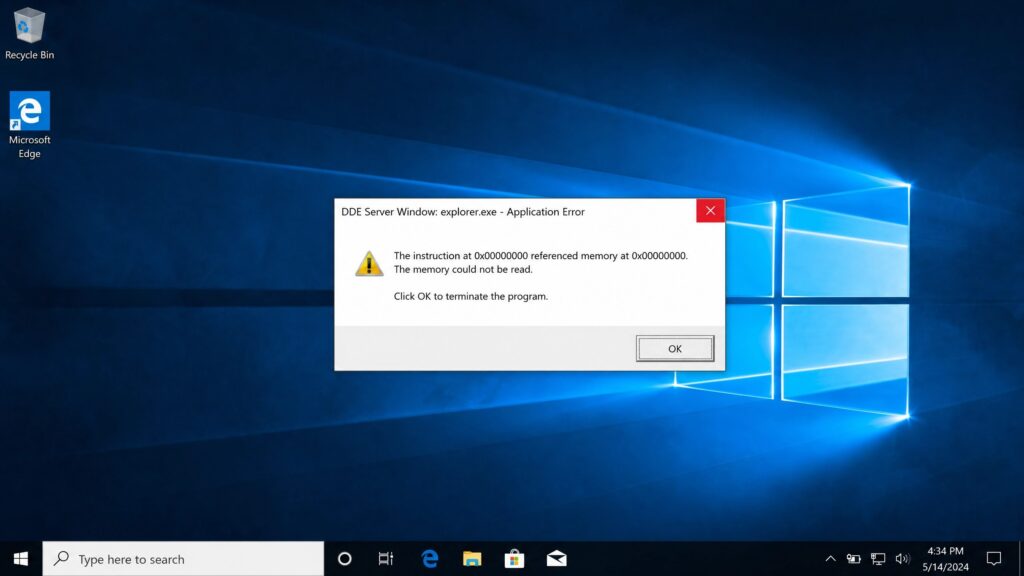
The DDE Server Window error appears as “DDE Server Window: explorer.exe – Application Error” when you try to shut down Windows, and it stalls the shutdown until you dismiss it. It’s almost always a software conflict — an application or a service failing to close cleanly — not a hardware fault. The fix is usually quick.
This guide covers six proven fixes, from the fastest (restart Explorer) to the more thorough (SFC scan, antivirus check), so your PC shuts down cleanly again.
What the DDE Server Window error actually is
DDE (Dynamic Data Exchange) is an old Windows protocol that lets applications share data — it’s what happens when an Excel figure updates inside a Word document. It’s largely been replaced by newer tech but stays for compatibility. The DDE Server Window error appears when a DDE conversation doesn’t close properly during shutdown, so Windows can’t finish. It’s annoying, but rarely serious.
Table of Contents
- What causes the DDE Server Window error
- Fix 1: Restart Windows Explorer
- Fix 2: Close apps before shutting down
- Fix 3: Run an SFC scan
- Fix 4: Check third-party antivirus
- Fix 5: Update Windows and drivers
- Fix 6: Shut down via Command Prompt
- If the error keeps coming back
- FAQ
What Causes the DDE Server Window Error
The DDE Server Window error has a handful of common triggers, and knowing which one applies saves time:
- Application conflicts — an app doesn’t release resources or end its DDE conversation cleanly, so Windows won’t close it.
- Incomplete transactions — a DDE exchange is still running when you hit shutdown.
- Corrupted system files — damaged files interfere with the shutdown process.
- Third-party antivirus — Avast, AVG, McAfee, and similar can conflict with system files and trigger the DDE Server Window error.
- Outdated Windows — older, unpatched builds are far more prone to it.
Most fixes below map directly to one of these causes.
Fix 1: Restart Windows Explorer
Because the DDE Server Window error usually references explorer.exe, restarting Windows Explorer is the fastest fix and often the only one you need.
- Press
Ctrl + Shift + Escto open Task Manager. - Find Windows Explorer under the Processes tab.
- Right-click it and choose Restart.
This refreshes the UI elements and clears the stuck process. Try shutting down again — a large share of cases end right here.
Fix 2: Close Apps Before Shutting Down
Since the error comes from an application not closing cleanly, closing everything manually first often sidesteps it entirely.
Before shutting down, close every open program from the taskbar, and check Task Manager for background apps still running (QuickBooks, older Office versions, and legacy business apps are frequent culprits). Then shut down. If the error disappears when you close apps manually, you’ve confirmed a specific app is the cause — and you can watch for which one.
Fix 3: Run an SFC Scan
Corrupted system files are a common cause, and the System File Checker repairs them automatically.
- Open Command Prompt as administrator (search “cmd,” right-click, Run as administrator).
- Type
sfc /scannowand press Enter. - Let it finish — it scans and repairs protected system files.
- Reboot.
If SFC finds and fixes corrupted files, the error often goes with them. For deeper corruption, follow with DISM /Online /Cleanup-Image /RestoreHealth, then run SFC again.
Fix 4: Check Third-Party Antivirus
Third-party antivirus software is a well-known trigger for the DDE Server Window error, because it hooks deep into system processes and can interfere with clean shutdown.
Temporarily disable your third-party antivirus (Avast, AVG, McAfee, Avira, and similar) and try shutting down. If it vanishes, the antivirus is the cause. You don’t have to remove it — check for an update, adjust its shutdown-related settings, or switch to Windows’ built-in Security, which doesn’t cause this conflict.
Fix 5: Update Windows and Drivers
Outdated Windows builds are strongly associated with the DDE Server Window error, and Microsoft has patched shutdown bugs over time.
Go to Settings → Windows Update → Check for updates, install everything available, and reboot. While you’re at it, update your drivers — an outdated display or chipset driver can contribute. If your Windows is significantly behind, this single step resolves a lot of DDE Server Window error reports on its own.
Fix 6: Shut Down via Command Prompt
If you need a reliable shutdown right now while you work through the cause, Command Prompt bypasses the error.
- Press
Win + R, typecmd, and press Enter. - Type
shutdown /s /f /t 0and press Enter.
The /f flag forces running applications to close, which skips the error prompt. This is a workaround, not a fix — but it gets you a clean shutdown while you apply the real fixes above.
If the Error Keeps Coming Back
If the error returns no matter what, the cause is usually one stubborn application or an old, unsupported Windows version.
Track down the app: note which programs are open each time the error appears, and test shutting down without them. Legacy business software is the usual offender. Update or reinstall the culprit, or replace it with a supported alternative.
If the machine is running an old, unsupported Windows version, that’s the deeper issue. Windows 10 reached end of support on October 14, 2025 — older builds no longer get the fixes that resolve bugs like this. If you’re on an outdated version, upgrading to a supported one is the durable fix, not another round of troubleshooting.
FAQ About the DDE Server Window Error
What is the DDE Server Window error? It’s a shutdown error — “DDE Server Window: explorer.exe – Application Error” — caused by a Dynamic Data Exchange conversation not closing cleanly. It stalls shutdown until dismissed — usually a software conflict, not hardware.
How do I fix the DDE Server Window error quickly? Restart Windows Explorer in Task Manager (Fix 1). It’s the fastest fix and resolves most cases. If it returns, run an SFC scan and check your antivirus.
Does the DDE Server Window error mean my PC is damaged? No. It’s almost always a software conflict or an app not closing properly. It doesn’t indicate hardware damage.
Which apps cause the DDE Server Window error? Often legacy business software (older QuickBooks, older Office) and third-party antivirus. Closing apps manually before shutdown helps identify the culprit.
Why did the DDE Server Window error start suddenly? Usually after installing a new app, an antivirus, or falling behind on Windows updates. Recent changes are the first place to look.
Most DDE Server Window error cases are a quick software fix. But if the root cause is an old, unsupported Windows version, that’s a licensing decision rather than a troubleshooting one — Kymakers supplies genuine Windows 11 Pro and Windows 11 Home keys with instant delivery and activation support, plus the Windows 10 to 11 upgrade path. Our Windows 11 pricing guide covers the costs.
Restart Explorer first. Run SFC. Check your antivirus. Upgrade only if an unsupported Windows version is the real cause.
Official reference: Windows Update — Microsoft Support