Written by: Kymakers Support Team · Reviewed by: Kymakers Technical Team Last updated: July 2026 · Applies to: Windows 10, Windows 11 Difficulty: Beginner · Estimated time: 10–30 minutes
How to fix printer offline in Windows, the quick way: open Settings → Bluetooth & devices → Printers & scanners, select your printer, and turn off “Use Printer Offline.” That single setting is the cause in a surprising number of cases — Windows flipped it on after a connection hiccup and never flipped it back.
If that doesn’t do it, the cause is usually the print spooler, the connection, or the driver. This guide covers seven proven fixes for how to fix printer offline, in order from fastest to most thorough.
Why Windows says “offline” when the printer is clearly on
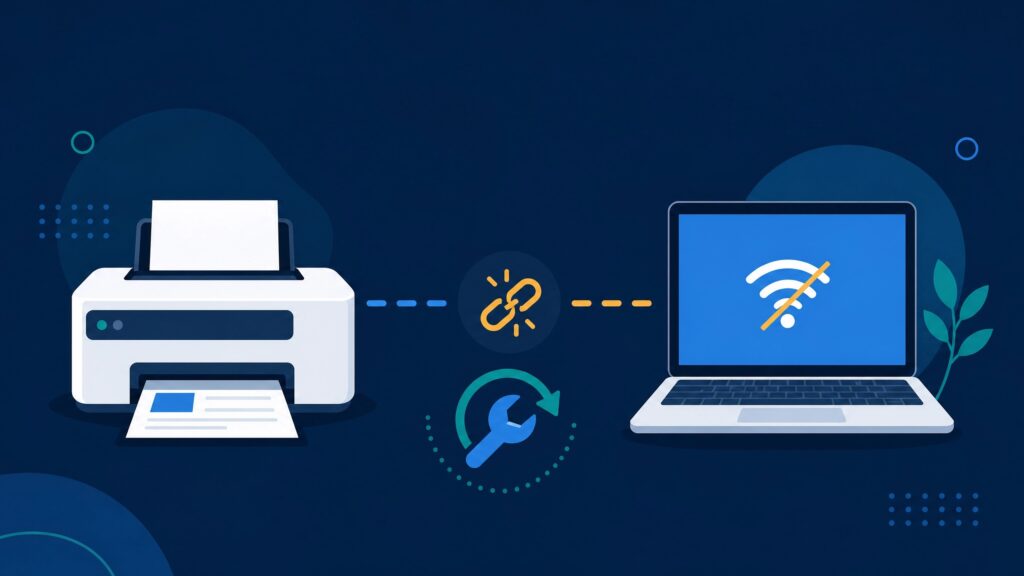
“Offline” doesn’t mean the printer is unplugged — it means Windows can’t currently communicate with it, or has been told not to try. That can happen after a sleep cycle, a Wi-Fi drop, an IP address change, a stuck print job, or a driver problem. The printer itself is often perfectly fine, which is why these fixes work so often.
Table of Contents
- Fix 1: Turn off “Use Printer Offline”
- Fix 2: Restart the printer and the connection
- Fix 3: Clear the print queue
- Fix 4: Restart the Print Spooler service
- Fix 5: Set it as the default printer
- Fix 6: Update or reinstall the driver
- Fix 7: Fix the network connection (wireless printers)
- If it keeps going offline
- FAQ
Fix 1: How to Fix Printer Offline With One Setting
This is the first thing to check, and often the whole answer to how to fix printer offline.
- Open Settings (
Windows + I). - Go to Bluetooth & devices → Printers & scanners (Windows 10: Devices → Printers & scanners).
- Select your printer, then open the print queue or printer properties.
- In the queue window, click Printer in the menu bar.
- If Use Printer Offline has a checkmark, click it to turn it off.
Windows sometimes enables this automatically when it loses contact with the printer, then never clears it. Unchecking it restores normal operation immediately in many cases.
Fix 2: Restart the Printer and the Connection
A proper power cycle clears more problems than people expect, and it’s the second step for how to fix printer offline.
- Turn the printer off and unplug it from power for 30 seconds (don’t just tap the power button — a full power cycle clears the internal state).
- While it’s off, check the cable: unplug and firmly reseat the USB cable, or confirm Wi-Fi is connected on the printer’s own display.
- Plug it back in and turn it on.
- Wait for it to fully initialise, then check the status in Windows.
For USB printers, try a different port — a failing port or a loose connection is a common reason people search how to fix printer offline when nothing else seems wrong.
Fix 3: Clear the Print Queue to Fix Printer Offline
A single stuck print job can jam the queue and put the printer into an offline state until it’s cleared.
Open Settings → Printers & scanners → your printer → Open print queue, then cancel every document listed. If a job refuses to cancel, move to Fix 4 — restarting the spooler force-clears jobs that won’t budge.
Once the queue is empty, try printing a single test page rather than resending the original job — a corrupted job is a common reason a printer offline status won’t clear.
Fix 4: How to Fix Printer Offline by Restarting the Spooler
The Print Spooler manages all printing. When it hangs, printers show as offline no matter what you do at the printer end. Restarting it is a core part of how to fix printer offline.
- Press
Windows + R, typeservices.msc, press Enter. - Find Print Spooler in the list.
- Right-click it and choose Restart.
If it keeps failing, clear the stuck spool files: stop the Print Spooler service, delete everything inside C:\Windows\System32\spool\PRINTERS, then start the service again. This clears jobs that are corrupted beyond cancelling.
Fix 5: Set It as the Default Printer
If Windows is sending jobs to a different printer, or “Let Windows manage my default printer” keeps switching it, your intended printer can appear unavailable.
Go to Settings → Bluetooth & devices → Printers & scanners, turn off “Let Windows manage my default printer,” then select your printer and choose Set as default. This stops Windows switching the default based on your last-used device, which is a common source of confusion in offices with several printers.
Fix 6: How to Fix Printer Offline With a Driver Update
An outdated or corrupted driver is a frequent cause when the simpler steps don’t work.
Update first: open Device Manager, expand Printers or Print queues, right-click your printer, and choose Update driver.
Reinstall if that fails: remove the printer from Settings → Printers & scanners → your printer → Remove device. Then download the current driver from the manufacturer’s official support site for your exact model, install it, and add the printer again.
Use the manufacturer’s driver rather than a generic one where possible — it’s the version tested against your hardware, and it’s often the real answer to how to fix printer offline for good.
Fix 7: Fix Printer Offline on Wireless Connections
For wireless printers, “offline” usually means a network problem rather than a printer problem.
- Confirm both are on the same network — a printer on a 2.4GHz band and a PC on a 5GHz guest network won’t see each other.
- Check the printer’s IP address. Print a network configuration page from the printer’s own menu and compare it to what Windows has stored. If the router handed out a new address, Windows is still trying the old one.
- Assign a static IP (or a DHCP reservation in your router) so the printer’s address stops changing. This is the permanent solution when a wireless printer goes offline repeatedly.
- Re-add the printer using the current IP if the address changed.
An address that shifts every time the router reboots is the single most common reason people repeatedly look up how to fix printer offline for a wireless model.
If It Keeps Going Offline After You Fix Printer Offline Errors
If your printer works after a fix but goes offline again days later, you’re treating symptoms rather than the cause. The usual culprits:
- Changing IP address — set a static IP or DHCP reservation (Fix 7). This solves most recurring cases.
- Power-saving settings — in Device Manager, check the printer’s USB root hub properties and disable “Allow the computer to turn off this device to save power.”
- Sleep mode on the printer — many models drop the network connection in deep sleep. Disable or extend the sleep timeout in the printer’s own settings.
- A driver that reverts — if Windows Update keeps replacing your manufacturer driver with a generic one, install the manufacturer’s version and check whether the issue returns.
Fixing the underlying cause is worth the extra ten minutes — otherwise you’ll be looking up how to fix printer offline again next week.
FAQ About How to Fix Printer Offline
Why does my printer say offline when it’s on? “Offline” means Windows can’t communicate with the printer or has been told not to try — often the “Use Printer Offline” setting, a stuck spooler, a changed IP address, or a driver problem. The printer itself is usually fine.
How to fix printer offline in Windows 11? Start with Settings → Bluetooth & devices → Printers & scanners → your printer → uncheck “Use Printer Offline.” If that doesn’t work, restart the Print Spooler service and power-cycle the printer.
How to fix printer offline by restarting the print spooler? Press Windows + R, type services.msc, find Print Spooler, right-click and choose Restart. If it keeps failing, stop the service, clear C:\Windows\System32\spool\PRINTERS, and start it again.
Why does my wireless printer keep going offline? Usually a changing IP address. Assign a static IP or set a DHCP reservation in your router so the address stays fixed, and check the printer isn’t dropping its connection in sleep mode.
Does reinstalling the printer help how to fix printer offline issues? Often yes, especially if the driver is corrupted. Remove the device in Settings, install the current driver from the manufacturer’s site, and add the printer again.
Can Windows updates cause a printer to go offline? Yes. Updates occasionally replace a working manufacturer driver with a generic one, or change print subsystem behaviour. If the problem started right after an update, reinstalling the manufacturer’s driver is the first thing to try.
Printer problems are almost always software — the fixes above solve the vast majority without spending anything. If a deeper Windows fault is behind it and you end up reinstalling, Kymakers supplies genuine Windows 11 Pro and Windows 11 Home keys with instant delivery and activation support. For other Windows issues, our guides on DDE Server Window error and monitor issues with Windows 10 cover related problems.
Uncheck “Use Printer Offline” first. Restart the spooler. Then fix the IP address so it stops happening.
Official reference: Troubleshooting offline printer problems — Microsoft Support