System Requirements for Microsoft Windows 11 Education
Before installing Windows 11 Education , make sure your PC meets the following minimum requirements:
| Component | Requirement |
|---|---|
| Processor | 1 GHz or faster, with 2 or more cores on a compatible 64-bit processor or System on a Chip (SoC) |
| RAM | Minimum 4 GB |
| Storage | At least 64 GB of available storage |
| System Firmware | Must support UEFI and be Secure Boot capable |
| TPM (Security) | Trusted Platform Module (TPM) version 2.0 |
| Graphics Card | Compatible with DirectX 12 or later with WDDM 2.0 driver |
| Display | High-definition (720p) display, minimum 9” screen, 8 bits per color channel |
| Internet | Required for downloading and activation |
Additional Notes:
- You can check if your PC meets the requirements using Microsoft’s PC Health Check tool.
- If your device does not support TPM 2.0 or Secure Boot, you may need to enable them in the BIOS settings.
- Windows 11 cannot be installed on 32-bit systems.
How to Download Windows 11 Education
After purchase, you will receive an email containing your product key and a secure download link.
You have two options to download Windows 11 Education:
Option 1 – Use the Link in the Order Email:
Click on the download link provided in your order confirmation email.
Save the official Windows 11 Education ISO file to your PC or USB drive.
Option 2 – Download Directly from Microsoft:
Go to Microsoft’s official website:
https://www.microsoft.com/en-us/software-download/windows11
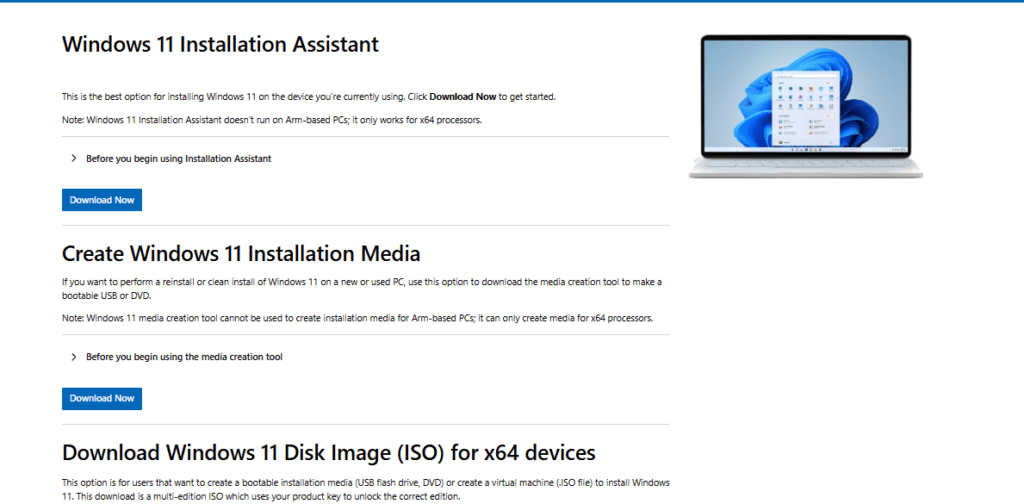
Scroll to “Create Windows 11 Installation Media”
Under this section, click on Download now.
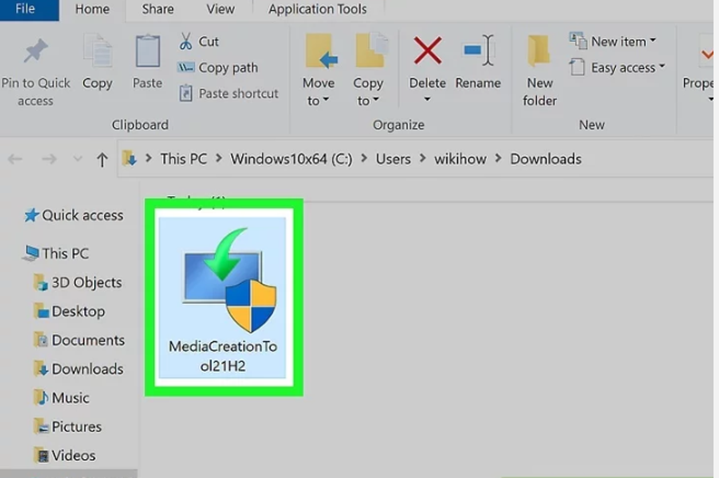
Double-click the downloaded file.
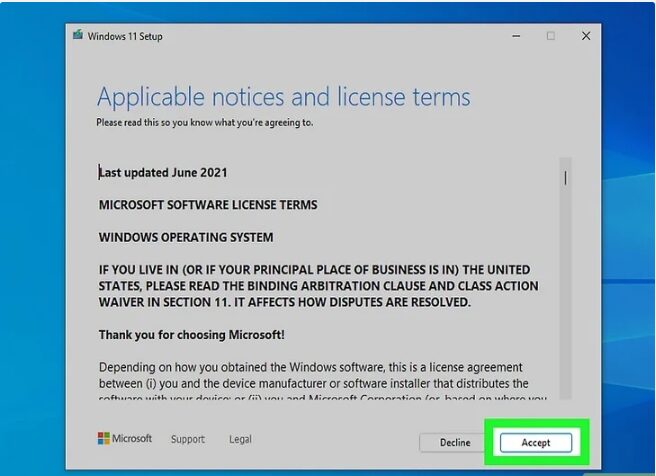
Click Accept to accept the license.
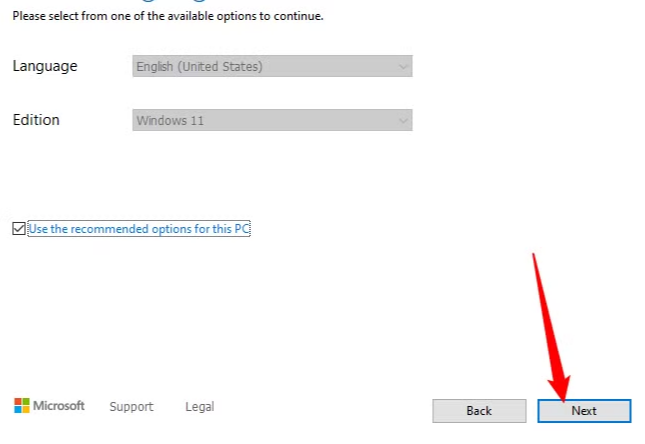
Choose your preferred language and edition.
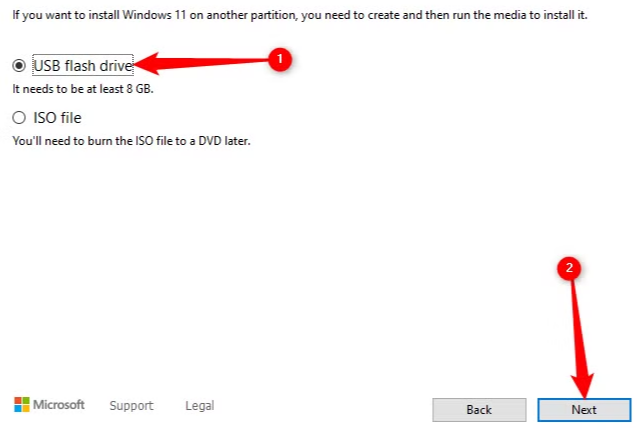
Choose an installation type and click Next.
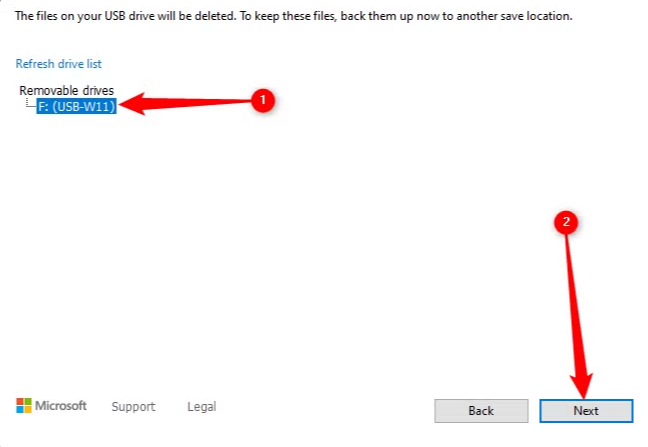
USB Flash Drive: Select your drive, click Next, and wait for the process to finish. DVD/ISO File: Save the ISO to your PC. Once downloaded, open the DVD burner, select your drive, and click Burn
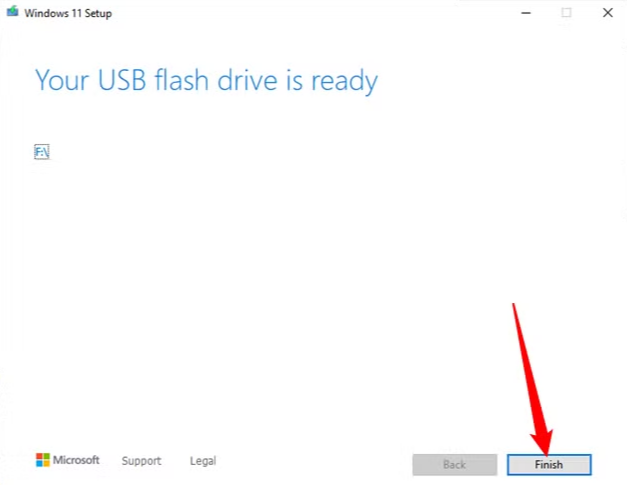
Booting from Windows 11 Installation Media
Creating an Installation Disc or Drive
Need help booting from USB? You can follow the step-by-step instructions in this guide: https://kymakers.com/booting-from-windows-10-11-installation-media/
With the boot media ready, we can now proceed to the installation steps to install Windows 11 Education
Installing Windows 11 Education
Press any key to continue.
Choose the installation language and format.
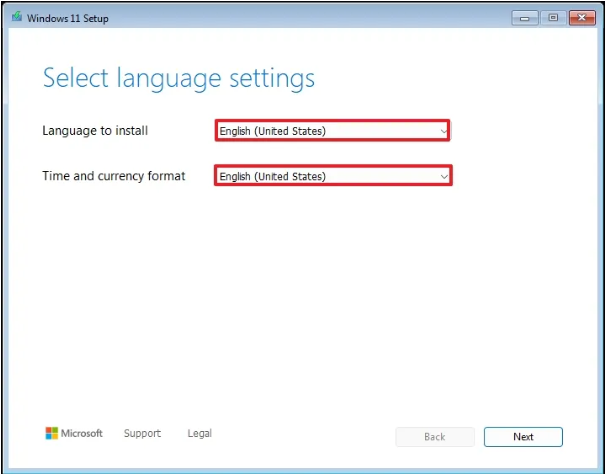
Click the Next button.
Choose the keyboard and input method.
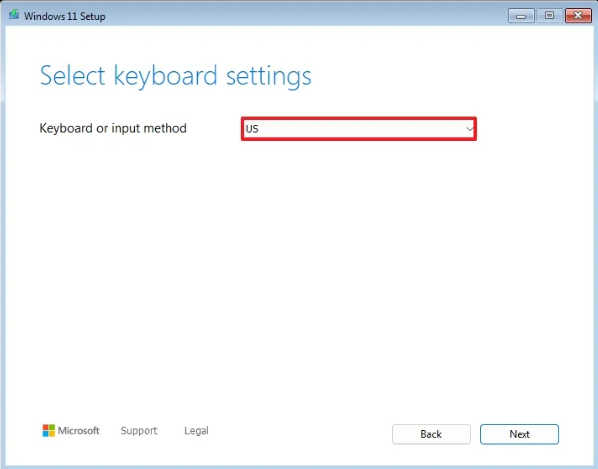
Click the Next button.
Select the “Install Windows 11” option.
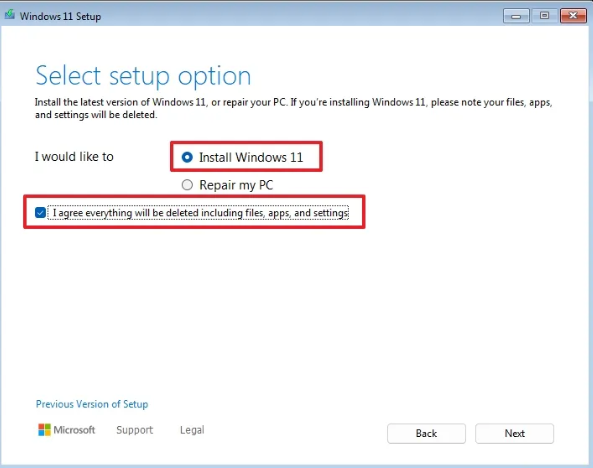
Check the “I agree everything will be deleted including files, apps, and settings” option to confirm this process will delete everything on the computer.
Click the Next button.
Click the “I don’t have a product key” option.
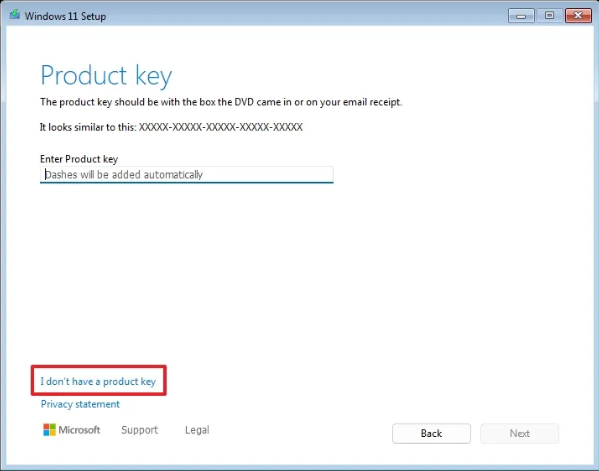
Please make sure to select Windows 11 Education during installation, as this is the version your license key activates. Selecting the wrong version may cause activation to fail.
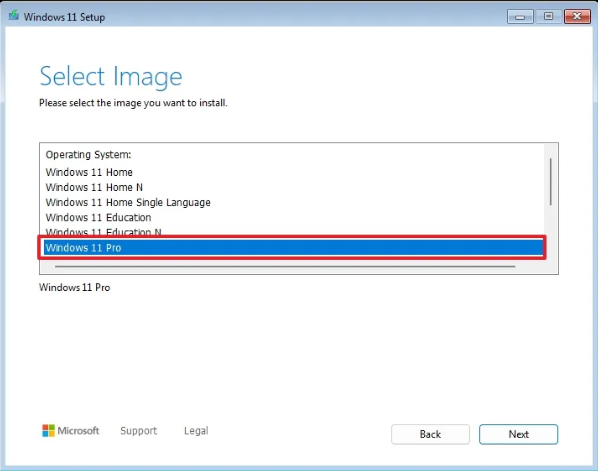
Click the Next button.
Click the Accept button
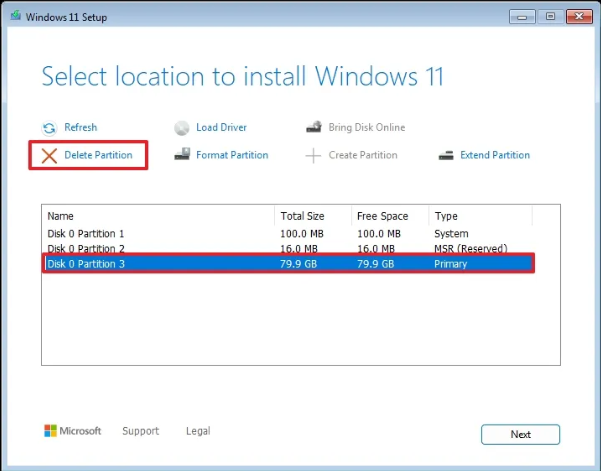
Select each partition on the hard drive where you want to install Windows 11 and click the Delete button. (Usually, “Drive 0” is the drive that contains all the installation files.)
Select the hard drive (Drive 0 Unallocated Space) to install the operating system.
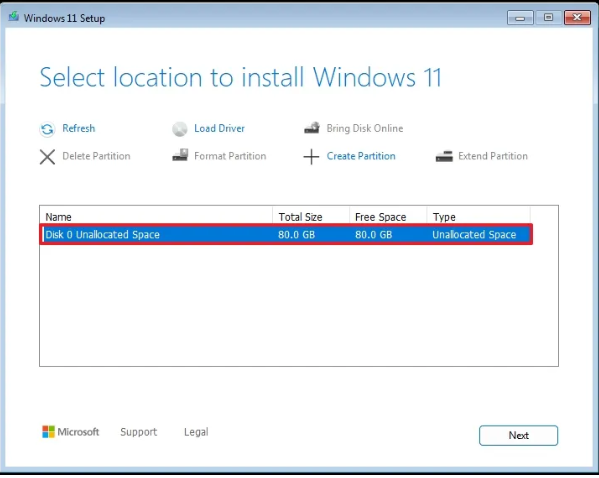
Click the Next button.
Click the Install button.
Once you complete the steps, Windows 11 Education 24H2 will finish the clean installation on the computer.
Activating Windows 11 Education
Once installation is complete, go to Settings > System > Activation.
Click the Change button in the “Change product key” setting.
Type the 25-digit activation product key for the edition of Windows 10.
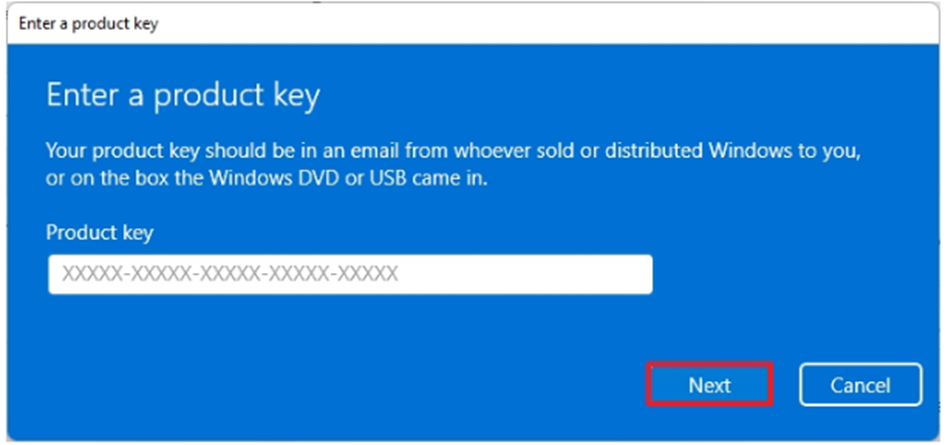
Click the Next button.
Get Your Genuine Windows 11 Education License Today!
To enjoy the full power of Windows 11 Education , you need a legitimate license key. We offer affordable, 100% genuine Windows 11 Education licenses that are easy to purchase and activate.
Buy Your Windows 11 Education License Now
Don’t risk using counterfeit or unauthorized keys. Get yours today, and upgrade with confidence!