
Troubleshooting Common Issues

Select Your Issue:

  •  Haven’t received my product key
  •  Bought the Wrong Edition
  •  How to activate Microsoft Office with a product key
  •  Microsoft Office (PC/Mac) system requirements
  •  Product key has already been used
  •  How to use a bind key


  •  Product key is invalid or doesn’t work doesn’t work
  • How to Uninstall Microsoft Office
  • Windows Smart App Control Blocking Installation
  •  How to activate Microsoft Windows with a product key
  •  How to download and install Windows
  •  Convert Windows Server Evaluation to Full Edition
  •  Upgrade Windows 11 Home to Pro
  •  Product key is invalid or doesn’t work
  • How do I know if windows 11 is compatible with my PC
  • How to Take a Screenshot on Windows
  •  How to create a Microsoft account

> Haven't received my product key

Product details are automatically sent to your email address immediately after your purchase is completed.

If you have not received the email, please follow the steps below:

Check Your Spam or Junk Folder

Sometimes our emails may be filtered by your email provider. Please check your Spam, Junk, or Promotions folder.

Verify Your Email Address

Make sure the email address entered during checkout was correct. A small typing error can prevent delivery.

Allow a Few Minutes

In rare cases, email delivery may take a few minutes depending on your email provider.

Still Didn’t Receive It?

If you cannot locate the email after completing the steps above, please contact our support team and include:

  • Your Order Number
  • The email address used during purchase

We will verify your order and resend your product details as quickly as possible.

> Bought the Wrong Edition

If you accidentally purchased the wrong software edition, don’t worry — we’re here to help.

Please contact our support team as soon as possible and let us know which edition you need instead.

As long as the product key has not been activated, we will assist you with an exchange or provide the best possible solution.

To speed up the process, please include:

  • Your Order Number

  • The edition you purchased

  • The edition you would like instead

Our team will review your request and respond as quickly as possible.

> How to activate Microsoft Office with a product key

Before entering your product key, please make sure the version of Microsoft Office installed on your computer matches the version you purchased.

Step 1: Check Your Installed Version

  1. Open any Office application (Word, Excel, Outlook, etc.).

  2. Click FileAccount.

  3. Under Product Information, verify the edition and version installed.
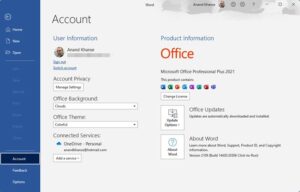
activate Microsoft Office

Step 2: Enter Your Product Key

Once you confirm that the installed version matches your purchase:

  1. Click Change Product Key.

  2. Enter your 25-character product key.

  3. Follow the prompts. Office should activate automatically.

Still Having Issues?

If you receive an error message during activation, please take a screenshot of the error and contact our support team.

Include your Order Number and the screenshot so we can assist you as quickly as possible.

> Microsoft Office (PC/Mac) system requirements

Each Microsoft Office version has its own system requirements. Please verify compatibility before purchasing or installing.

Windows Requirements

  • Office 2010 – Requires Windows XP (SP3), Windows Vista (SP1), Windows 7, Windows 8, or Windows 10

  • Office 2013 – Requires Windows 7, Windows 8, Windows 8.1, Windows 10

  • Office 2016 – Requires Windows 7, Windows 8.1, Windows 10

  • Office 2019 or later (2021/2024) – Requires Windows 10 or Windows 11

Mac Requirements

  • Office 2016 for Mac – Requires macOS 10.10 (Yosemite) or later

  • Office 2019 for Mac – Requires macOS 12 (Monterey) or later

  • Office 2021 for Mac – Requires macOS 14 (Sonoma) or later

Important

Make sure the version you purchase is compatible with your device.

For example, if you purchase a Windows version but you are using a Mac, the software will not install or activate.

If you realize you have purchased the wrong version for your system, please contact our support team as soon as possible. As long as the product key has not been activated, we will help you find the correct product or provide the best possible solution.

> Product key has already been used

If you receive a message stating that your product key has already been used, please don’t worry.

First, carefully double-check that the key has been entered correctly. Make sure there are no typing mistakes or extra spaces.

This issue may occur rarely. We always verify and test our product keys before sending them to customers to ensure they are valid and ready for activation.

If you still receive this message:

  1. Please take a clear screenshot of the error.

  2. Send it to our customer support team along with your Order Number.

Our team will review the issue promptly and provide a quick solution.

> How to use a bind key

A bind key must be linked to your Microsoft account before downloading and activating the software. Please follow the steps below:

1. Create or Sign In to a Microsoft Account

If you do not already have a Microsoft account, create one at:
https://account.microsoft.com

If you already have an account, simply sign in.

2. Link Your Bind Key

Go to the Microsoft activation page and enter your bind key.
This will permanently link the license to your Microsoft account.

3. Download the Software

After the key is successfully linked, you will receive access to download your Office or Windows product directly from your Microsoft account.

4. Install the Software

Run the downloaded file and follow the on-screen installation instructions.

5. Activate Your Product

Once installed, open any Office application and sign in using the same Microsoft account used to link the key.
The product will activate automatically.

> Product key is invalid or doesn’t work doesn’t work

If you receive a message stating that your product key is invalid or not working, please follow the steps below:

1. Verify Your Office Version

Open any Office application (Word, Excel, Outlook, etc.).
Go to File → Account and check the version and edition installed on your computer.

Make sure it matches the version for which you purchased the product key.
A key will only work with the exact edition it was issued for.

2. Double-Check the Product Key

Carefully re-enter the 25-character key exactly as provided.
Ensure there are no typing mistakes or extra spaces.

Still Not Working?

If the key still does not activate:

  1. Take a screenshot of:

    • The Office version shown under File → Account

    • The full error message or error code displayed

  2. Send the screenshots along with your Order Number to our support team.

We will promptly verify your key and provide guidance or a replacement if necessary.

> How to Uninstall Microsoft Office

  • On Windows
  1. Via Settings

    • Press Windows + IApps → Installed apps

    • Find Microsoft Office in the list

    • Click Uninstall and follow the prompts
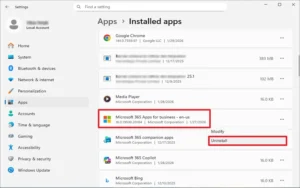
      uninstall office 365 windows 11
  2. Via Control Panel (Windows 10/11)

    • Open Control Panel → Programs → Programs and Features

    • Select Microsoft Office

    • Click Uninstall and follow the instructions
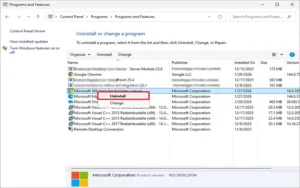
    • uninstall office from pc

  3. Use Microsoft Support Tool (if needed)

On Mac

  1. Open Finder → Applications

  2. Locate Microsoft Office apps (Word, Excel, PowerPoint, etc.)

  3. Drag each app to the Trash

  4. Empty the Trash

  5. Optional: Remove leftover files from

    ~/Library/Preferences/
    ~/Library/Containers/
    ~/Library/Application Support/Microsoft/

> Windows Smart App Control Blocking Installation

If Windows Smart App Control (SAC) blocks your installation, it’s because it is preventing unrecognized or unverified apps from running.

To resolve:

Go to Settings → Privacy & Security → Windows Security → App & Browser Control
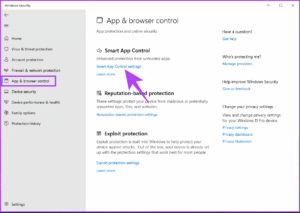
Enable or Disable Smart App Control in Windows 11 9

Check if Smart App Control is enabled.

Temporarily disable Smart App Control while installing your software.
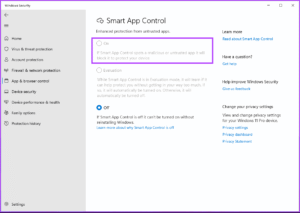
Enable or Disable Smart App Control in Windows 11 8


After installation, you can re-enable Smart App Control for security.

> How to activate Microsoft Windows with a product key

  • To activate Microsoft Windows, you need a valid product key that matches the version of Windows installed on your PC. Activation confirms that your copy of Windows is genuine and fully functional.

    Before entering your key, make sure:

    • Your device is connected to the internet

    • The Windows edition installed matches the version you purchased (e.g., Home or Pro)

    Step 1: Open Windows Settings

    Press Windows key + I  Or click Start → Settings

    Step 2: Go to Activation

    Navigate to System → Activation
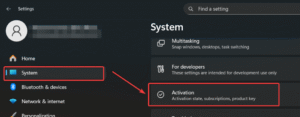
activate windows with product key windows 11 10 01 1024x401 1


Step 3: Check Your Windows Version

Confirm that the installed edition (Home, Pro, etc.) matches the product key you purchased.
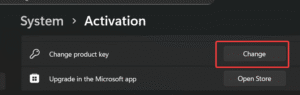
 

activate windows with product key windows 11 10 02

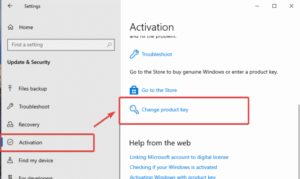
Step 4: Enter Your Product Key

Click Change product key  , Enter the key exactly as provided (without extra spaces) , Click Next
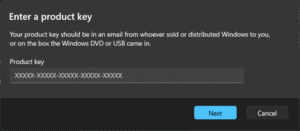
activate windows with product key windows 11 10 03 768x336 1


Step 5: Complete Online Activation

Follow the on-screen instructions to finish activation.  Ensure your PC remains connected to the internet.

Step 6: Verify Activation

Once completed, Windows should display:  “Windows is activated with a digital license.”

Need Assistance?

If activation fails:


  • Take a screenshot showing:

    • Your Windows edition (from the Activation page)

    • The full error message or error code

  • Send the screenshot along with your Order Number to our support team.

We will review the issue and guide you through the solution or provide a replacement key if necessary.

> How to download and install Windows

  • To install Windows on your device, you need a valid product key and a compatible PC. Before starting, make sure your device meets the system requirements for the version of Windows you purchased. You can download Windows directly from Microsoft or use the link we provide after your purchase. After downloading, you can either upgrade your current Windows or do a clean installation.

    1. Check system requirements – Ensure your PC meets the requirements for the Windows version you purchased (e.g., TPM 2.0, disk space, processor).

    2. Download Windows – Use the official download link provided after your purchase. Open the link in a browser like Chrome or Edge.

    3. Prepare installation media (optional) – If you want to install on another device or do a clean install, copy the downloaded file to a USB flash drive.

    4. Run the installer – Double-click the downloaded file (or run it from USB). Follow the on-screen instructions to start installation.

    5. Enter product key – When prompted, type your Windows product key exactly as provided.

    6. Follow setup prompts – Choose upgrade or custom installation, select the drive, and continue. Your PC may restart several times.

    7. Activate Windows – Once installation is complete, go to Settings → System → Activation and make sure Windows is activated with your product key.
    8. activate windows with product key windows 11 10 04 768x457 1

    Need help? – If installation fails or you see errors, take a screenshot and send it to our support team. We will guide you through troubleshooting or provide additional assistance.

> How to Convert Windows Server Evaluation to Full Edition

  • If you installed a Windows Server Evaluation edition, you can convert it to a full licensed edition without reinstalling the OS. This requires a valid product key for the full version. Make sure your server meets the edition requirements and that you have a backup of important data before proceeding.

    1. Check current edition – Open Command Prompt as Administrator and type:

      slmgr /dli

      This will show your current edition and license status.

    2. Enter your full product key – Run Command Prompt as Administrator and type:

      DISM /Online /Set-Edition:ServerStandard /ProductKey:XXXXX-XXXXX-XXXXX-XXXXX-XXXXX /AcceptEula

      Replace ServerStandard with your target edition (ServerDatacenter if applicable) and XXXXX… with your product key.

    3. Wait for conversion – The process may take several minutes. Do not restart the server until the conversion completes.

    4. Restart the server – After completion, restart your server to apply the changes.

    5. Verify activation – After reboot, open Command Prompt and type:

      slmgr /dlv

      This will show the activation status and confirm your server is now a full edition.

    Need help? – If the conversion fails or you see an error, take a screenshot of the error and your current edition and send it to our support team. We will guide you step by step.

> Upgrade Windows 10/11 Home to Pro

  • To upgrade from Windows 11 Home to Pro, you need a valid Windows 11 Pro upgrade key. Before starting, ensure your device:

    • Is running Windows 11 Home

    • Is connected to the internet

    • Has a backup of important files, if necessary

    ⚠ Important

    If you purchase a Windows 11 Pro key and the upgrade fails, or you see an error like:

    “We can’t activate Windows on this device as the product key you entered is not valid. Go to the Store to buy genuine Windows. (0xc004f050)”

    This indicates that the key you are using is not valid for upgrading your current edition.
    Please contact our support team, and we will provide the correct key for your upgrade.

    Step-by-Step Upgrade Instructions

    1. Check Your Current Edition
      Go to Settings → System → About and verify that your device is running Windows 11 Home.

    2. Open Activation Settings
      Navigate to Settings → System → Activation → Upgrade your edition of Windows.

    3. Enter Your Pro Product Key
      Click Change product key and enter your valid Windows 11 Pro key.

    4. Start the Upgrade
      After entering the key, click Next and follow the on-screen instructions.
      Windows will automatically start the upgrade process.

    5. Restart Your PC
      Your computer may restart several times during the upgrade.

    6. Verify Your Windows Edition
      After the upgrade, go back to Settings → System → About and confirm that the edition now shows Windows 11 Pro.

    Need Help?

    If the upgrade fails or you encounter an error:

    1. Take a screenshot of the error message

    2. Include a screenshot of your current Windows edition

    3. Send both screenshots along with your Order Number to our support team

    We will guide you step by step to complete the upgrade successfully.

> Product key is invalid or doesn’t work

  • If you see a message that your Windows product key is invalid or doesn’t work (for example, error code 0xc004f050), this usually means that your Windows edition does not match the product key.

    Example: A Windows 11 Pro key cannot activate Windows 11 Home or Windows 10 Enterprise.

    Step 1: Check Your Current Windows Edition

    1. Press Windows + I to open Settings

    2. Go to System → About

    3. Under Windows specifications → Edition, check your installed version (e.g., Windows 11 Home, Windows 11 Pro)

    Step 2: Verify Your Product Key

    • Make sure the product key you have matches the edition installed on your PC.

    • If your installed edition is different from the one your key was purchased for, the key will not work.

    Step 3: Need Assistance?

    If you have the correct edition installed but your key still does not work:

    1. Take a screenshot showing your Windows edition and the error message

    2. Send it along with your Order Number to our support team

    We will verify your key and provide guidance or a replacement if necessary.

> How do I know if windows 11 is compatible with my PC

Method 1: Use Microsoft’s PC Health Check Tool (Recommended)

  1. Download the PC Health Check tool from Microsoft’s official website.

  2. Install and open the tool.

  3. Click Check now under the Windows 11 section.

  4. The tool will tell you if your PC meets the requirements.

Method 2: Manual Quick Check

  1. Press Windows + R, type msinfo32, and press Enter.

  2. Check the following:

    • Processor: 1 GHz or faster, 64-bit, 2+ cores

    • Installed RAM: 4 GB minimum

    • System Type: 64-bit

    • Secure Boot State: On

    • TPM Version: TPM 2.0

If you’re unsure, take a screenshot of the PC Health Check result or System Information window and send it to us. We’ll confirm compatibility for you.

> How to Take a Screenshot on Windows

  • On Windows

There are several ways to capture your screen depending on what you need:

1. Full Screen

  • Press PrtScn (Print Screen) to capture your entire screen.

  • The image is copied to your clipboard. Open Paint or any image editor, press Ctrl + V, then save the file.

2. Active Window Only

  • Press Alt + PrtScn to capture only the currently active window.

  • Paste it into an image editor and save.

3. Selected Area

  • Press Windows key + Shift + S to open the Snipping Tool overlay.

  • Select the area to capture. The screenshot is copied to your clipboard. Paste into an image editor and save.

4. Automatic Save of Full Screen

  • Press Windows key + PrtScn.

  • The screenshot is automatically saved to Pictures → Screenshots.

5. Using Snipping Tool / Snip & Sketch App

  • Type Capture or Snipping Tool in the Windows search bar.

  • Open the app to take screenshots and save them easily.


  • On Mac

1.Capture Entire Screen

  • Press Command (⌘) + Shift + 3

  • Screenshot is automatically saved to your Desktop.

2. Capture a Selected Area

  • Press Command (⌘) + Shift + 4

  • Drag to select the area you want to capture. Release to take the screenshot.

3. Capture a Specific Window

  • Press Command (⌘) + Shift + 4, then press Spacebar

  • Click the window you want to capture. The screenshot is saved to your Desktop.

4. Using Screenshot App

  • Press Command (⌘) + Shift + 5 to open the Screenshot toolbar

  • Choose to capture the entire screen, a selected window, or a custom area

  • Options allow you to save to Desktop, Clipboard, or another folder

This guide works for Windows 10, Windows 11, and Mac OS 10+.

> How to create a Microsoft account

To use Microsoft products or link a product key, you need a Microsoft account.

  1. Go to https://signup.live.com

  2. Enter your existing email or create a new Outlook email

  3. Choose a password and complete the verification steps

  4. Once your account is ready, you can link your product key and access downloads and subscriptions

Our support team is here to help with orders, activation, and technical issues.

0
Empty Cart Your Cart is Empty!

It looks like you haven't added any items to your cart yet.

Browse Products